 Forefront
Question Types
The ways a question can take its answer — default, checkbox, checklist, star rating, proficiency, measure, and tally marks — and when to use each.
A question’s type decides how it’s answered and displayed: a box to type in, a checkbox, a row of stars, a proficiency ramp, a reading measure, a running tally, or a list of items marked one by one. You pick it in the assessment editor, on the question, from the Question Type menu.
Whatever type you choose, Forefront still stores one number per student per question. That’s what keeps reports, growth, dashboards, report cards, exports and imports working the same way for every type — the type changes how that number is collected and read, not what it is.
Where to find it
- Open the assessment from Resources. If you can edit it, it opens in the assessment editor.
- On the Structure tab, click the question’s pill in the strip across the top.
- Choose a type from Question Type.
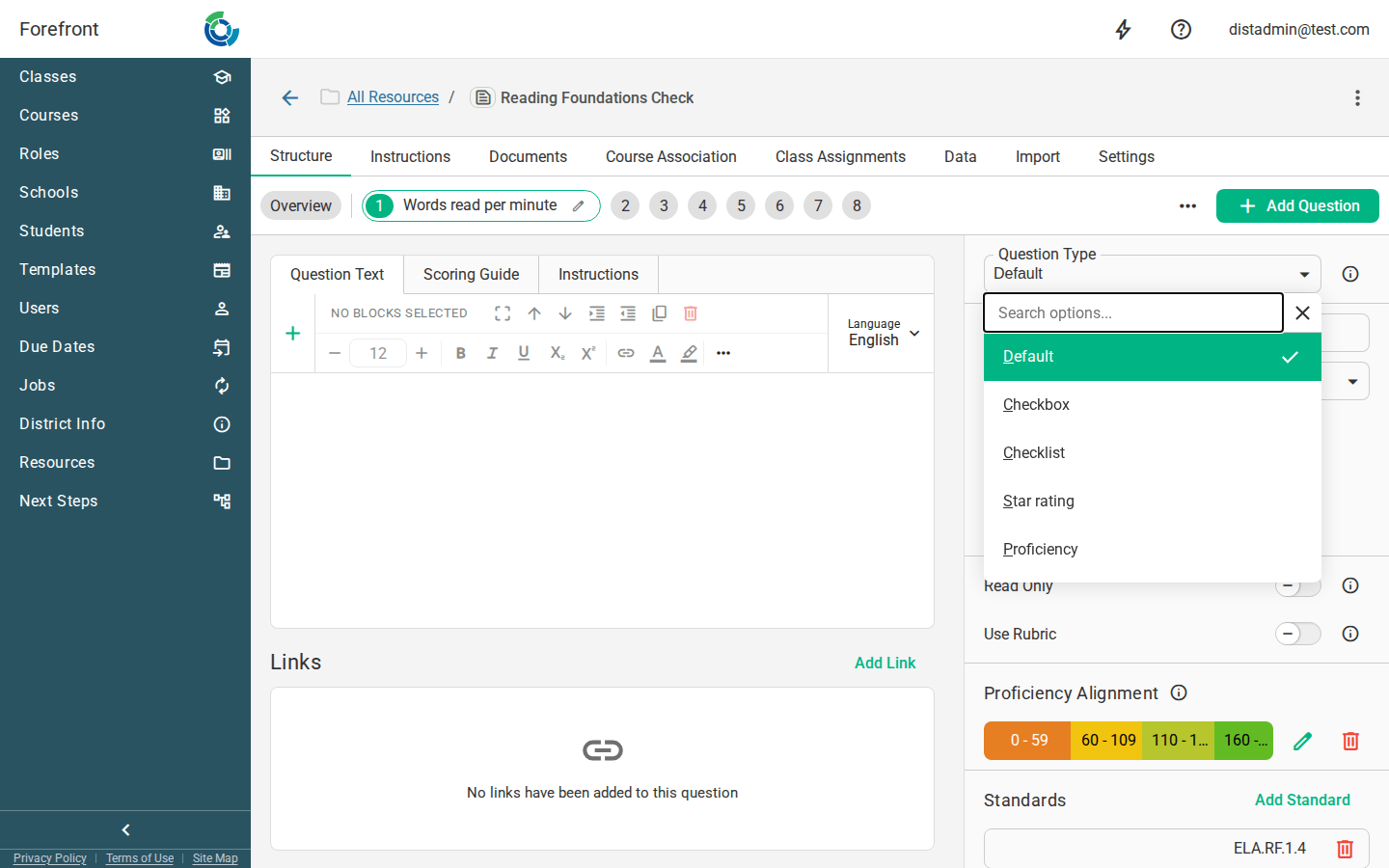
The last choice, Calculated, is different: a calculated question isn’t entered at all, and works out its value from the questions before it. The assessment’s Overall Score is calculated the same way, and is set up in the Assessment Overall section of the Overview rather than on a question.
Two settings beside Question Type work alongside most types rather than replacing them:
- Read Only — for scores that come from somewhere else, usually a data import. The column still looks like its type (stars, a tally), but teachers can’t enter or change it.
- Use Rubric — the teacher chooses a score from a written descriptor for each level, in a Rubric card you fill in. Offered for Default, Checkbox, Tally marks, Star rating and Proficiency. A measure has too many values for a descriptor each, and a checklist’s score is a count of marks.
The types at a glance
| Type | The teacher sees | You configure | Score range |
|---|---|---|---|
| Default | A cell to type a number into | Min, Max, Score Resolution | Whatever you set |
| Checkbox | A checkbox | Nothing | 0–1 |
| Star rating | A row of stars | Number of stars, icon | 1 – number of stars |
| Proficiency | The proficiency ramp as swatches | Which levels are offered | 0 – (levels − 1) |
| Measure (Lexile/Quantile) | A cell that reads in scale units (850L) | Which scale | Fixed by the scale |
| Tally marks | Tally marks, five to a gate | Max | 0 – Max |
| Checklist | A score in the grid; items marked in a popover | Response states, layout, items, scoring | Derived from the scoring |
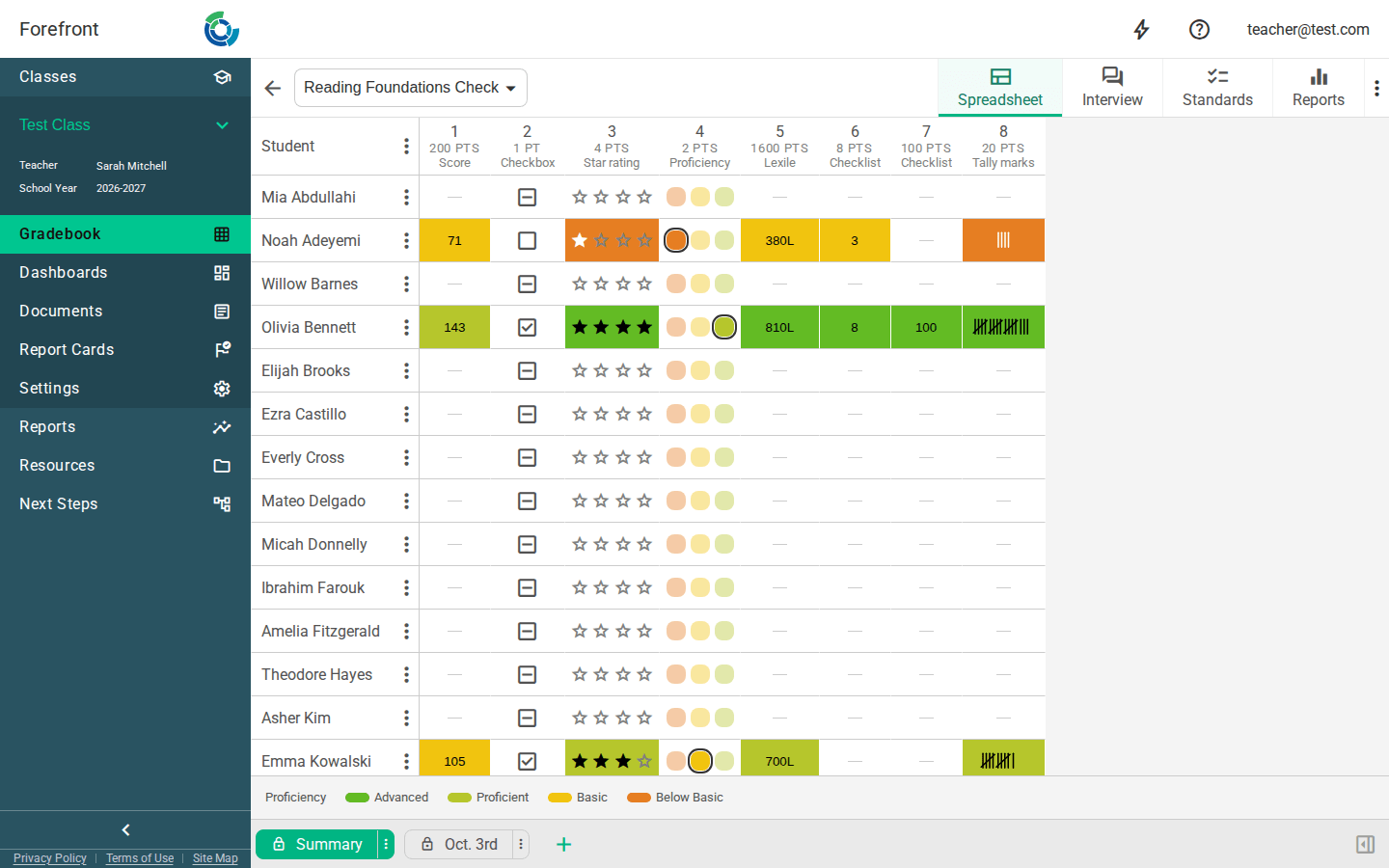
Checkbox, Checklist, Star rating, Proficiency and Measure work out their own score range from the way you configured them, and show you the result under the configuration — “Scores 1 – 5”. That range is what proficiency alignment and score masks then lay out over, so there are no Points fields to keep in step by hand. Default and Tally marks leave the range to you.
Each type also shows a preview of how the question’s cell will look in the spreadsheet, right under its settings.
Default
The classic score cell: the teacher clicks the cell and types a number.
Options
- Min and Max — the range a typed score is checked against. A score outside it is refused in place with “Score out of range”.
- Score Resolution — the smallest step a score can take: Full Points, Half Points, Thirds, Quarters, Fifths, Tenths or Hundredths. A resolution that doesn’t divide your Min and Max evenly isn’t offered.
Use it when the question is worth points and the number is the answer: a 20-point writing rubric total, 0–100 on a unit test, a raw count of words read correctly that you don’t need marked item by item.
This is one of only two types where the range is yours to set (the other is
Tally marks), and the only type that takes a Score Mask. A mask replaces a
score with a label (3 → Circle), and the teacher can type either the number
or the label. That only means something where the score is the thing on screen:
the other types already draw the answer and read out their own text for it, so
the Score Mask card isn’t offered for them.
Checkbox
A fixed two-state question: checked or not.
Options — none.
Checked stores 1; clearing the box clears the score rather than storing a 0, so “not checked” and “not assessed yet” stay distinguishable in reports. Where a score has to be read as text — print, CSV exports, tooltips — a checkbox reads as Yes / No.
Use it when the question is a yes/no observation and a 0 would be misleading: Held the book right side up, Attempted the task, Turned in the reading log.
Star rating
A row of stars the teacher taps.
Options
- Stars — how many stars the row holds (at least 1; 5 by default).
- Icon — the shape used:
Name starthe default favoritea heart circlea plain circle check_circlereads as “got it” rather than “how good”
The score is the number of stars, so a rating steps by whole stars and the range
runs from 1 to the star count. There is no zero-star score: tapping the
currently selected star — or typing 0 — clears the cell instead. With a cell
selected, the number keys set the rating directly (3 = three stars), which
makes a keyboard run down a rating column as quick as one down a typed column. A
digit past the last star does nothing rather than snapping to the maximum.
Use it when you want a quick holistic judgement on a short scale: fluency/expression 1–4, engagement, effort, a hand-scored 1–5 writing trait.
Proficiency
The Forefront proficiency ramp, drawn as swatches in the cell. The teacher picks the level; there is no number to translate.
Options
- Proficiency levels — which of Well Below Basic, Below Basic, Basic, Proficient and Advanced this question offers. Enable only the ones you actually use (a three-level question is common).
The stored score is the position of the chosen level in your enabled list, so the
first level is 0 and the range runs to one less than the number of levels. As
with a rating, the number keys pick by position and 0 clears the cell.
Because the level is the band, a proficiency question has no Proficiency Alignment section — there are no cutoffs to align, and the colour in every report comes straight from the chosen level.
Use it when the teacher’s judgement is already a band and turning it into points would only invite arithmetic on it: standards-based rating scales, observation rubrics, Where is this student on this skill right now?
Measure (Lexile/Quantile)
A “quasi-numeric” question: a number that means something on a named published scale, entered and displayed in that scale’s own units.
Options
- Measure — Lexile or Quantile.
Everything else about the scale is fixed, so it can’t drift between entry, display and reporting:
| Scale | Range | Step | Reads as | Below zero |
|---|---|---|---|---|
| Lexile | −400 to 1600 | 5 | 850L | BR100L (Beginning Reader) |
| Quantile | −1000 to 1600 | 5 | 850Q | EM100Q (Emerging) |
Entry is forgiving: 850, 850L and br100l are all accepted, in any case,
with or without the unit. A value off the scale is refused in place with the
scale’s own bounds in the message.
What a measure means is still yours to set. Lexile and Quantile bands are grade-relative, so a measure question bands through the question’s own Proficiency Alignment cutoffs exactly like every other type — Forefront deliberately ships no absolute table of thresholds that would be wrong for most of your students.
Use it when the value comes from a measured reading or maths scale and should read that way everywhere: a Lexile from a reading inventory, a Quantile from a maths screener.
Tally marks
A count kept as tally marks — four uprights and a slash, five to a gate — so the teacher can add to it as things happen instead of counting up at the end.
Options
- Max — the most marks a tally can hold. There’s no minimum: a tally always starts from nothing.
Marking, for the teacher
- Click the cell to add a mark. Press and hold (or right-click) to take one off.
- With the cell selected, + and − count up and down from the keyboard.
- Taking off the last mark clears the cell rather than storing a 0, so “no marks yet” and “not assessed yet” stay distinguishable in reports, as with a checkbox.
- A tally can’t go past Max; trying says it’s already at the maximum.
- Past 20 marks the cell shows the count as a number, since the marks would be too small to read.
Use it when you’re counting events during an observation or a timed task: sight words read, times the student self-corrected, prompts needed, words read in a minute while you listen.
Checklist
The type for questions that are really a list of small marks: sounds, letters, words, steps. The teacher marks each item, and Forefront works out the score from the marks.
In the spreadsheet the cell shows the resulting score, so a checklist column scans like any other. Click the cell (or press Enter on it) to open the marking popover. In the Interview view the items are marked inline on the card.
Options
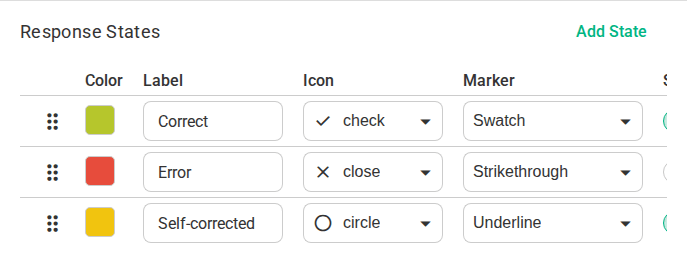
Response States — the marks an item can take. Each state has:
- Label — what it’s called, and what scoring formulas refer to it by.
- Color — chosen from the Forefront proficiency ramp plus a few complementary colours, so it re-themes with the app.
- Icon — a small glyph shown on the item, from a short curated set:
check,close,circle,star,flag,priority_high,removeandhelp. - Marker — how the mark is drawn: Swatch (a filled tile, for grids), or Underline, Strikethrough and Highlight, which mark a word in place in a passage.
- Points or Scores, depending on the Scoring below. With the
Builder, Points is what an item in this state is worth. With a
Custom formula, Scores is a toggle for whether items in this state
count toward
SCORED().
A new checklist starts with a scoring Correct state and a non-scoring Incorrect state, and scores as the count of correct items, so it works before you touch anything.
The order of the states matters. Marking an item taps through them in the order they’re listed — unmarked, then each state in turn, then back to unmarked — and that’s also the order of the legend and of the “mark everything after this one” menu. Put the state the teacher reaches for most at the top: one tap instead of two, on every item, forever.
To reorder, drag a row by its handle, or use Move Up / Move Down from the row’s ⋮ menu (also on right-click). Reordering is safe on a live question: scores already entered are stored against the state itself, not its position, and scoring formulas name states by label — so nothing is re-interpreted by the move.
Arrangement — how the items are laid out:
- Grid — discrete items aligned into columns, built as a list you add to, rename and drag into order.
- Sentence — a passage, edited as text in one box (Edit Passage), where each word becomes an item so the teacher can mark the words in place while the student reads connected text. This is where the underline/strikethrough/highlight markers earn their keep.
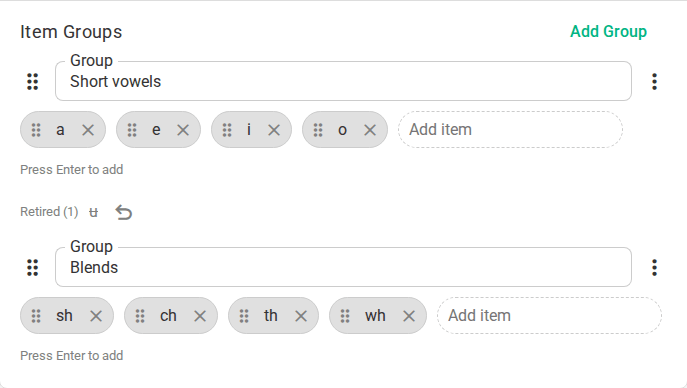
Item Groups (grid arrangement) — one list of items per group. Groups are what the
COUNTINandWHOLEGROUPSscoring functions work over — for example one group per nonsense word, so “whole words read” is countable. A second group gains a name to tell it from the first.Scoring — how the marks collapse to a number:
- Builder — give each response state a point value; the score is the weighted count of items in each state. One point per correct item is the default.
- Custom formula — write the scoring yourself. See Scoring Formulas.
The items keep their identity
A student’s marks are stored against the items, not against “the third box”, and that’s true from the moment an item is created. So editing a question later can’t move a class’s marks onto the wrong item — which it used to, silently, if you inserted a word into the middle of a passage.
What that means in the editor:
- Rename an item and it stays the same item: every mark already on it still belongs to it.
- Reorder the items freely: drag a chip by its handle, or from the keyboard press Space on the handle, move it with the arrow keys, and press Escape to drop it. Order is presentation; nothing is re-pointed.
- Add an item and it goes on the end. Nothing else shifts.
- Remove an item and it is retired, not thrown away: it disappears from marking, but marks already made on it are kept and stay readable. Retired items are listed under Retired, and one click brings any of them back — with its marks.
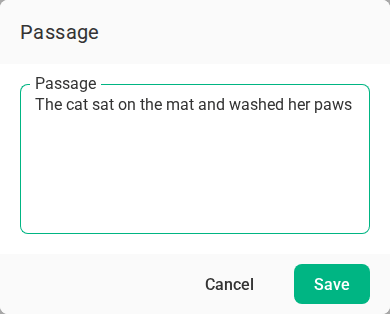
Editing a passage works the same way, even though you type it as text: press Edit Passage, edit the whole passage in one box, and Forefront matches what you typed back onto the words that are already there. Words you left alone keep their identity, new words are added, and words you removed are retired. There’s no state to lock and nothing to remember.
A retired item leaves scoring: TOTAL(), ATTEMPTED(), COUNT() and
SCORED() count only the live items, so the score is of the question as it stands
now rather than as it once was. Scores already stored don’t silently change — each
entry is recalculated the next time it’s saved.
Every set of marks also records which version of the question it was entered against, which is what lets support tell “the teacher left this blank” apart from “this item didn’t exist yet”.
Marking, for the teacher
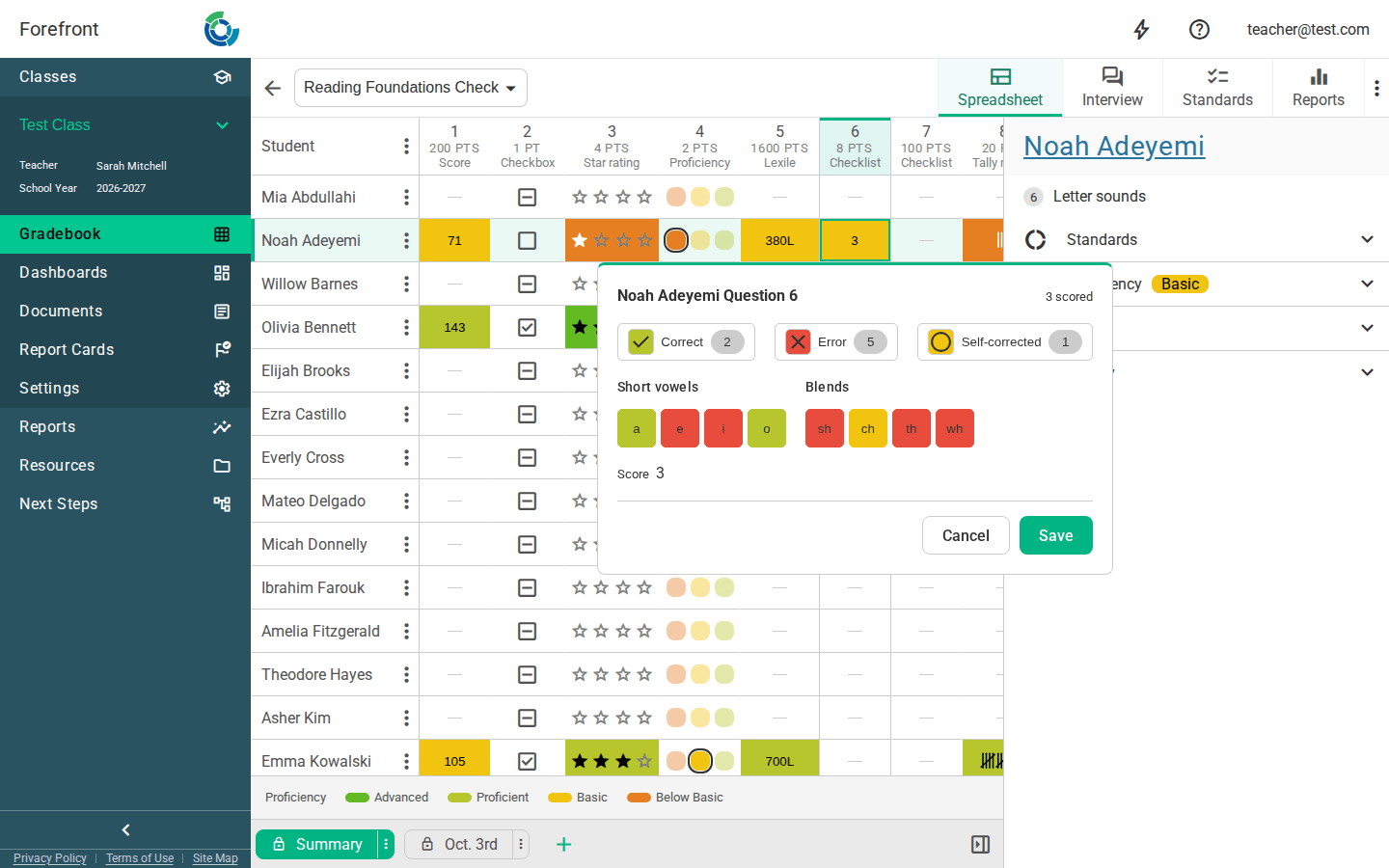
- Tap an item to cycle it: unmarked → each state in turn → unmarked. Focused items cycle with Enter or Space, so the whole list is keyboard-workable.
- The legend lists the states with live counts as you mark.
- Mark all / Clear act on the whole list.
- Right-click an item for “mark every item after this one as …” — the fast way to stop a running record at the point the student stopped.
Use it when the score is a count of small marks: DIBELS-style nonsense-word fluency or letter-sound checks, letter naming, phoneme inventories, running records over a passage, multi-step tasks scored step by step.
What every type shares
- Proficiency Alignment — the cutoffs that turn a score into a band and colour it. Available for every type except Proficiency, which is already a band.
- Read Only works with every type, and Use Rubric with every type except Measure and Checklist (see Where to find it).
- Scoring Guide, Question Text, Standards, Links, Files and Instructions work the same regardless of type.
- Notes — press N on a selected cell to add a note for that student and question.
- Set scores to — the gradebook’s bulk fill offers one value for a row or a sheet. It works for every type that has a single value to set, which is all of them except Checklist (marked item by item, so there’s nothing single to fill).
Changing the type of a live question
Switching types changes how existing scores are read, because the stored number is reinterpreted by the new type — 3 is “3 points” as a default question, three stars as a rating, and the fourth enabled level as a proficiency.
Switching can also change the question’s scoring, and switching back afterwards does not restore it:
- The score range moves to whatever the new type implies — a 4-star rating becomes 1–4, a checkbox 0–1.
- The proficiency bands are rescaled to fit the new range. If the new range can’t hold them all (a checkbox has room for two), the extra bands are dropped.
- Moving away from Default discards any Score Mask. That’s deliberate rather than tidy-up: a mask is applied by everything that displays a score — reports, exports, printed handouts — so one kept out of sight would go on replacing scores with labels with nothing in the editor to show it was there.
When a switch would change any of these, Forefront lists exactly what will change and asks first: Switch Type goes ahead, Keep Current Type leaves the question as it was. A question that has nothing set up yet switches straight away.
If a question already holds data across classes, prefer adding a new question to re-pointing an old one, and check a class’s existing scores after any switch.
See also
- Scoring Formulas — the formula language behind checklist scoring.
- Assessment Spreadsheet — what entering these scores looks like for a teacher.
- How to create or modify a custom assessment — building the assessment the questions live in.