 Forefront
Class Dashboards
Class-level dashboards and their configuration.
The Class Dashboards page collects the saved reports and dashboards that apply to a class into one place, so you can flip between different views of your students’ data without rebuilding a report each time.
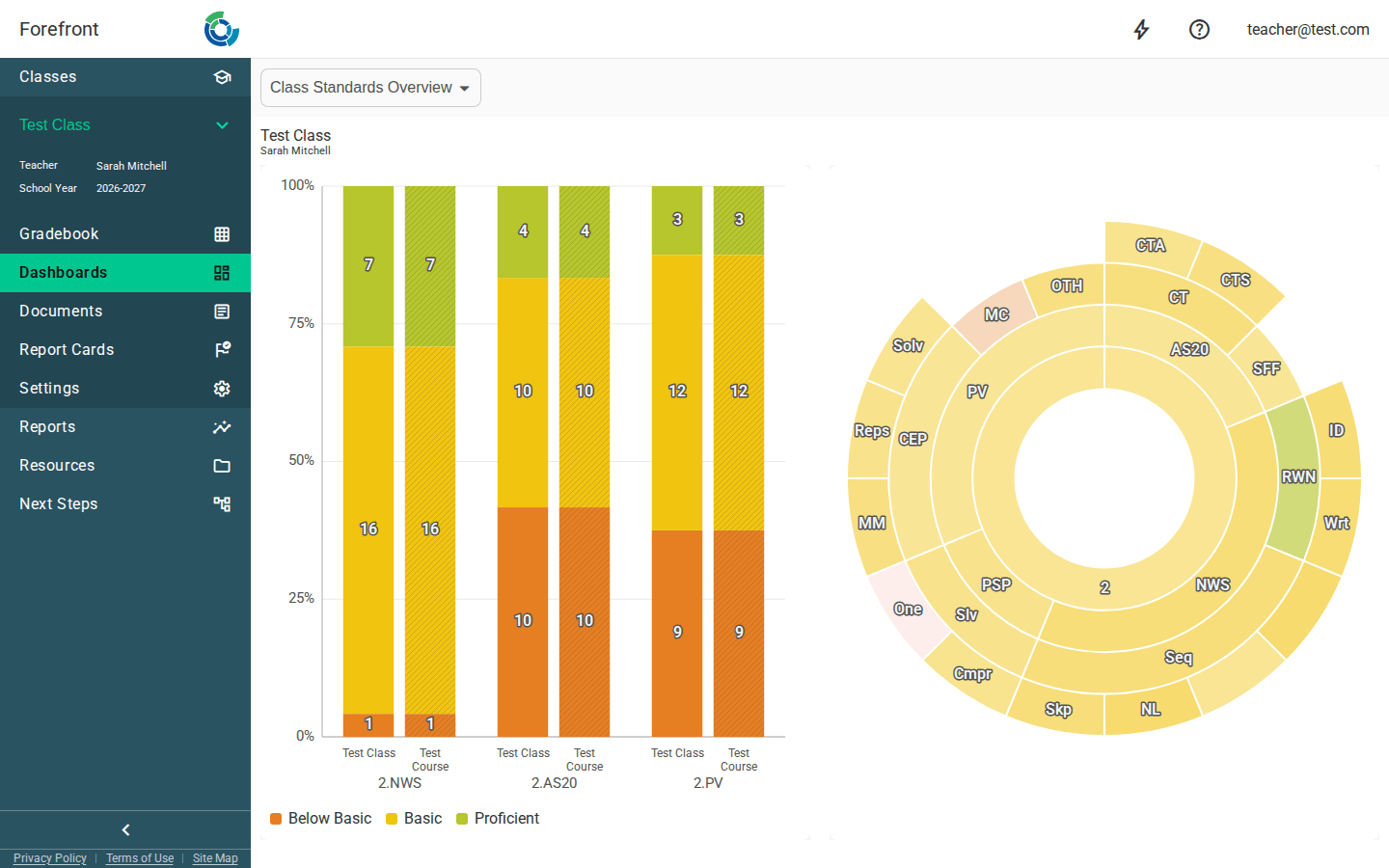
Choosing a dashboard
The available dashboards are listed at the top of the page, grouped by the level they belong to — Class, Course, School, District, or Student. Pick one and its contents render below.
On wider screens the dashboards appear as a list you can click through; on narrower screens the same choices collapse into a single dropdown. Either way, the first dashboard is selected for you automatically when the page loads.
Reading a dashboard
Once a dashboard is selected, its tiles render in the area below the picker — each dashboard is a saved arrangement of charts and tables built from the class’s data. Switching to another dashboard swaps the view instantly.
Term
Class dashboards are pinned to the class’s own term, so there’s no term picker to worry about here — every dashboard reflects the term this class is taught in.
When no dashboards are available
If there are no dashboards for the class yet, the page shows a “No dashboards are available.” placeholder. From there you can build your own view by clicking Create New Report in the top left to start exploring the data directly.