 Forefront
Class Guardians
Viewing and managing guardian contacts for students in the class.
The Guardians page shows, for every student in the class, which family guardians have signed up to follow along — along with how recently they’ve logged in and what they’ve been reading. It’s also where you hand out the sign-up codes that connect a new guardian to a student.
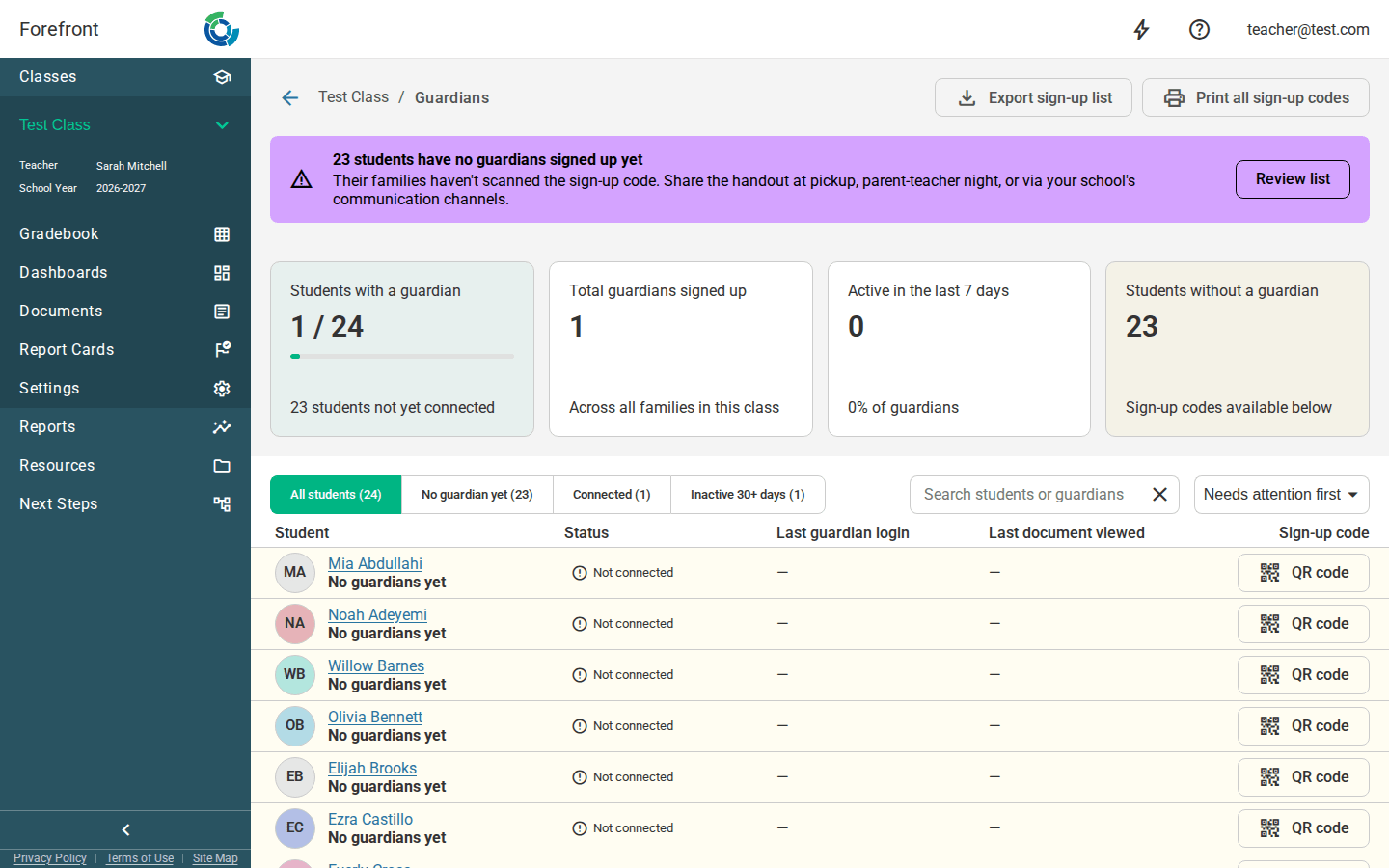
At-a-glance summary
Across the top of the page, four stat cards summarize the class:
- Students with a guardian — how many of your students have at least one guardian signed up (with a progress bar and a count of who’s not yet connected).
- Total guardians signed up — the total number of guardians across all families in this class.
- Active in the last 7 days — how many guardians have logged in recently, and what percentage of all guardians that is.
- Students without a guardian — how many students still have no guardian connected.
If any students still have no guardian, a highlighted banner appears above the cards with a Review list button that jumps straight to those students.
The guardian table
The main table has one row per student, showing:
- Student — the student’s name (a link to their student pages) and how many guardians are signed up.
- Status — a Connected or Not connected chip.
- Last guardian login — the most recent time any of that student’s guardians logged in (a — means never / not available).
- Last document viewed — the most recent handout a guardian opened, shown as a chip that links to that document.
- Sign-up code — a QR code button (see below).
Click the chevron (›) at the start of a student’s row to expand it and see each individual guardian — their name, email, last login, last document viewed, and the date they signed up.
Finding and ordering students
- Filter buttons at the top let you narrow the list to All students, No guardian yet, Connected, or Inactive 30+ days. Each button shows a live count.
- Search students or guardians — the search box matches on student name, guardian name, or guardian email.
- Sort — choose Needs attention first (students with no guardian, then inactive ones, come to the top) or Student name · A–Z.
Sign-up codes
Guardians connect to a student by scanning that student’s sign-up code.
- Click the QR code button on any student’s row to open the sign-up code for that student. Share it at pickup, parent-teacher night, or through your school’s communication channels — anyone who scans it can join that student’s family.
- Print all sign-up codes (top of the page) opens a printable handout with every student’s code, ready to hand out.
- Export sign-up list (top of the page) downloads a CSV of the students who don’t have a guardian yet, along with each one’s sign-up link. This button is disabled once every student is connected.
When the list is empty
If no students match your current filters or search, the page shows a “No students match those filters.” placeholder — clear the search or switch back to All students to see everyone again.