 Forefront
Class Report Cards
Generating and reviewing report cards for the class.
The Report Cards page is where you review and finalize a class’s report card for a grading period. It shows each student’s proficiency on every report card column, lets you accept or adjust those marks, and produces the files you send home to families.
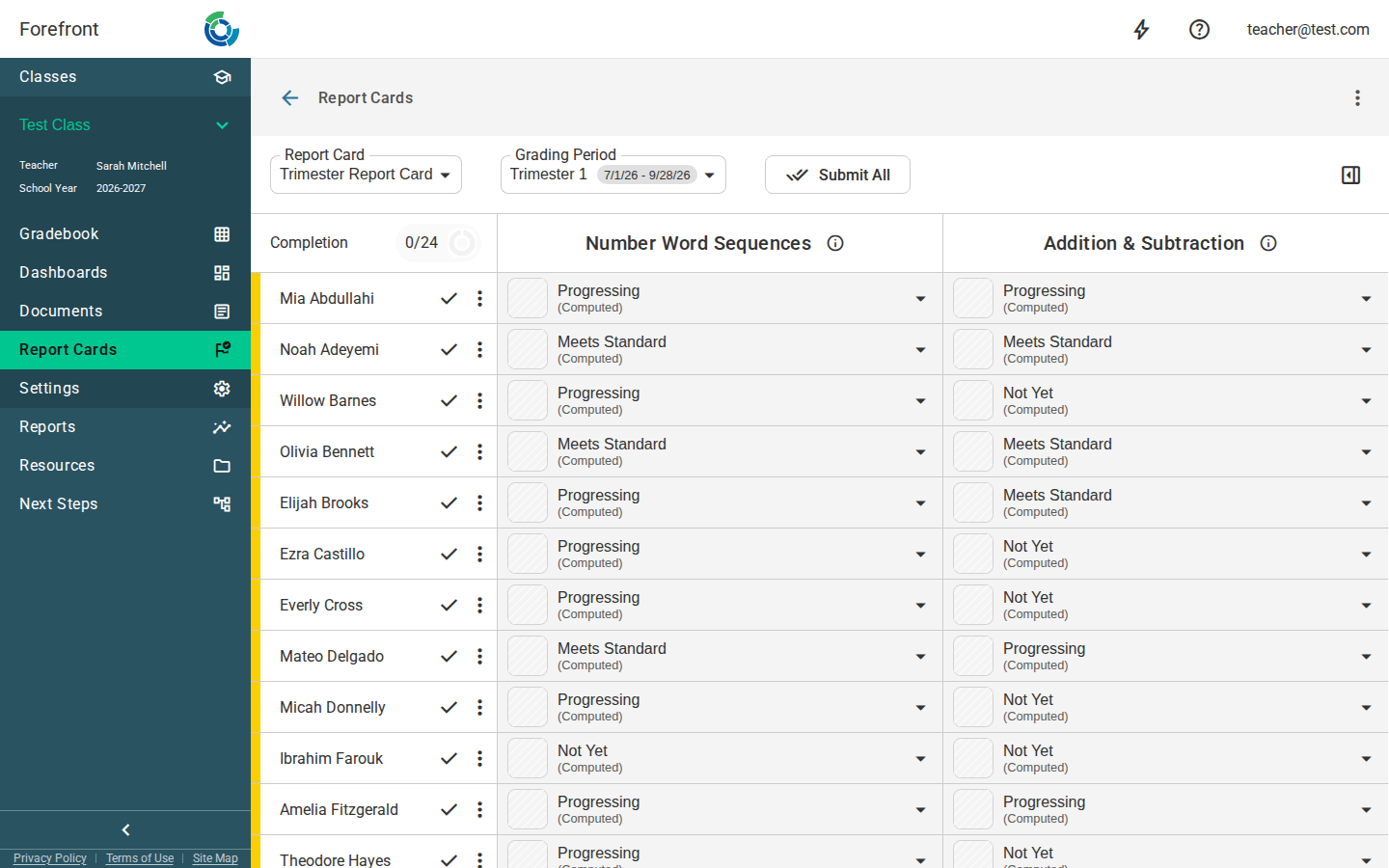
Choosing the report card and grading period
Two dropdowns at the top of the page drive what you’re looking at:
- Report Card — pick which report card to work on. The term it belongs to is shown as a tag next to its name. Report cards that have no grading periods set up yet are listed but can’t be selected.
- Grading Period — pick which grading period within that report card you’re finalizing. Each period shows its due date, and the page opens to the period whose date is closest to today.
Reading the grid
Students are listed down the left; each report card column runs across the top. A column header shows the column’s name, the standards it’s built from (hover a standard for its full description), and an optional description.
Each cell shows the student’s proficiency for that column:
- A (Computed) mark is the proficiency Forefront calculated from the student’s evidence. It hasn’t been accepted yet, so it still reads as pending.
- Once you accept a mark (or override it), the cell shows the accepted proficiency instead.
Reviewing and overriding a mark
Click any cell to open the proficiency detail. There you can:
- See the Calculated Proficiency alongside the Accepted Proficiency you choose from the dropdown (the district controls which proficiency values are available, plus Not Assessed).
- Read the Body of Evidence — the assessments and scores that contributed to that column’s standards. If nothing contributed, you’ll see “No assessments could be found that contribute to this report card column.”
- Add Notes for family that go out with the report card. A cell with a note shows a comment icon so you can spot it at a glance.
Accepting report cards
Each student row has an Accept button that locks in the current marks for that student across every column. Once accepted, the button turns into Unaccept, which reverts the row back to computed values.
If any computed mark falls outside the range your district allows, those cells are skipped during Accept and a message tells you how many need a valid proficiency picked by hand.
The completion ring next to the student list tracks your progress — for example 12/30 Complete — counting how many students have a fully accepted report card out of those eligible.
Exporting
Use the Export menu to produce files:
- CSV — a spreadsheet of every student’s proficiency per column. Toggle Include descriptions to add each column’s description as a row.
- Report card documents — any documents attached to the report card or grading period. For each one you can turn on Merge into single file and choose a Filename format (student first/last name, or student ID) before exporting. These generate as a background job.
When the page looks empty
If a report card can’t be shown, the page displays a placeholder explaining why:
- “This classes course has no report cards for this term” — the course attached to this class has no report card configured for its term.
- “Configuration error - Report card grading periods have not been created” — a report card exists but has no grading periods yet.
- “Unable to load report cards” / “Unable to load report card” — the data couldn’t be loaded; try reloading. If it persists, contact your district manager.