 Forefront
Class Setup
Setting up a class: students, curricula, and configuration.
The Class Setup page is the short wizard you complete when a class is first created. It walks you through placing the class in a course, choosing which of that course’s curricula are active, and naming the class — everything the class needs before you can start teaching with it.
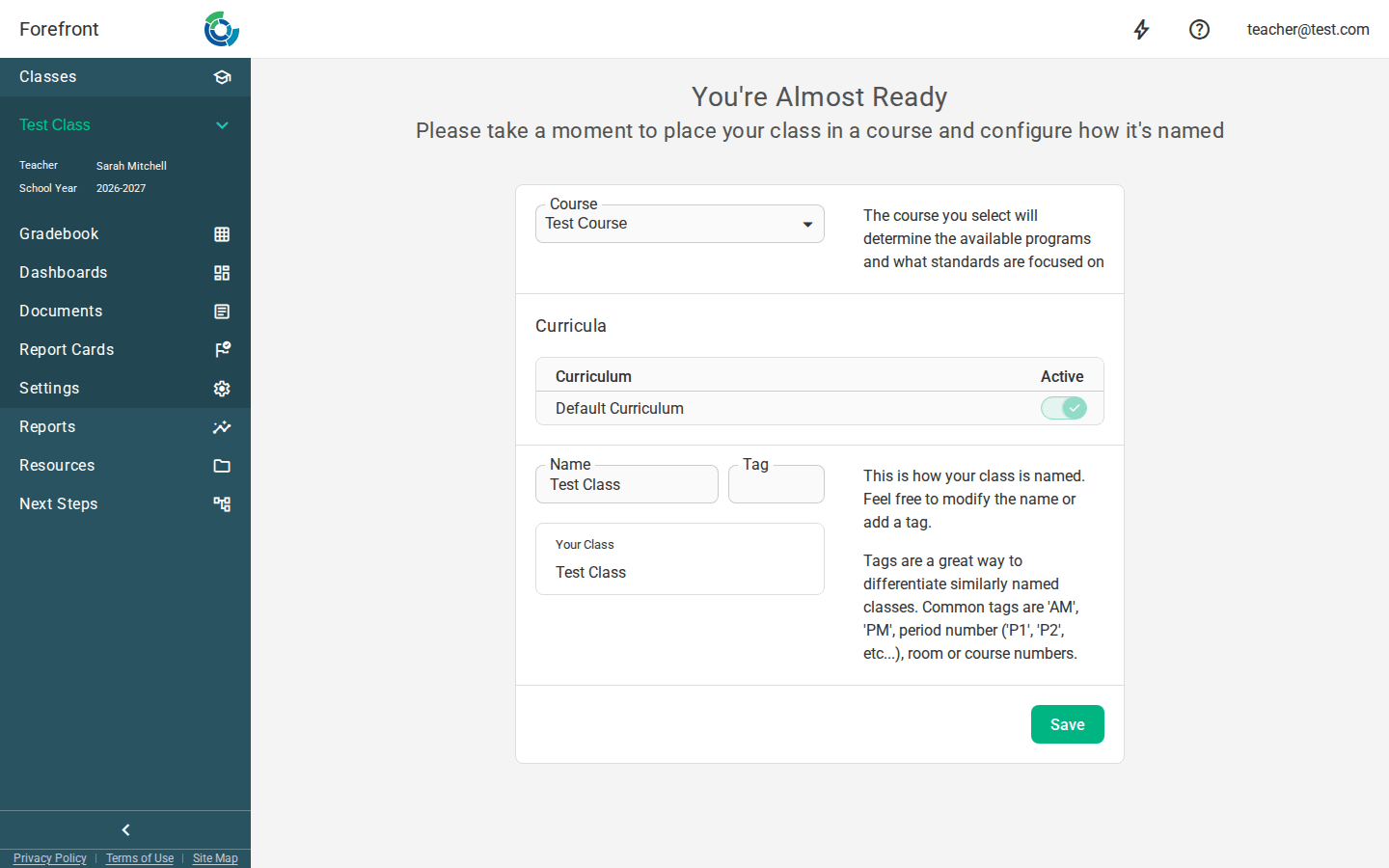
Choosing a course
The Course section has a single dropdown. The course you pick determines the available programs and which standards the class focuses on. Once a course is selected, the Curriculum section below expands to show that course’s curricula.
Turning curricula on and off
The Curriculum table lists every curriculum that belongs to the selected course, with an Active toggle on each row. Turn a curriculum on to make it available in the class, or off to hide it. At least one curriculum must stay active — the last remaining active toggle is locked on so you can’t switch them all off.
If the course hasn’t been fully configured, this section shows a warning instead: “This course has not been fully set up. Please select a different course or wait for its setup to be finished.” Pick a different course, or wait for a district manager to finish setting that one up.
Naming the class
The Class Name section has two fields:
- Name — what the class is called throughout the site.
- Tag — an optional short label (up to 8 characters). Tags are handy for telling apart similarly named classes; common ones are AM, PM, a period number (P1, P2), or a room or course number.
A live Your Class preview shows exactly how the name and tag will appear elsewhere in the app as you type.
Saving
Click Save to finish setup. The button stays disabled until the class has a course, a name, and at least one active curriculum. When you save, you’ll see a “Your class is now configured” confirmation and land on the class’s main page.
While the page loads
Until the class details finish loading, the page shows a loading spinner. Once loaded, the setup steps appear under the “You’re Almost Ready” heading.