 Forefront
Classes Management
Viewing and managing all classes in the district.
The Class Management page is the district-wide view of every class. From here you can search across all classes, create new ones, and merge, delete, or restore classes in bulk.
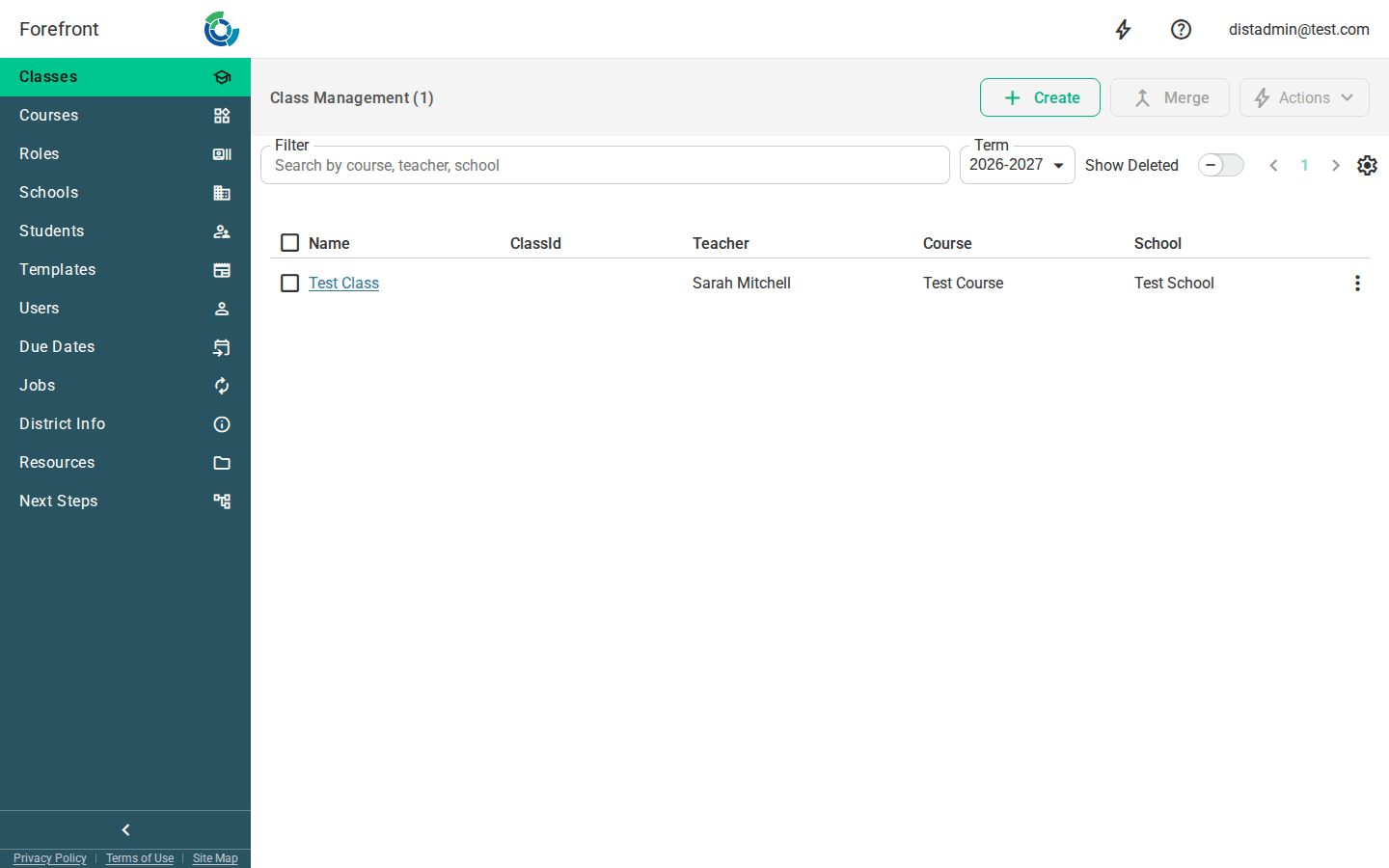
The class list
Classes are shown in a table with one row per class and these columns:
- Name — the class name (or its course name if it has none). A tag chip appears next to the name when the class has one. Click a name to open that class.
- ClassId — the class’s identifier from your roster/import.
- Teacher — the primary teacher, or No Primary Teacher if none is set.
- Course — the attached course, or No Course.
- School — the school the class belongs to.
The page title shows the total number of classes matching your current search.
Searching and filtering
- Filter — the search box at the top narrows the list as you type. It matches on course, teacher, and school.
- Term — the term dropdown controls which term’s classes are listed. It defaults to the most recent term. Changing the term reloads the list.
- Pager — use the pager to move through pages of results when there are more classes than fit on one page.
Creating a class
Use the Create button to open the new-class dialog. When you finish, you’re taken straight to the new class’s page.
Selecting classes
Each row has a checkbox, and the header checkbox selects or clears every class on the current page. Selecting classes enables the bulk actions (Merge and Actions) described below.
Merging classes
Select two or more classes and click Merge to combine them. The merge dialog asks which class to keep; the others are merged into it and removed from the list. The Merge button stays disabled until at least two classes are selected.
Bulk actions
The Actions menu applies to your current selection and is disabled when nothing is selected:
- Delete Selected / Restore Selected — the primary action flips depending on the Show Deleted toggle: it deletes the selected classes when you’re viewing live classes, and restores them when you’re viewing deleted ones.
- Clear Selected — clears the current selection without changing any classes.
Each individual row also has an options menu (⋮) with a single Delete action (or Restore when viewing deleted classes).
Showing and restoring deleted classes
Deleting a class is a soft delete — it can be recovered. Turn on the Show Deleted toggle to list soft-deleted classes instead of live ones. In this view, the row and bulk actions become Restore, letting you bring classes back. Switching the toggle clears your current selection before reloading the list.
When the list is empty
If no classes match your current search, term, or Show Deleted setting, the table shows a No Classes Found placeholder. Adjust the filter, pick a different term, or toggle Show Deleted to see more.
More about this page
- Add Student Accounts Manually — adding a student to a class from here.
- How to Create New Classes or Groups
- How Do I Modify Class Names?
- How to Share Classes
- Fixing Duplicate Students, Users, or Classes