 Forefront
Courses Management
Managing courses, and their curricula and report cards.
The Course Management page is where district administrators manage every course in the district. From here you can create, import, edit, enable, merge, and delete courses, and open any course to configure its curricula and report cards.
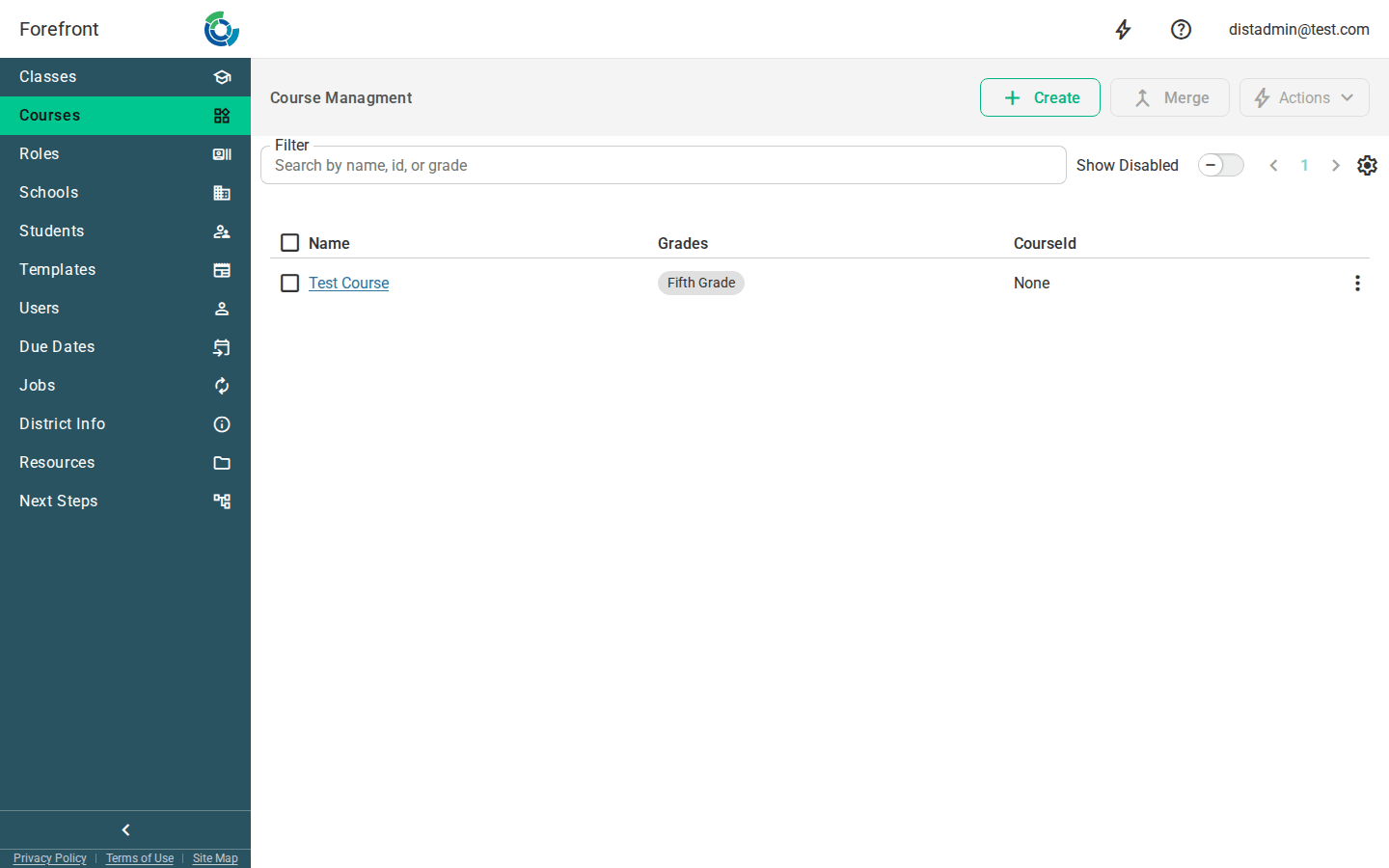
Finding courses
Use the Filter box at the top to search courses by name, id, or grade. Results update as you type. Courses are listed in a table sorted by grade level, with a Pager for moving through pages when the district has many courses.
The course table
Each row represents a course and shows:
- Name — the course name, which is a link. Click it to open that course and manage its curricula and report cards.
- Grades — the grade levels the course covers, shown as chips.
- CourseId — any external/system course identifiers attached to the course.
The leftmost column holds a selection checkbox for each row (used by the bulk actions below), and the rightmost column holds a per-row options menu.
Creating a course
Click Create to open the new-course dialog. Enter a Name and pick one or more Grades, then click Create. After it’s created you’re taken straight to the new course so you can set up its curricula.
Importing courses
Click Import to bring in courses (and their curricula) from a template district. This control is only available to superuser/support users.
Enabling and disabling courses
Every course is either enabled or disabled. Disabled courses are hidden from the list by default; turn on the Show Disabled toggle to include them (disabled rows appear dimmed). To change a single course’s state, open its row options menu (⋮) and use the Enabled toggle.
Deleting a course
Open a course’s row options menu (⋮) and choose Delete to remove it. The Delete action is styled in red to signal it’s destructive.
Bulk actions
Select courses using the row checkboxes (or the header checkbox to select every course on the page), then use the toolbar controls:
- Actions menu — Enable Selected, Disable Selected, and Clear Selected. This menu is disabled until at least one course is selected.
- Merge — combine the selected courses into one. Merge is enabled once two or more courses are selected. In the merge dialog you choose which course to keep; the others are folded into it and removed from the list.
When the list is empty
If no courses match your current filter (or the district has none yet), the table shows a “No Courses Found” placeholder. Clear or adjust the Filter, or toggle Show Disabled, to see more results.