 Forefront
Curriculum Editor
Editing a course curriculum: structure, programs, parts, and standards.
The Curriculum Editor is where you build out a single curriculum for a course — its standards lenses, its assessments, and its documents. Everything you configure here defines what teachers see in the gradebook and what the reports draw from, so it’s the central place to shape a course’s structure.
Naming and saving the curriculum
The top bar shows the curriculum’s name and term (for example, Grade 3 Math (2025–2026)) and, above it, a link back to the parent course. Click the name to Rename Curriculum, or use the same option from the actions menu (⋮).
Edits you make on this page are held until you save them. The Save button becomes active as soon as there are unsaved changes; click it to write your changes back. If a save fails, an error message explains why.
Deleting the curriculum
The actions menu (⋮) next to Save includes Delete Curriculum. Because this is permanent, it asks you to confirm with Delete Permanently before removing the curriculum and returning you to the course.
Standards Lenses
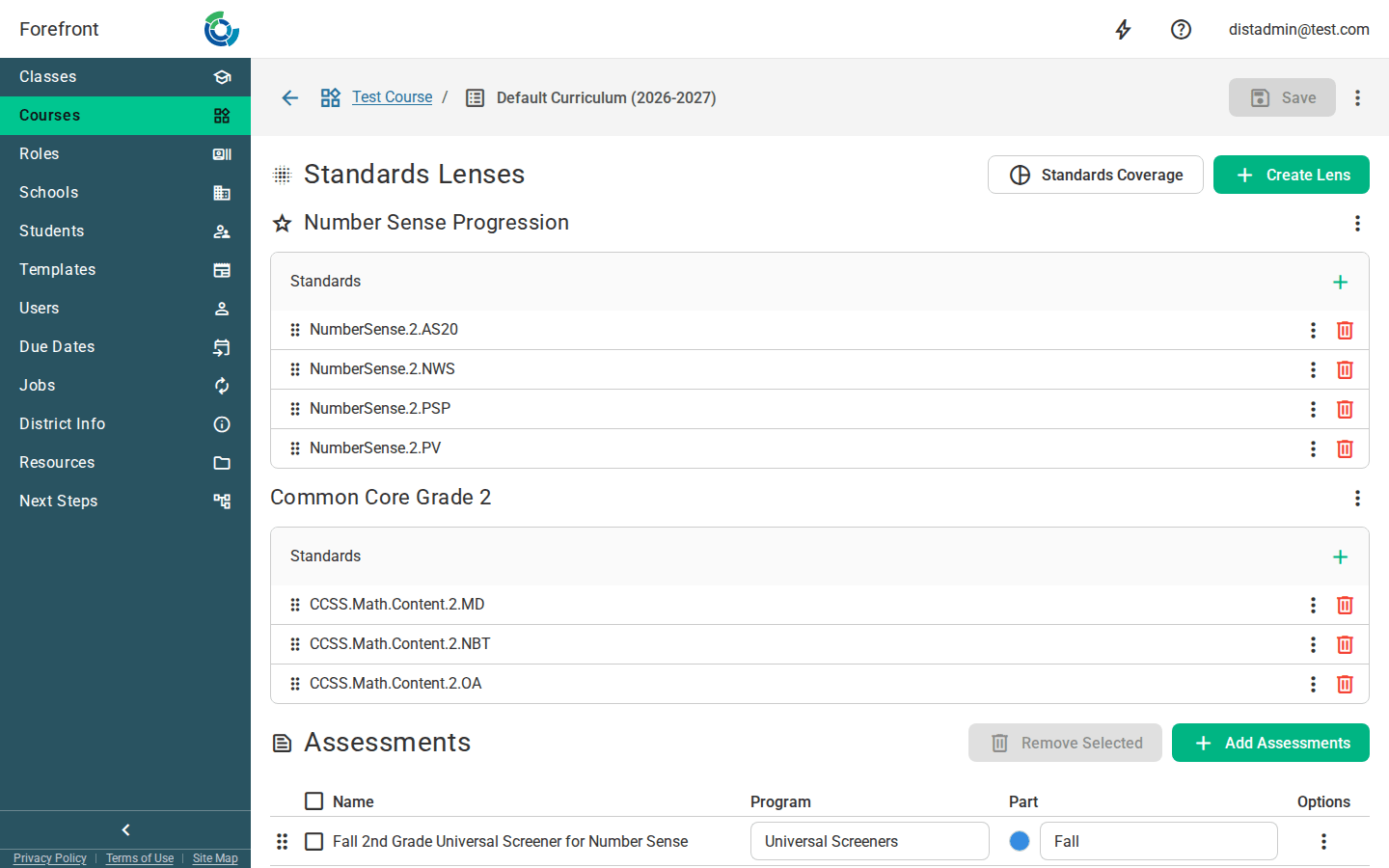
A lens is a named set of standards — for example, Common Core, Priority Standards, or DIBELS. Lens names appear to teachers in the gradebook and the student wheel view, and a course can have several. This section lists each lens with its standards.
- Create Lens adds a new lens. You’ll name it (a prompt with examples is shown) and then add standards to it.
- The first lens is the default and is marked with a ⭐.
- Each standard list has an Add Standards control (+) that opens a picker; selected standards are added to that lens. Standards in a lens can be reordered by dragging and removed individually.
Each lens has its own actions menu (⋮):
- Move Up / Move Down — reorder the lens among the others.
- Rename Lens — change the lens name.
- Set As Default — move this lens to the top so it becomes the default.
- Configure Sunburst Appearance — set how this lens’s standards render in the sunburst/wheel visualization.
- Delete Lens — remove the lens.
Standards Coverage
The Standards Coverage button (next to Create Lens) opens a report showing which standards the curriculum’s assessments actually cover. It’s available only once the curriculum has at least one assessment.
Assessments
The Assessments section lists the assessments attached to the curriculum in a table you can reorder by dragging rows. Columns are:
- Name — the assessment’s name.
- Program — an editable text field (with autocomplete from programs already in use) used to group assessments.
- Part — an editable text field (also autocompleting) with a colored dot that groups assessments by part/program combination.
- Options — the row’s actions menu.
Use Add Assessments to pick assessment resources and add them to the curriculum. Each row’s menu (⋮) offers:
- Move Up / Move Down — reorder the assessment.
- Open Assessment — open the underlying assessment resource in a new window.
- Exclude — a toggle that excludes the assessment from calculations by default. Excluded rows are shown with a distinct background.
- Remove Assessment — remove it from the curriculum.
Bulk removal. Use the checkbox in each row (or the header checkbox to Select All) to select assessments, then click Remove Selected to remove them all at once. Remove Selected is disabled until something is selected.
Documents
The Documents section works like Assessments but for documents and handouts. An icon in each row indicates whether the item is a document or a handout. Columns are:
- Name — the document or handout’s name.
- Folder — an editable, autocompleting text field for grouping.
- Sub-Folder — an editable, autocompleting text field with a colored dot.
- Options — the row’s actions menu.
Use Add Documents to add document and handout resources. Each row’s menu (⋮) offers:
- Move Up / Move Down — reorder the item.
- Open Document — open the underlying resource in a new window.
- Remove Document — remove it from the curriculum.
Like assessments, documents can be reordered by dragging, and selected with the row checkboxes (or the header Select All) and removed together with Remove Selected.
When a section is empty
Each section shows a placeholder until you add to it: No Lenses Yet, No Assessments Yet, or No Documents Yet. A lens with no standards shows No Standards Selected. Add the corresponding item using that section’s Create or Add button and the placeholder is replaced by the list.