 Forefront
Due Dates
Managing report-card due dates / grading periods.
The Due Dates page is where district administrators manage report-card grading periods — named schedules that set the begin and end date of the grading window for each term.
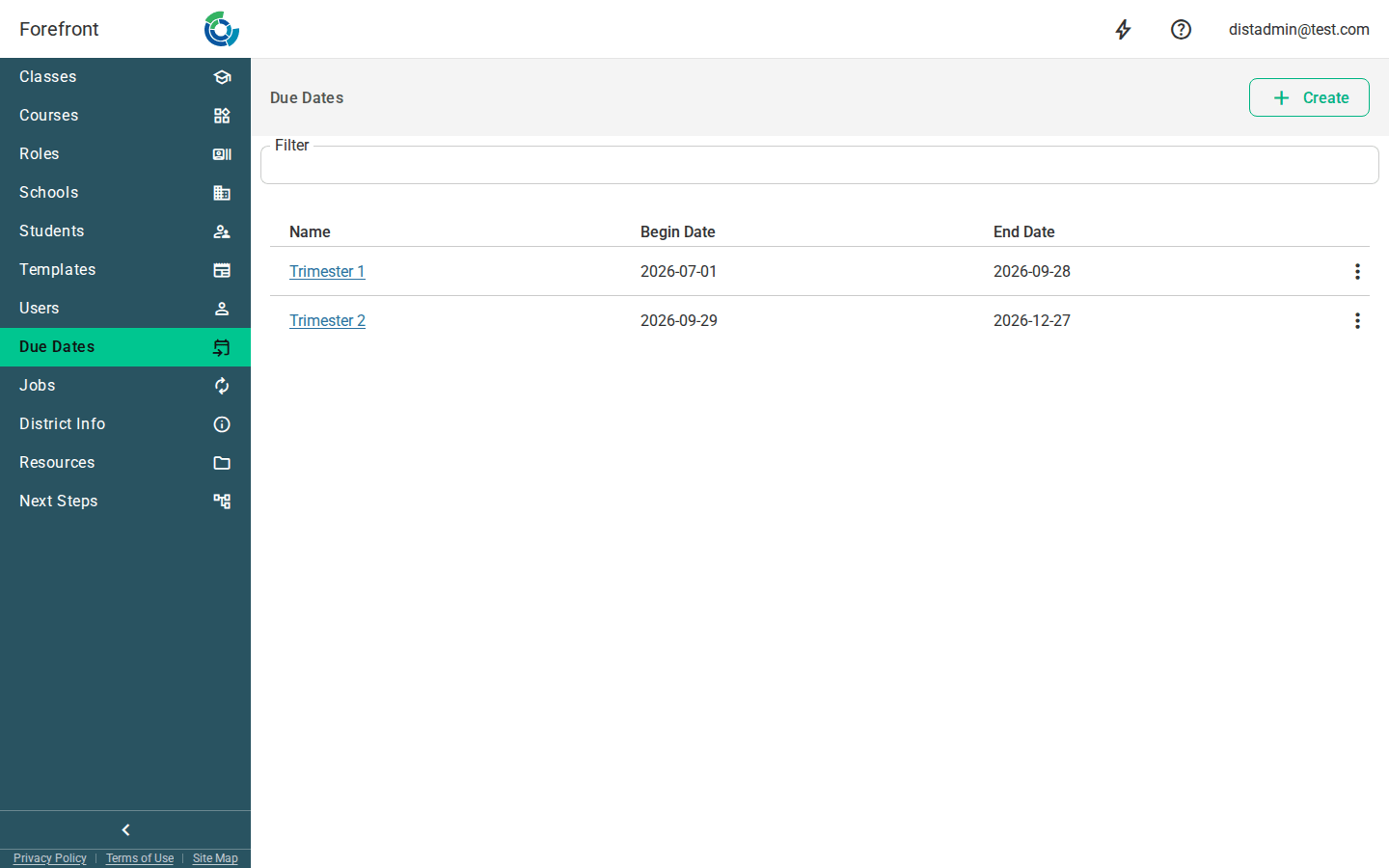
The due dates list
The page lists every due date you’ve created in a table with three columns:
- Name — the due date’s name. Click it to open the due date and edit its dates.
- Begin Date and End Date — the grading window for the current term.
If the due date hasn’t been configured for the current term yet, these show
<not configured>.
Due dates are sorted by name.
Creating a due date
Use Create in the top bar to add a new due date. It’s created with the name New Due Date and immediately opens so you can rename it and set its dates.
Filtering
Use the Filter box above the table to narrow the list to due dates whose name contains what you type. The filter is remembered in the page URL, so a filtered view can be bookmarked or shared.
Renaming and editing a due date
Click a due date’s name to open it. On the due date’s page:
- Rename it from the title (click the name) or the actions menu (⋮) → Rename.
- Set the grading window for each term. Every term is listed with a Begin
and End date picker. Pick dates and they save automatically — no separate
save button. Each picker is constrained to its term’s own start and end dates,
and Begin must come before End, so you can’t set a window outside the term.
Terms you haven’t set show
<Begin Not Set>/<End Not Set>.
Deleting a due date
Delete a due date from its row’s actions menu (⋮) → Delete Due Date, or from the Delete action inside the due date’s own actions menu. You’ll be asked to confirm before it’s removed. A due date that has classes attached to it cannot be deleted — the delete action is disabled with the note “This due date has associated classes and may not be deleted.”
When there are no due dates yet
Before any due dates exist, the table shows a “No due dates have been created” placeholder. Once you create one, it appears in the list. If the list can’t load, the page shows an “Unable to load due dates” message instead.