 Forefront
District Settings
District-level settings and configuration.
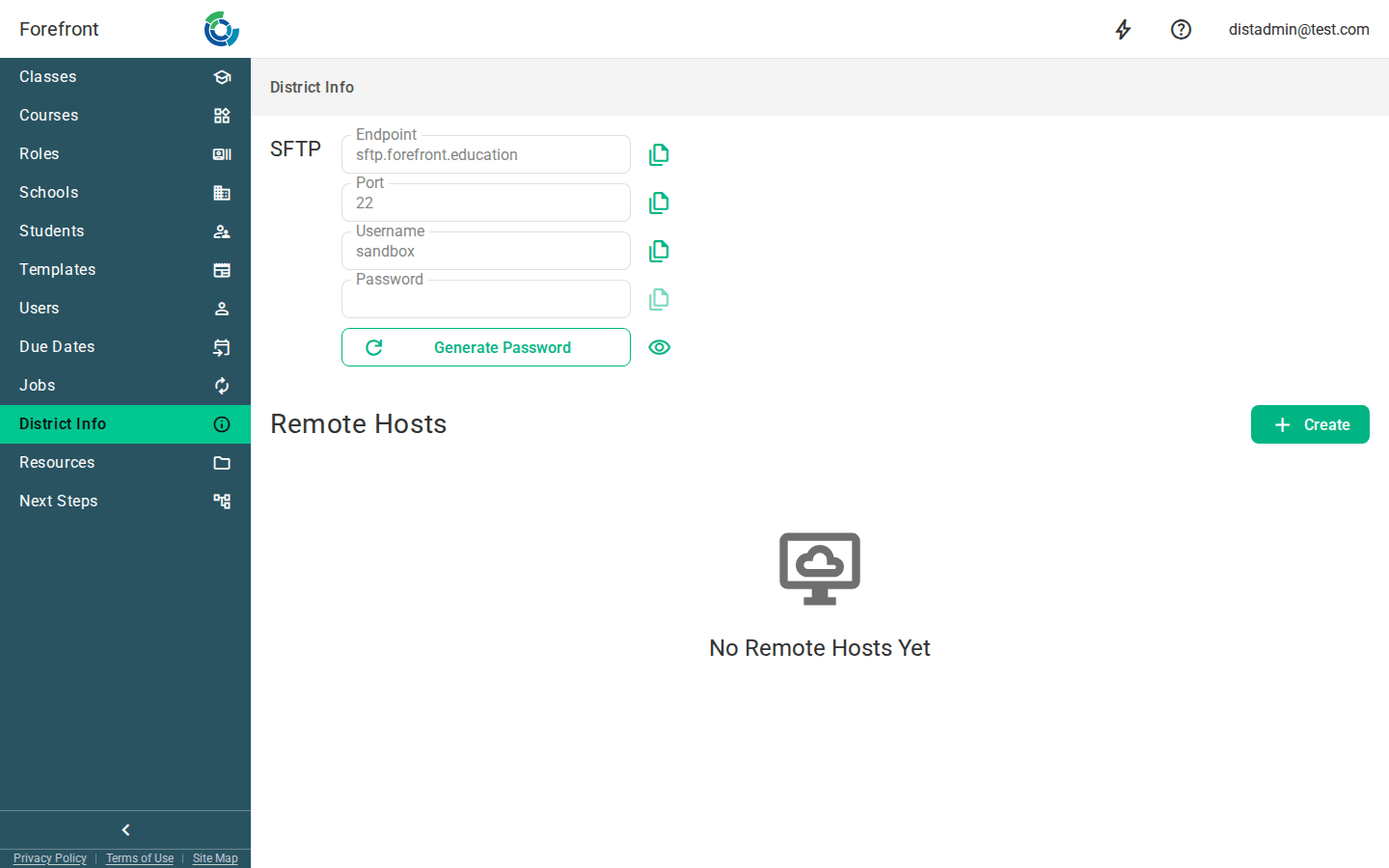
The District Info page holds the district’s file-transfer configuration — the SFTP credentials that let your district push data into forefront, and the list of remote hosts forefront can connect out to for imports.
SFTP credentials
The SFTP section shows the connection details for your district’s secure file drop. These fields are read-only — you can’t type over them — but each has a copy button (⧉) next to it so you can paste the value into your file-transfer tool:
- Endpoint — the server address to connect to.
- Port — the port number.
- Username — your district’s domain, used as the login name.
- Password — hidden as dots by default.
Use the eye button to Show Password / Hide Password, and the copy button to copy it. (The copy button is disabled until a password exists.)
Generating the SFTP password
If no password has been set yet, the button reads Generate Password; once one exists it reads Regenerate Password. Regenerating asks you to confirm — “This will invalidate the old password, are you sure?” — because the old password stops working immediately. Anything currently connecting with the old password will need to be updated with the new one.
Remote Hosts
The Remote Hosts table lists the outbound SFTP servers forefront can connect to on your behalf (for example, to pull files from a vendor’s server). Each row shows:
- Validated — a green check appears when forefront has successfully verified the connection to that host.
- Name — the label you gave the host.
- Host — the server address.
- Actions — an edit button (✎) to open the host and change its settings, and a delete button (🗑) to remove it. Deleting asks you to confirm first.
Adding a remote host
Use the Create button in the Remote Hosts header. You’ll be prompted for a Remote Host Name, and then taken to that host’s page to fill in its address, credentials, and port.
When there are no remote hosts
Before any hosts are configured, the table is replaced by a “No Remote Hosts Yet” placeholder. Once you create a host with Create, it appears in the table here.
More about this page
- Connect to the SFTP Server — pointing a file-transfer client at the credentials on this page.
- Rostering Sync Setup
- Adding or Accessing Files Securely in Forefront Resources — where files delivered over SFTP show up.