 Forefront
Jobs
Monitoring background and import jobs.
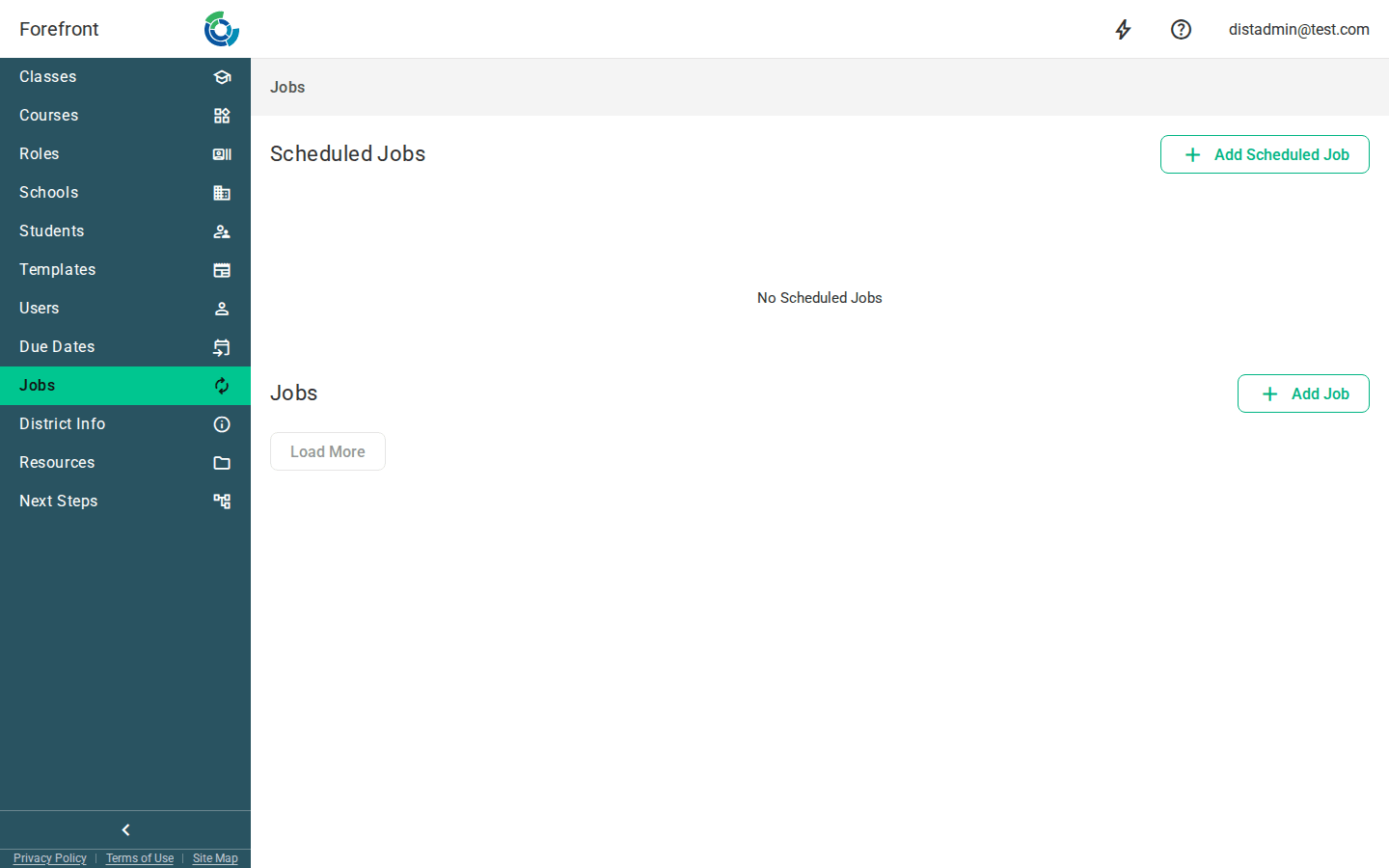
The Jobs page is where you monitor the background work happening in your district — data imports, exports, document generation, and roster syncs — and where you kick off jobs on demand or on a schedule.
Scheduled Jobs
The Scheduled Jobs table lists the recurring jobs configured for your district, with columns for Name, Type, Schedule, and Description. Each row also has:
- An Enabled toggle — turn a scheduled job on or off without deleting it.
- A Run (▶) action — runs the schedule immediately; you’ll be asked to confirm (“Run this scheduled job now?”), and the resulting run appears in the Jobs list below.
- An Edit (✎) action — opens the schedule editor to change its settings.
- A Delete (🗑) action — removes the schedule after a confirmation.
Use Add Scheduled Job (top right of the section) to create one: pick a job template, then set its schedule in the editor. If nothing is scheduled yet, the section shows a No Scheduled Jobs placeholder.
Jobs
The Jobs section is a running history of individual job runs, newest first. Each job is a card showing:
- A status icon — a spinner (with a progress ring for jobs that report progress, such as handout generation), a green check when complete, or a red error icon when it failed.
- The date it started and a label with the job name and status (for example “Complete”, “Running”, “Paused”, “Cancelled”, or the error message if it failed).
Click a card to expand it. The expanded view shows the run’s duration, started, and finished times, any type-specific details (such as skipped lines from a custom data import, student ID conflicts from a Clever import, or the assessment, file, and source for an assessment data import), and a red Delete button to remove the run from the list.
Some jobs add action buttons to their card, such as Download File, Download Errors, or Go to export location, depending on the job type.
Use Add Job (top right of the section) to run a job once: pick a job template, then confirm its options in the run dialog. The new run is added to the top of the list immediately.
Use Load More at the bottom to page further back through the history; it’s disabled once you’ve reached the end.
Failed District Jobs (superuser)
Superuser and support staff viewing the cross-district Global Jobs view see an extra Failed District Jobs section at the top. It lists sync jobs that recently failed across districts, with columns for District, Job, Type, Status, and Failed (when it failed). The job name carries the error message as a tooltip, and the district name links to that district’s own Jobs page.
Two filters control the section:
- A time-window button group — 24h, 48h, 7d, or 30d (default 48h) — chooses how far back to look.
- A Pinned Only toggle — limits the list to your pinned districts. If you have pinned districts, this defaults on.
Both filters are stored in the URL, so the view is shareable and bookmarkable. When nothing matches, the section shows No failed district syncs in this window. This section does not appear on a normal district’s Jobs page.