 Forefront
Descriptor Editor
Configuring one graded category on a report card: its standards, scoring options, and the window of data it grades.
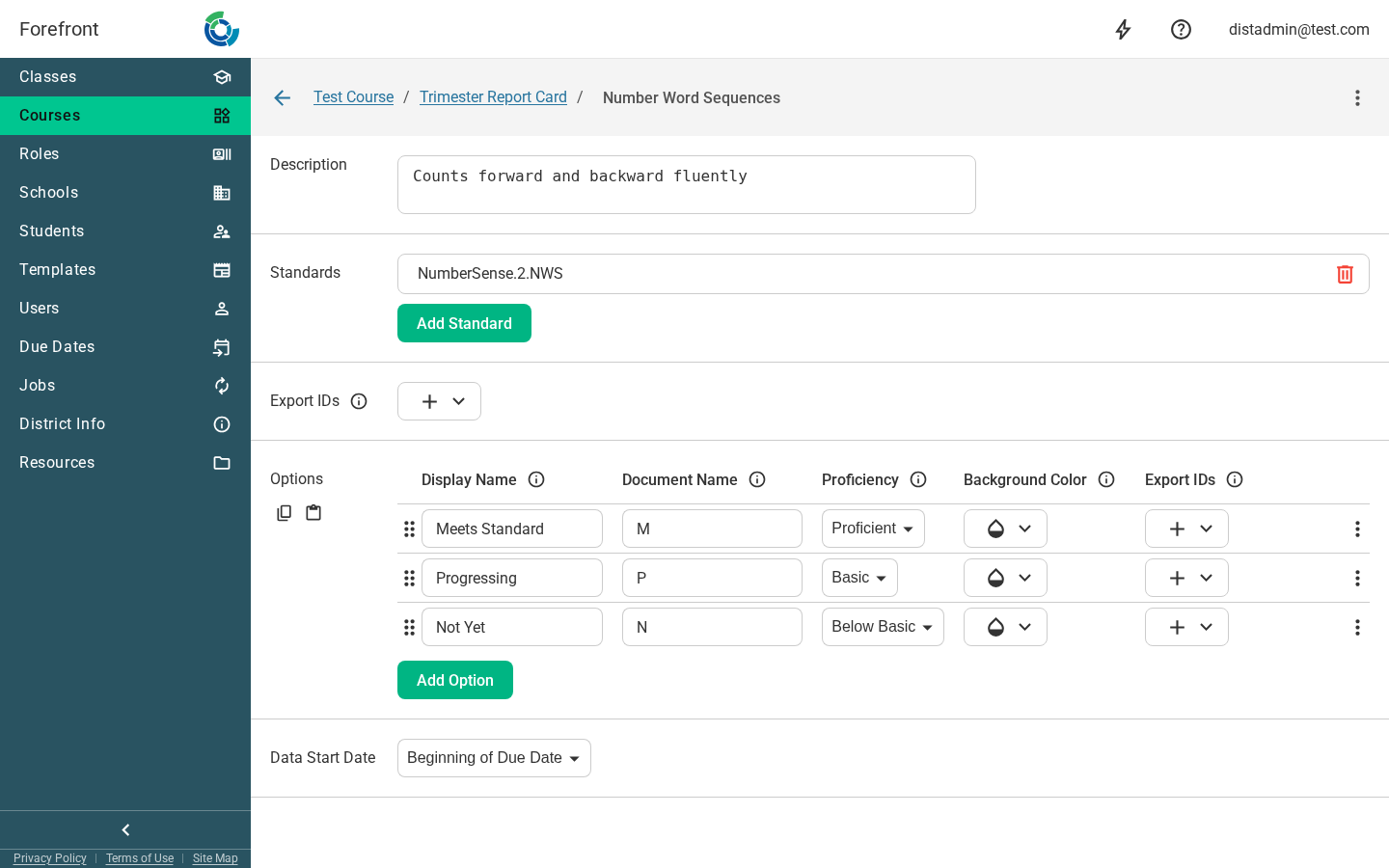
A descriptor is one graded category on a report card — the row a family reads as “Number Word Sequences: Meets Standard.” The Descriptor Editor is where a district administrator decides what that category is graded from: which standards feed it, which marks a teacher can choose between, and how far back in time the evidence is allowed to come from.
You reach it from the Report Card Editor by clicking a descriptor’s name, or from Add Descriptor when you create one.
Renaming the descriptor
The descriptor’s name is shown in the top bar. Open the actions menu (⋮) and choose Rename Category to change it. The back arrow returns you to the report card, whose name appears as a breadcrumb.
Description
The Description box holds optional explanatory text for the category. Teachers can see it on the class Report Cards page, and it can be included as a row when a report card is exported to CSV.
Standards
The Standards list is what the descriptor is graded from. Use Add Standard to open the standard picker and choose one or more; the list stays sorted by path, and each row has a delete action to remove it.
Every standard you add contributes a score, and the descriptor’s mark is computed from all of them together — see How Report Card Marks Are Calculated for exactly how they combine.
A descriptor with no standards computes nothing. That’s a valid setup: paired with no options, it becomes a notes-only category (below).
Tip: Adding a standard to a descriptor that has no options yet creates a full set of options for you — one per proficiency level — so the category is immediately gradeable. Rename or delete them from there.
Options
Options are the marks a teacher can pick from — the “M / P / N” of a standards-based report card. Each option is a row in the table:
- Display Name — how the mark reads to teachers and families in the app.
- Document Name — how it’s labeled in printed documents. This is usually the
short form (
M,P,N) where the display name is spelled out. - Proficiency — the proficiency level this option represents. This is the link between computed data and the mark: Forefront computes a proficiency from the student’s evidence, then pre-fills the option whose proficiency matches.
- Background Color — used for this mark in printed documents and the family portal.
- Export IDs — the identifier an external system (PowerSchool, Infinite Campus, etc.) uses for this mark when a report card is exported to a SIS.
Drag the handle to reorder options; the order here is the order teachers see in the dropdown. Each row’s menu (⋮) has Delete.
The two icon buttons above the table copy and paste a whole set of options. Since most descriptors on a report card share the same mark scale, setting one up and pasting it into the rest is faster than retyping — and it guarantees the scales actually match.
Notes-only descriptors
A descriptor with no options shows “This category has no options and will function as a notes only category.” That’s a supported configuration, not an error — use it for a comments box that carries no grade.
Data Start Date
Data Start Date is the setting that decides how far back the computed mark may reach. It matters most for standards a student is assessed against in more than one school year.
| Setting | Evidence used |
|---|---|
| Beginning of Due Date (default) | only scores dated inside that grading period’s window |
| Beginning of Term | scores from the first day of the school year through the end of the grading period |
| All Time | every score the student has ever had, through the end of the grading period |
The default is the narrowest of the three, so out of the box a report card mark reflects the grading period it belongs to and nothing earlier. Choose Beginning of Term when a category is meant to reflect the whole year’s progress rather than one grading period. Choose All Time only when carrying prior years forward is genuinely intended — for a multi-year graduation requirement, say.
Note: If a category’s standards repeat from year to year — library, technology, or social-emotional standards, which often have no grade-level split — leave this on one of the first two settings. All Time would let last year’s scores weigh on this year’s mark.
Note Presets
Note Presets are canned comments a teacher can insert instead of typing, for a notes-only category. Add one with Add Preset, which opens an editor where you can format the comment with headings, lists, and dividers, and add dynamic text that fills in for each student. Edit a preset with the pencil button beside it, and use the row’s menu to reorder or delete it. You can also drag rows to reorder them.
A teacher can use more than one preset in the same note: each one they click is added to the end of the note, after anything already written.
This section appears only when the descriptor has no options, since presets exist for the notes-only case.
Export IDs
The Export IDs section near the top of the page names the descriptor itself in an external system — how your SIS refers to this category when a report card is imported. Add one per ID type; each has a delete action. These are distinct from the per-option export IDs in the options table: this one identifies the category, those identify the mark.
Saving
Every field on this page saves as you change it — there is no save button.
If a change would invalidate marks teachers have already recorded — deleting an option that’s in use, for instance — the save stops and asks: “There is data associated with this option. Would you like to continue, removing the data?” Continue applies the change and discards those marks; Cancel abandons the edit and reloads the descriptor as it currently stands. Treat that prompt as a real warning, especially mid-grading-period.
If the page can’t load
If the descriptor can’t be loaded, the editor is replaced by an error message. Reload, or go back to the report card and reopen it.