 Forefront
Report Card Editor
Building and editing a course report card.
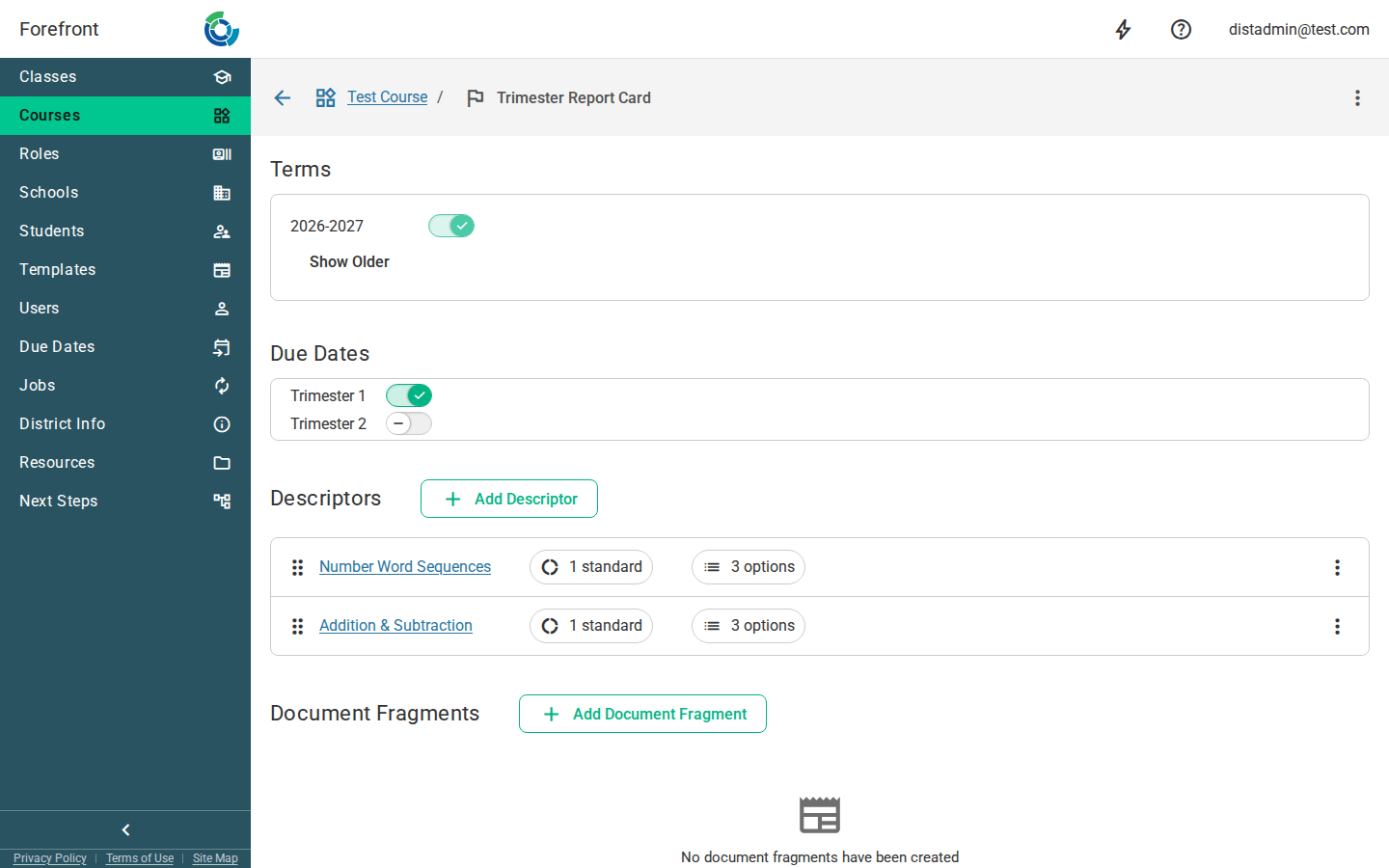
The Report Card Editor is where a district administrator builds and edits a course’s report card — the terms and due dates it covers, the descriptors (graded categories) that appear on it, and any reusable document fragments it prints.
Renaming and deleting the report card
The report card’s name is shown in the top bar next to a flag icon. Click the name (or open the actions menu ⋮ and choose Rename Report Card) to edit it. The same menu holds Delete Report Card, which asks for confirmation before removing the report card and returning you to the course. The back arrow takes you up to the course, whose name is shown as a breadcrumb.
Cloning the report card
To make a new version of a report card with a few changes, open the actions menu ⋮ and choose Clone Report Card. You can also choose it from the report card’s ⋮ row menu on the course page. Name the copy (it starts as the original’s name followed by “(Copy)”) and select Clone. The copy then opens in this editor.
Before you clone, keep in mind:
- Teachers see the copy right away. It covers the same terms and due dates as the original, so it appears next to the original as soon as it’s created. It starts with no data.
- Add its fragments to a handout. The copy gets its own copies of the original’s document fragments. A report card handout only shows the copy once you add those fragments to it. Handouts that already use the original’s fragments keep showing the original.
- Changes stay separate. Editing the copy’s descriptors or fragments doesn’t change the original.
Terms
The Terms section lists your district’s terms as toggles — turn a term on to include it on this report card. The two most recent terms show first; use Show Older to reveal earlier terms. At least one term must always be selected, so the last remaining term’s toggle is disabled. If no terms are configured, the section shows a placeholder telling you to set them up for your district.
Due Dates
The Due Dates section lists your district’s report card due dates as toggles. Turn a due date on to attach it to this report card. If none have been created yet, a placeholder notes that no due dates exist for your district.
Descriptors
Descriptors are the graded categories that appear on the report card. Use Add Descriptor to create one — you name it, then land on the descriptor’s own editor page to configure its standards, scoring options, note presets, and data behavior.
Each descriptor is listed as a row. Click its name to reopen its editor. Two hint icons summarize its setup at a glance: a standards count (hover to see the mapped standards) and an options count (hover to see the scoring options and their colors). When there is more than one descriptor, drag the handle to reorder them, or use the row menu’s Move Up / Move Down. The row menu also has Delete, which confirms before removing the descriptor. Before any descriptors exist, the section shows a “No descriptors have been created” placeholder.
Document Fragments
Document Fragments are reusable blocks of printed content you can include on the report card. Use Add Document Fragment to create one by name and open its editor. Each fragment is listed with a link to reopen it and a row menu with Delete (confirmed before removing). If none exist, the section shows a “No document fragments have been created” placeholder.
Saving
Changes to terms, due dates, descriptor order, and fragments save automatically as you make them. If a save conflicts with another change, you’ll be asked whether to Force the save through or cancel and reload the latest version.
If the page can’t load
If the report card can’t be loaded, the page shows an “Unable to load report card” message in place of the editor. Reload the page or return to the course and try again.
More about this page
- Configuring Report Cards for your District — the end-to-end setup, from the district setting to descriptors and notes.
- Due Dates — where report card windows are defined.
- Teacher Report Card Overview — what teachers see once this is configured.
- How to Use Report Cards as a Teacher
- Printing Report Cards in Forefront
- Class Report Cards — the class-level page.