 Forefront
Roles Management
Managing roles and their permissions.
The Role Management page lists the custom roles in your district and lets you create new ones, edit a role’s permissions, and remove roles you no longer need. A role bundles a set of permissions and a user experience that you can then assign to users.
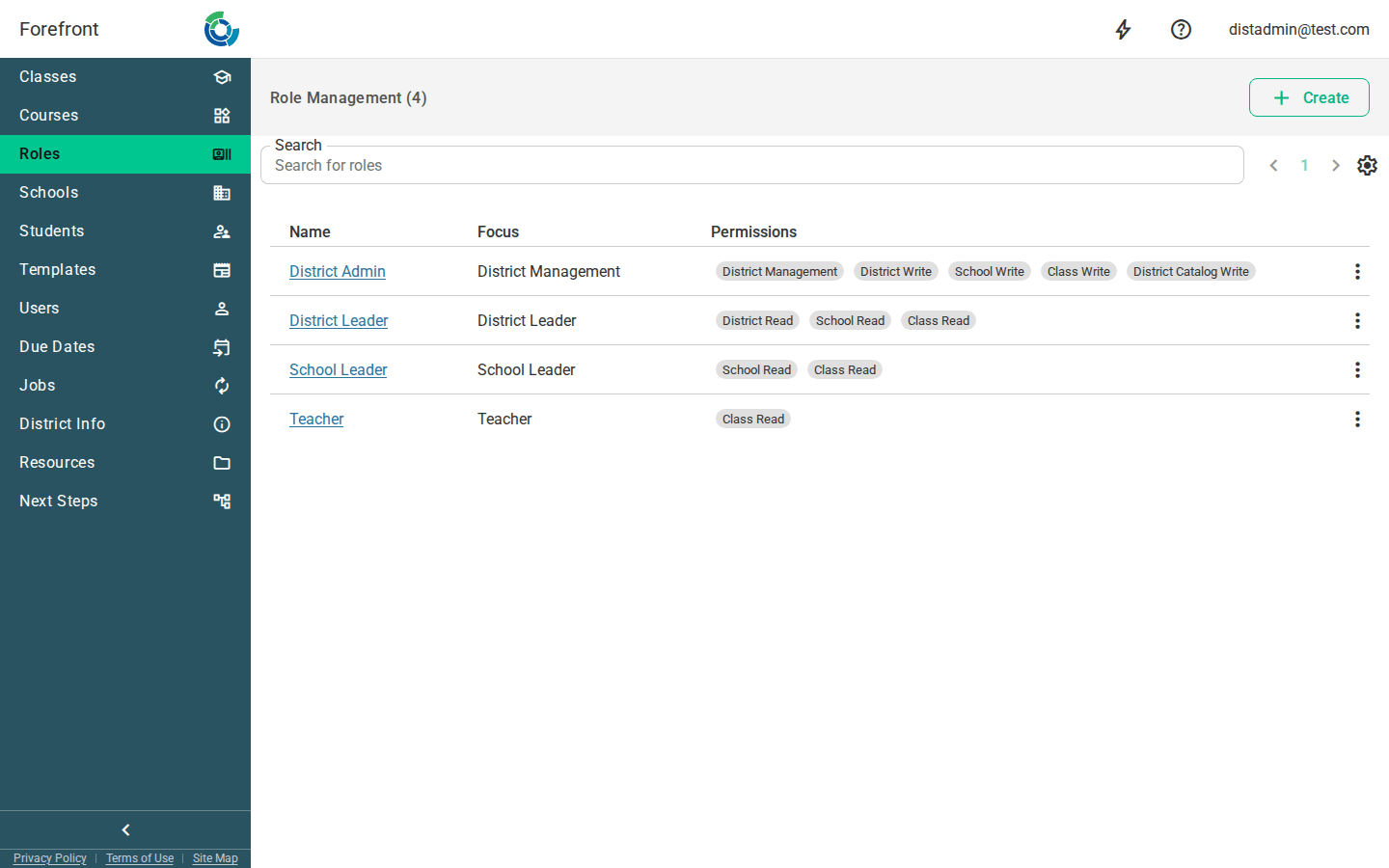
The roles table
Roles are listed in a table with three columns:
- Name — the role’s name. Click a name to open that role’s detail page, where you can rename it and change its permissions and user experience.
- Focus — the user experience the role is tied to (for example, the teacher-facing or leader-facing experience), which determines the kind of app the role’s users see.
- Permissions — the individual permissions granted to the role, shown as a row of tags.
The count in the page title (Role Management (N)) reflects how many roles exist in your district.
Searching
Use the Search for roles box at the top to filter the table by name. The list narrows as you type, and the count and pages update to match.
Paging
When there are more roles than fit on one page, use the pager next to the search box to move between pages. The default page size is 30 roles.
Creating a role
Click Create to open the new-role dialog. Fill in:
- Name — required, and must be unique; the dialog blocks a name that already exists.
- User Experience — required; pick the experience the role’s users will get.
- Permissions (optional) — choose any permissions to grant the role. You can leave this empty and add permissions later.
Click Create to save. The dialog closes and takes you straight to the new role’s detail page so you can finish configuring it.
Editing a role
Click a role’s name to open its detail page. From there you can rename the role and adjust its user experience and permissions.
Deleting a role
Use the options menu (⋮) at the end of a role’s row and choose Delete to remove it. The role disappears from the list and the count decreases.
When there are no roles
If no roles match your search — or your district has none yet — the table shows a No Roles Found placeholder. Clear the search or create a role to populate the list.