 Forefront
Schools Management
Managing the schools in the district.
The School Management page is where district administrators manage the schools in the district — creating new schools, editing their names and IDs, enabling or disabling them, and merging duplicates. The page title shows the current school count in parentheses.
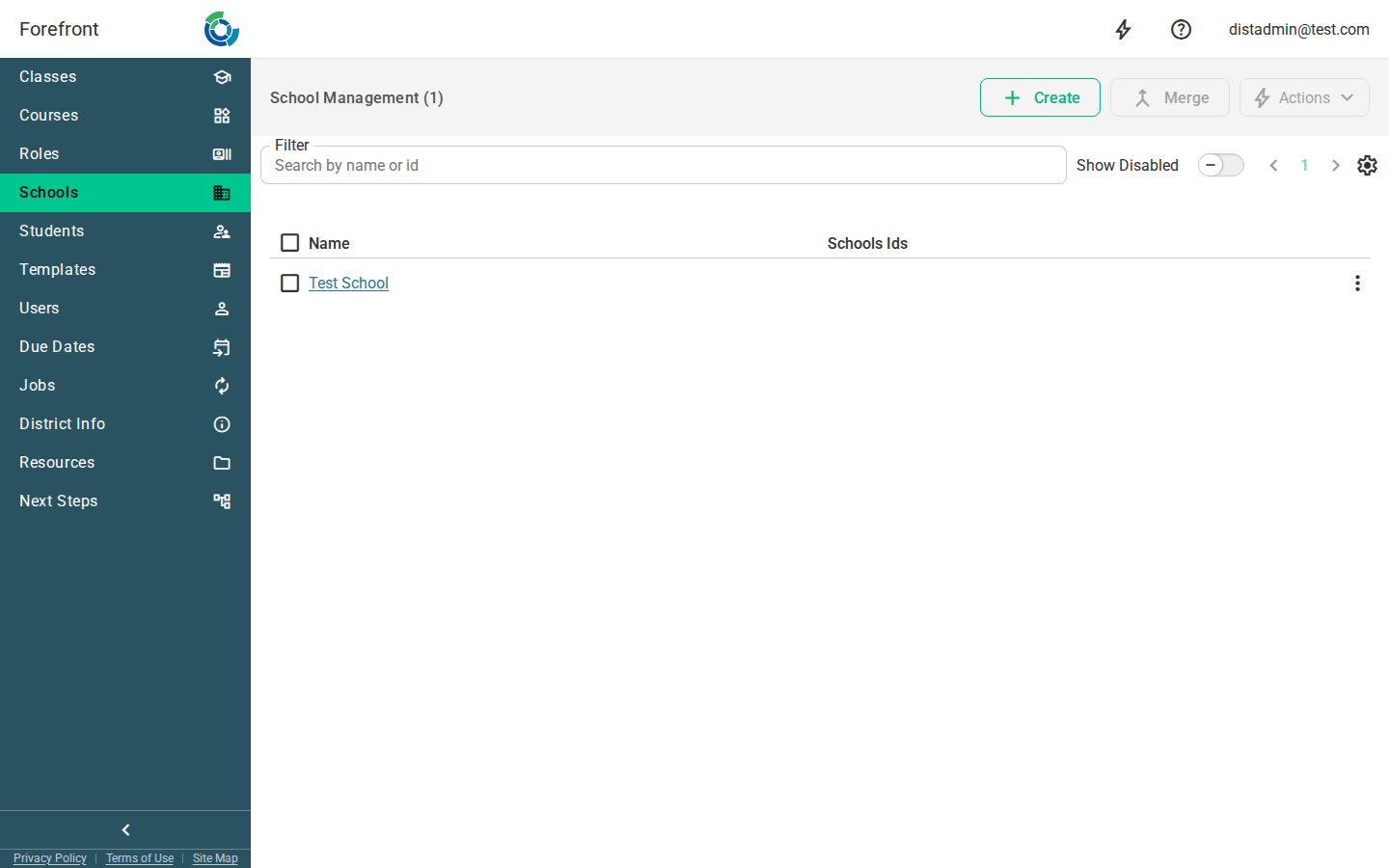
The schools table
Each row is a school:
- Name — the school’s name, shown as a link. Click it to open that school’s detail page.
- Schools Ids — the school’s external identifiers, each shown as a chip in
the form
TYPE: value(for example, a state or SIS ID). - Selection checkbox — the leftmost column selects the school for a bulk action (see Bulk actions below).
- Row menu (⋮) — per-school actions: an Enabled toggle and Delete.
Creating a school
Click Create to open the new-school dialog. Enter a School Name (required), then optionally add an ID by choosing an ID Type and entering an ID Value. The ID value is validated against existing schools — if it’s already in use you’ll see “SchoolId already in use” and won’t be able to create until it’s changed. Click Create to save; you’re taken straight to the new school’s page.
Enabling and disabling schools
Each row’s menu (⋮) has an Enabled toggle. Turning it off disables the school without deleting it. Disabled schools are hidden from the table by default — use Show Disabled (see Filtering the list) to see them.
Deleting a school
Open a row’s menu (⋮) and choose Delete to remove the school. It disappears from the list immediately and the school count updates.
Bulk actions
Select one or more schools using the row checkboxes (or the header checkbox to select or clear everything on the current page), then use:
- Actions menu — Enable Selected, Disable Selected, or Clear Selected. Enabled once at least one school is selected.
- Merge — combine selected schools into one. This becomes available only when exactly the right number of schools is selected (you must pick two to merge). It opens a dialog where you choose which school to keep; the others are merged into it and removed from the list.
Filtering the list
- Filter box — type in the Search by name or id box to narrow the table to schools whose name or any school ID matches what you type. Your search text is kept in the page URL so the view is shareable and bookmarkable.
- Show Disabled toggle — off by default (showing only enabled schools). Turn it on to view disabled schools instead.
Paging
The pager at the top of the table controls how many schools are shown per page and lets you move between pages. The total reflects the schools that match your current filter and Show Disabled setting.
When the list is empty
If no schools match the current filter and toggle settings, the table shows a “No Schools Found” placeholder. Clear the filter box or toggle Show Disabled to see more schools.