 Forefront
Students Management
Managing student records across the district.
The Student Management page is the district-wide roster of student records. From here you can create students, search and page through everyone in the district, edit or disable individual records, and merge duplicates.
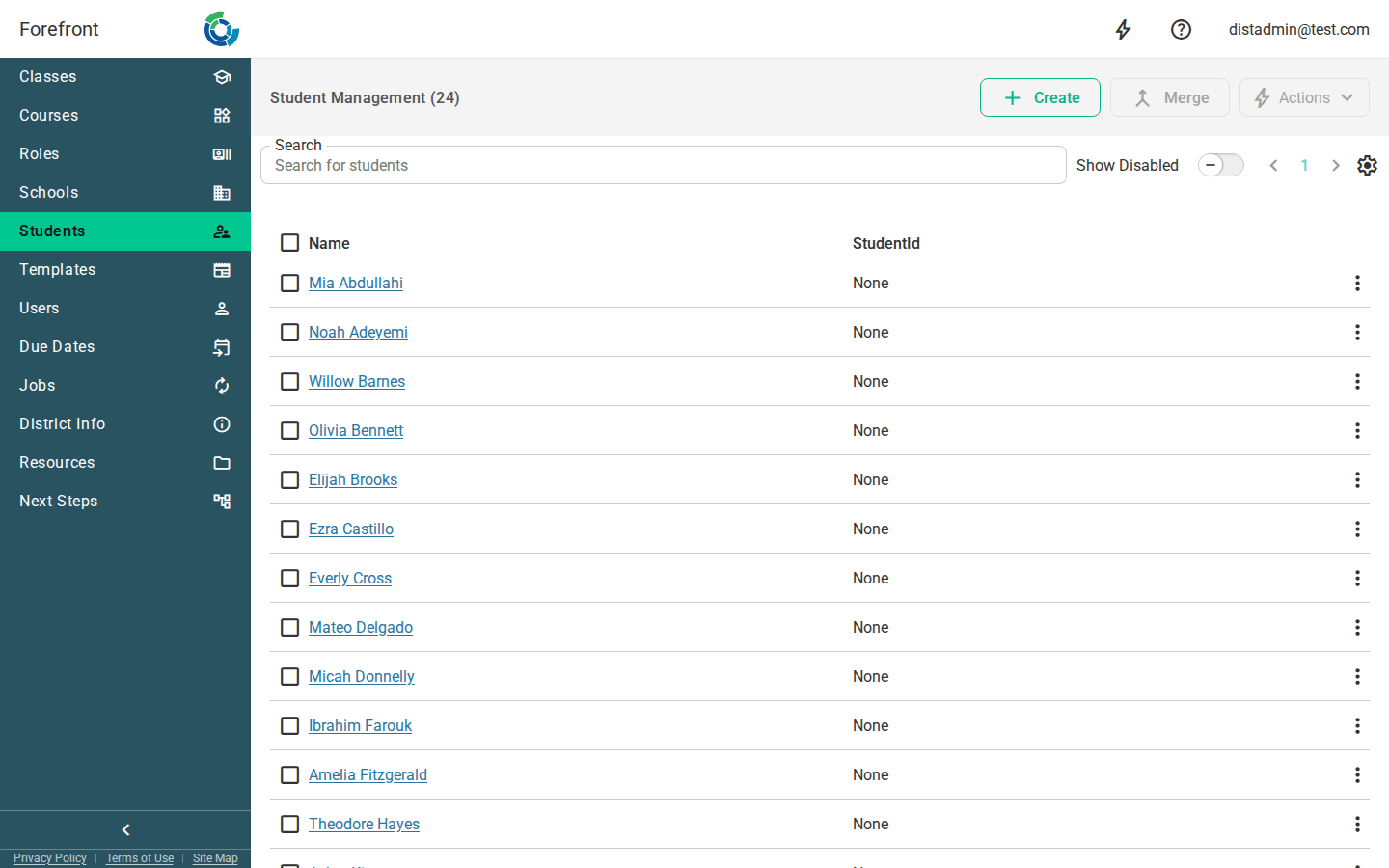
The student list
The page shows a table of students with a Name column, a StudentId column, a selection checkbox, and a per-row actions menu (⋮). The page title shows the total student count in parentheses. Click a student’s name to open that student’s record. If a student has no name on file, the row shows <Name Not Set>. The StudentId column lists each student’s external identifiers, labeled by their ID type.
Searching and paging
- Search — use the Search for students box to filter the list by name or ID. The list updates as you type.
- Pager — the pager moves through the results in pages; the total count is shown in the page title. Search and paging work together, so a search narrows the results the pager walks through.
Creating a student
Use the Create button in the top bar to add a student. The Create Student dialog asks for a First Name and Last Name (at least one is required), and drops you straight into the new student’s record when you save.
Row actions
Each row’s options menu (⋮) contains:
- Enabled — a toggle that enables or disables the student record. Disabling is a soft delete: the record is hidden from the default list but not permanently removed.
- Delete — permanently removes the record. This appears only for students that are already disabled, so a record must be disabled before it can be deleted for good.
Disabled rows appear dimmed in the table.
Bulk actions
Select students with the row checkboxes (or the header checkbox to select the whole page), then use the top-bar controls that light up:
- Actions menu — Enable Selected and Disable Selected to enable or disable every selected student at once, plus Clear Selected to drop the current selection. The menu is available once at least one student is selected.
- Merge — combines two or more selected students into one record. The Merge button becomes available once two or more students are selected. The merge dialog lets you pick which record to keep; the others are merged into it.
The header checkbox shows an indeterminate state when only some students on the page are selected.
Showing disabled students
Disabled (soft-deleted) students are hidden by default. Turn on the Show Disabled toggle to include them in the list — this is how you find a record to re-enable, or to delete permanently.
When there are no results
If no students match the current search and filters, the table shows a No Students Found placeholder. Clear the search or adjust the Show Disabled toggle to widen the results.
More about this page
- Add Student Accounts Manually — creating a student record here, then adding them to a class.
- Rostering in Forefront — the automated path, which is how most students arrive.
- One-Time Manual Roster Uploads
- Fixing Duplicate Students, Users, or Classes
- Demographic Data in Forefront