 Forefront
Templates
Managing district templates.
The District Templates page is where you customize the communication documents Forefront sends to guardians. Each template starts from a Forefront default; creating a district version here lets you tailor its wording and styling to match how your district communicates with families.
Choosing a template
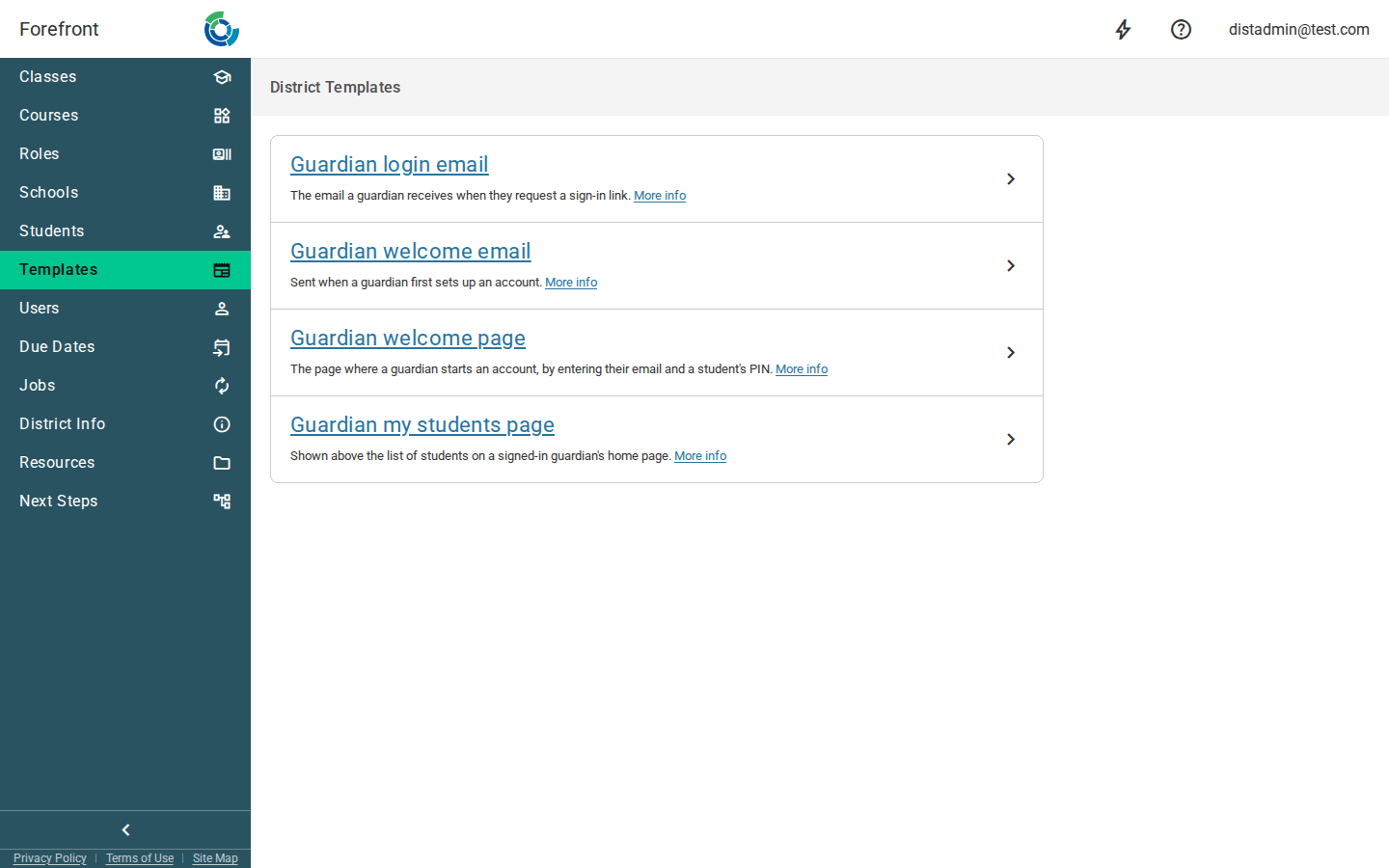
The page lists the guardian-facing templates you can customize, each with a short description of when it reaches a guardian. Click anywhere on a template’s row to open its editor.
Two of the templates are emails, sent from Forefront to a guardian’s inbox; the other two are pages Forefront renders in the browser — one before a guardian has signed in, one after. The distinction matters when you edit them: email clients strip out some styling that a page renders fine, so the editor offers a slightly smaller set of building blocks for the two email templates, and only the emails offer Send test email.
Between them the four templates cover a guardian’s whole journey, in this order: they set up an account on the welcome page, finish that setup from the welcome email, sign in from then on with the login email, and land on the my students page each time they arrive.
Guardian login email
The email a guardian receives when they request a sign-in link, carrying the link itself. Guardians sign in by requesting a fresh link each time rather than with a password, so this one arrives again on every sign-in rather than just once — which makes it the template your families will see most, and the one worth reviewing first.
Guardian welcome email
Sent once a guardian has entered their email and a student’s PIN on the welcome page. It carries the link that finishes creating their account, so a guardian normally receives it only once. That makes it the natural place for an introduction to your district’s use of Forefront and for anything a family needs to know before they start.
Guardian welcome page
The page where a guardian starts an account, by entering their email address and a student’s PIN. Your content fills the left-hand side of that page, beside the form itself — so it suits a short explanation of what the PIN is, where a family can find theirs, and who to ask if they don’t have one. It is the one template a guardian sees before signing in.
Guardian my students page
The home page of the guardian portal, listing the students connected to a guardian’s account. Your content appears above the list itself, so it suits a short welcome, or a note about who to contact if a student a family expects is missing.
Creating a district template
Until you create a district version, the template shows a District template not created placeholder explaining that Forefront’s default template is being used instead (the placeholder links to that default so you can review it). Click Create Template — either the button in the placeholder or Create Template in the actions menu (⋮) — to start a district-specific copy. The new template is seeded with a heading and a short note reminding you to replace it with your own content.
Editing a template
Once created, the template opens in a document editor where you type and format its content. Your changes save automatically as you edit — there’s no save button. Use the undo and redo controls in the top bar to step back and forth through your edits.
Previewing
Use the Preview button (the send icon) in the top bar to open a preview of the template exactly as a guardian would see it.
Sending a test email
For the email templates (guardian login email and guardian welcome email), a Send test email button (the mail icon) appears in the top bar. It sends a copy of the current template to your own email address so you can check its styling in a real inbox — you’ll be asked to confirm before it goes out. Test emails are rate-limited; if you send several in a row you may be asked to wait a few minutes before trying again. The page templates render in the browser and have no recipient, so they don’t offer this action.
Deleting a template
To revert to Forefront’s default, open the actions menu (⋮) and choose Delete template. You’ll be asked to confirm, since this can’t be undone. Once deleted, the district template is removed and the default template is used again.
If a template won’t load
If the editor can’t load a template, it shows an Unable to load document fragment message. Reload the page, and if the problem persists, reach out to support.