 Forefront
Terms Management
Managing school years and terms.
The Terms page is where district administrators manage the school years your district works in. Each term defines a date range that classes, students, and assignments are organized under, so keeping this list accurate is what lets the rest of the app group data by the right year.
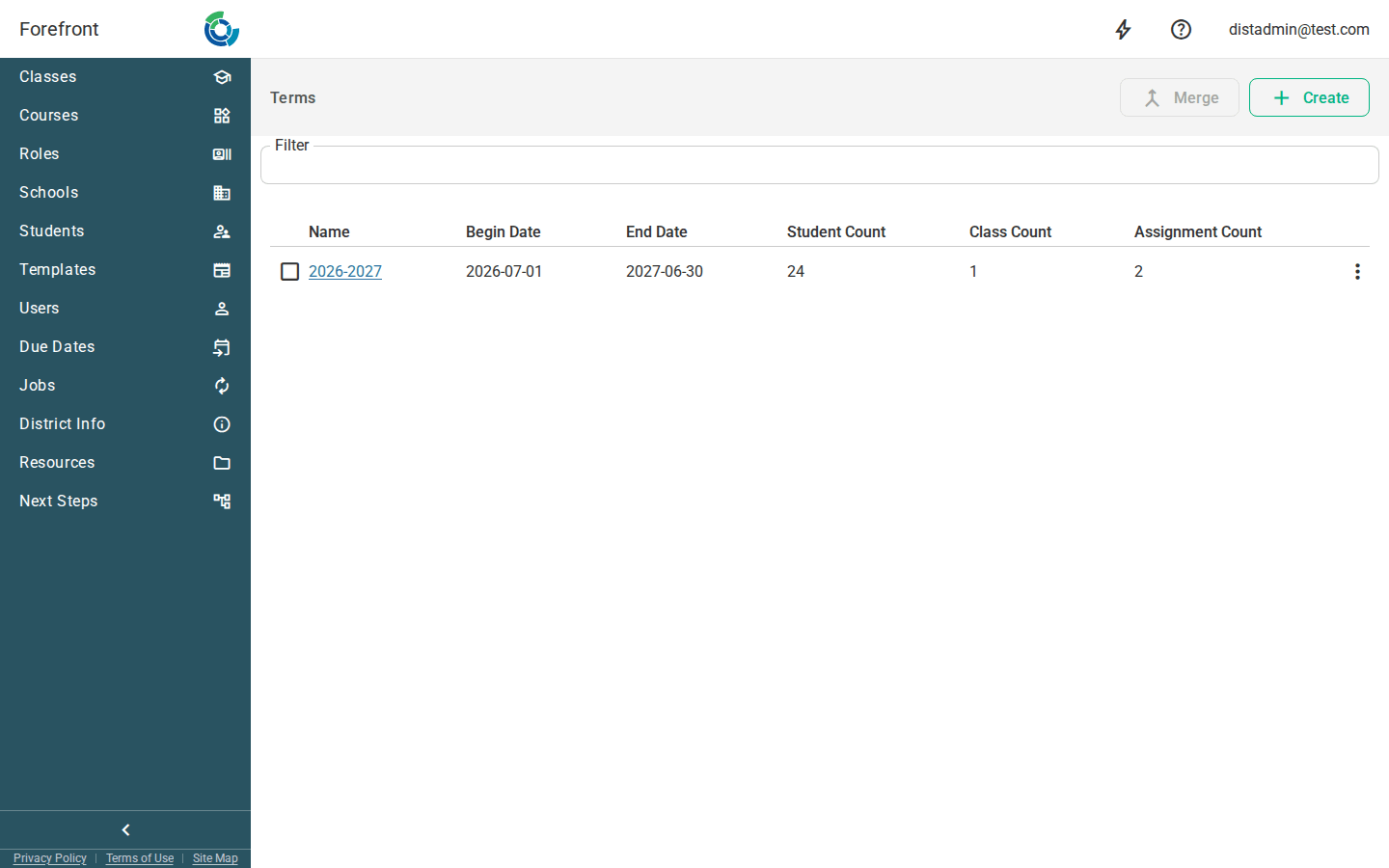
The terms table
Terms are listed newest-first, one row per term, with these columns:
- Name — the term’s label (for example,
2025-2026). Click the name to open the term’s detail page and edit it. - Begin Date and End Date — the range the term covers.
- Student Count, Class Count, and Assignment Count — how much data is attached to the term, so you can gauge how heavily it’s used before making changes.
Filtering the list
Use the Filter box at the top of the page to narrow the table to terms whose name contains what you type. The filter is remembered in the page URL, so a filtered view can be bookmarked or shared.
Creating a term
Click Create in the top bar to add a new term. Forefront starts it the day after your latest term ends and runs it for one year, names it for those years, and opens the new term’s detail page so you can adjust the dates.
Editing a term
Click a term’s Name to open its detail page, where you can change its:
- Name
- Begin date
- End date
Changes save automatically as you edit. To keep the calendar consistent, moving Begin past End (or End before Begin) shifts the other date by a year, and the app blocks dates that would make a term end before it begins or overlap another term.
Deleting a term
You can delete a term from either the term’s detail page (the ⋮ menu in the top bar → Delete) or from the table row’s options menu (⋮ → Delete Term). A term that still has classes attached to it can’t be deleted — the Delete Term action is disabled with the note that the term has associated classes.
Merging terms
To combine two or more terms into one, tick the checkbox at the start of each row you want to merge, then click Merge in the top bar. Merge stays disabled until at least two terms are selected. Merging is permanent — you’ll be asked to confirm before it happens, since it can’t be undone.
When the list is empty
While the page is still loading its data, you’ll see the page’s loading state rather than the table. Once terms exist they appear in the table; a brand-new district can use Create to add its first school year.