 Forefront
How to Access Next Steps Materials
This article explains what Next Steps materials are and how to reach them from a question on the spreadsheet, from the reports, and from the Next Steps library.
What are Next Steps materials?
Next Steps materials are instructional resources aligned to the skills on an assessment. They are available for the USNS, FRS, Bridges Third Edition, and DIBELs, and may have been configured by your district on a custom district assessment.
They reach you in two forms:
Library items. Activities published by Forefront — and by your district, if it authors its own — each aligned to the questions and standards it supports. They carry tags, such as the kind of activity or how long it takes, so a long list can be narrowed to what you need.
Links and files on a single question. Documents your district has attached directly to a question. These came first, so where a question has both you will see them labelled (legacy) to tell them apart from the library.
If your district has the Next Steps library, Next Steps also appears in the left sidebar. Everything below works the same either way — the library simply gives you more to reach.
How to Access the Next Steps
From the Data-Entry Spreadsheet
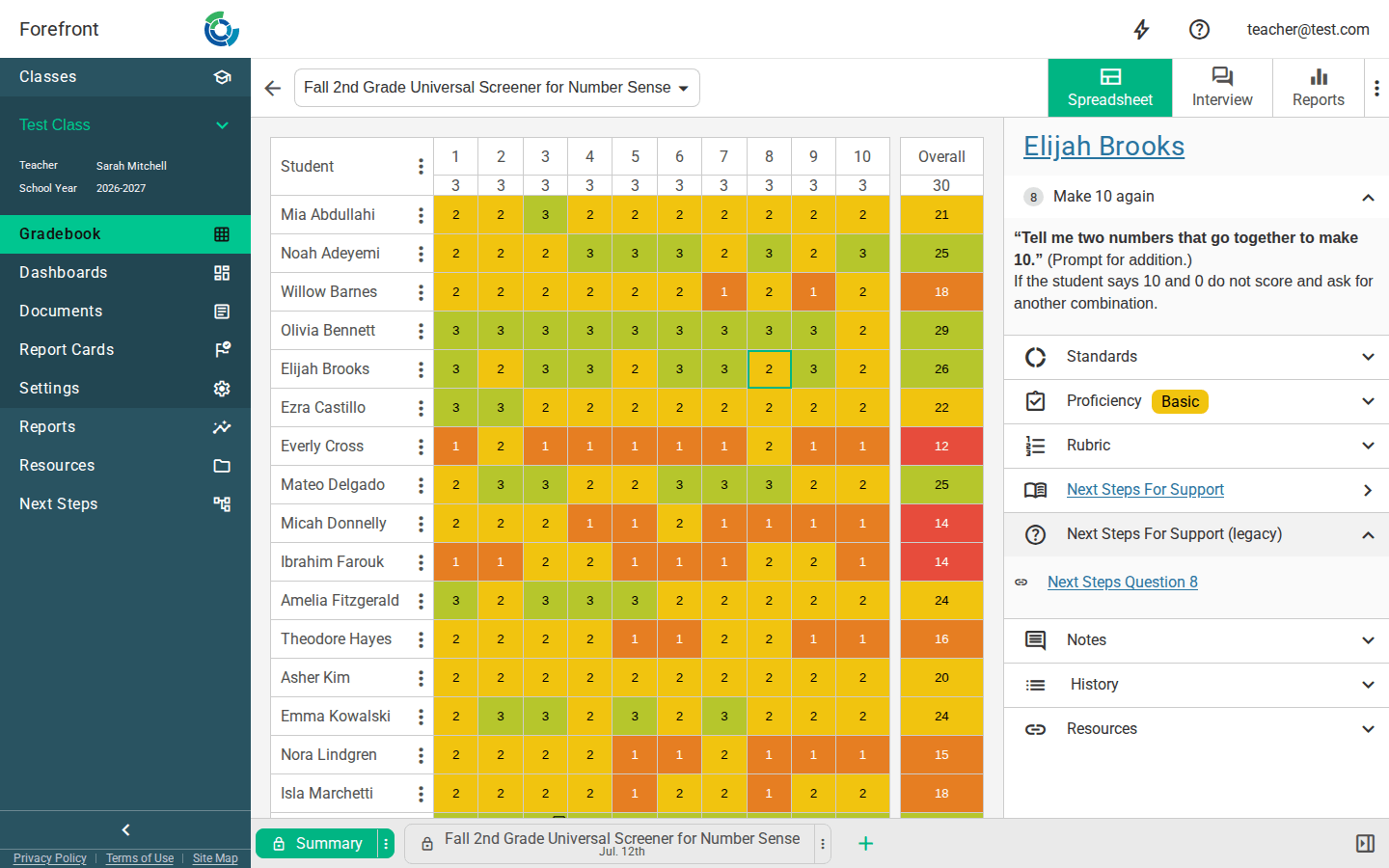
Access the Next Steps from the right sidebar.
Click any cell to open the sidebar for that student and question.
Where the question has library materials, a Next Steps For Support row appears. Click it to open the library already filtered to that question, so you see its materials and nothing else.
Links and files attached to the question sit in the Next Steps For Support panel below that row.
From the Reports
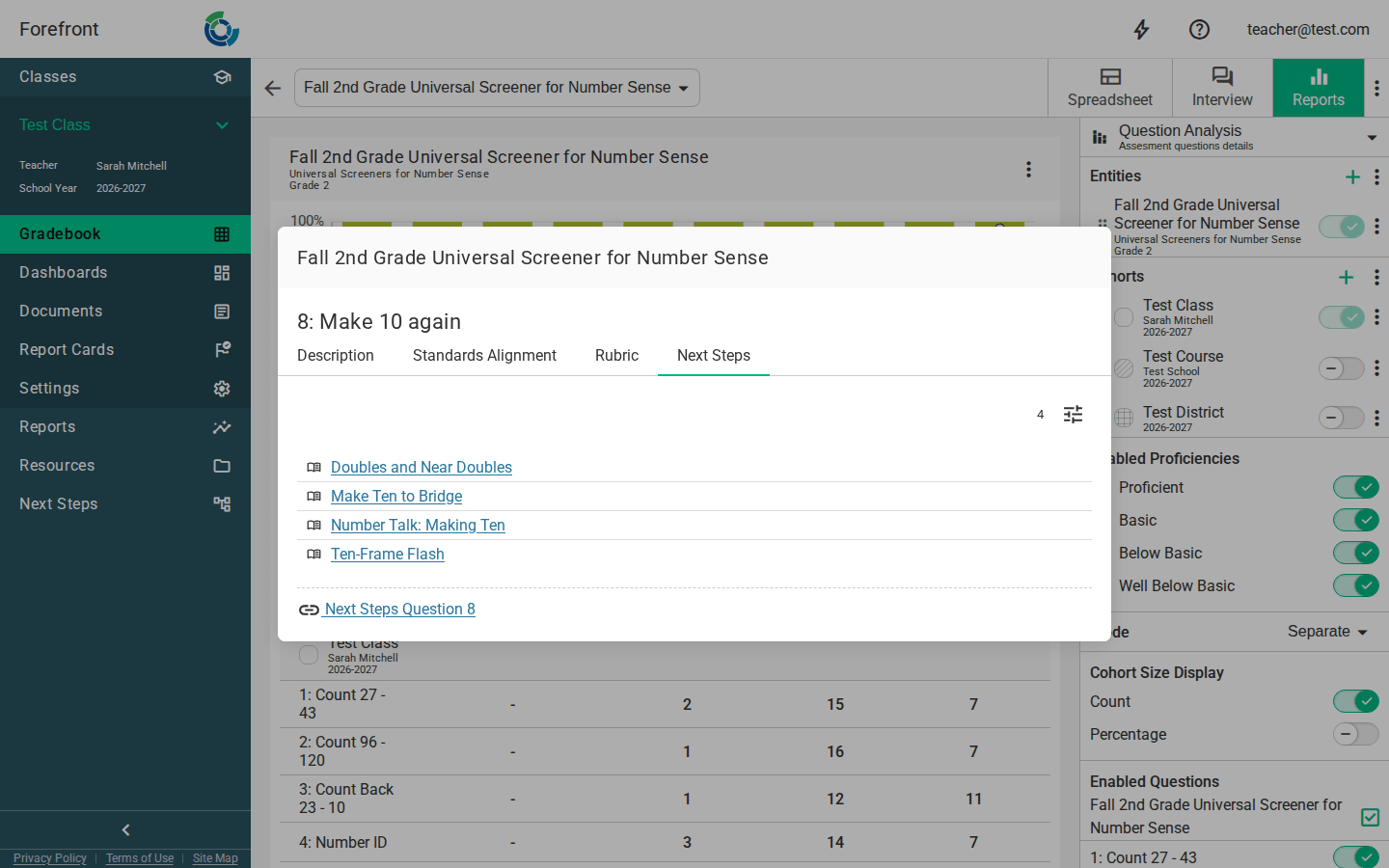
Access the Next Steps by clicking the number of the question below the columns.
Click the number (or letter) below a column to open that question, then choose the Next Steps tab.
Where the question has library materials, a Next Steps For Support row appears — the same row as on the spreadsheet, and it goes to the same place: the library, filtered to that question.
Links and files attached to the question follow underneath.
From the Next Steps Library
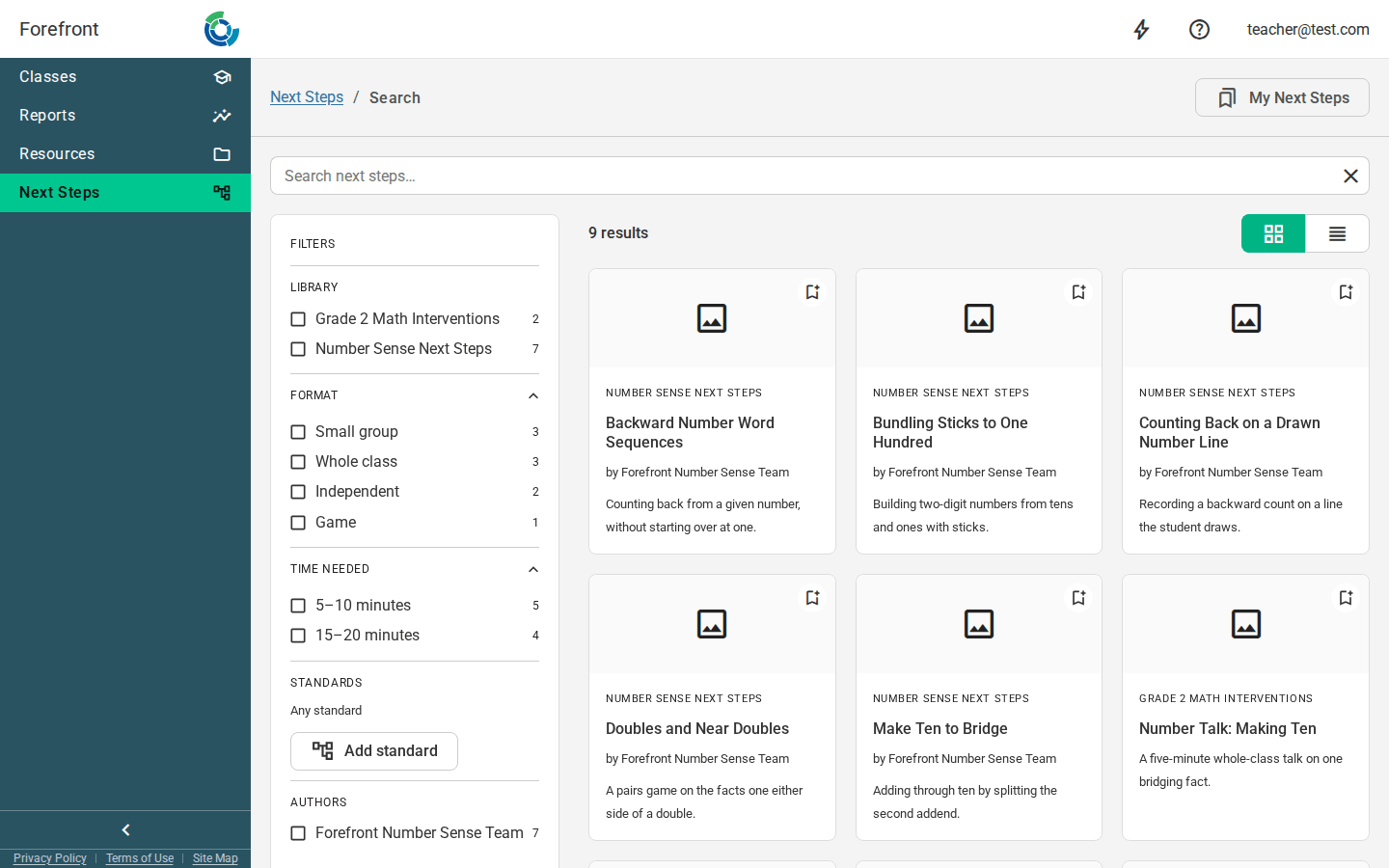
Starting from a question is the quickest route when you already have data in front of you. To search everything available to you instead, select Next Steps in the left sidebar.
Search by keyword, then narrow by library, tag, standard, question, or author.
Save an item to My Next Steps to keep it to hand, filing it in a folder if you want to group a few together.
Mark as done records that you have used an item — for a whole class or for named students, on a date you choose.
Each result is a card with a picture at the top. Where an item has a picture of its own and its library has a logo, the logo sits in a bar across the top of the picture, so you can tell at a glance which library the item comes from. The bookmark for saving the item sits at the right end of the same bar.
Need more support?
Submit a support request or email our team at support@forefront.education.