 Forefront
Assigning an Assessment to a Course
This article explains how to add a new assessment at the course level, which means all teachers with classes enrolled in the course will see it.
This requires a district manager role. If you are a teacher trying to add an assessment to a single class, refer to this article.
Adding an Assessment
Step 1: Use the side navigation to access courses.
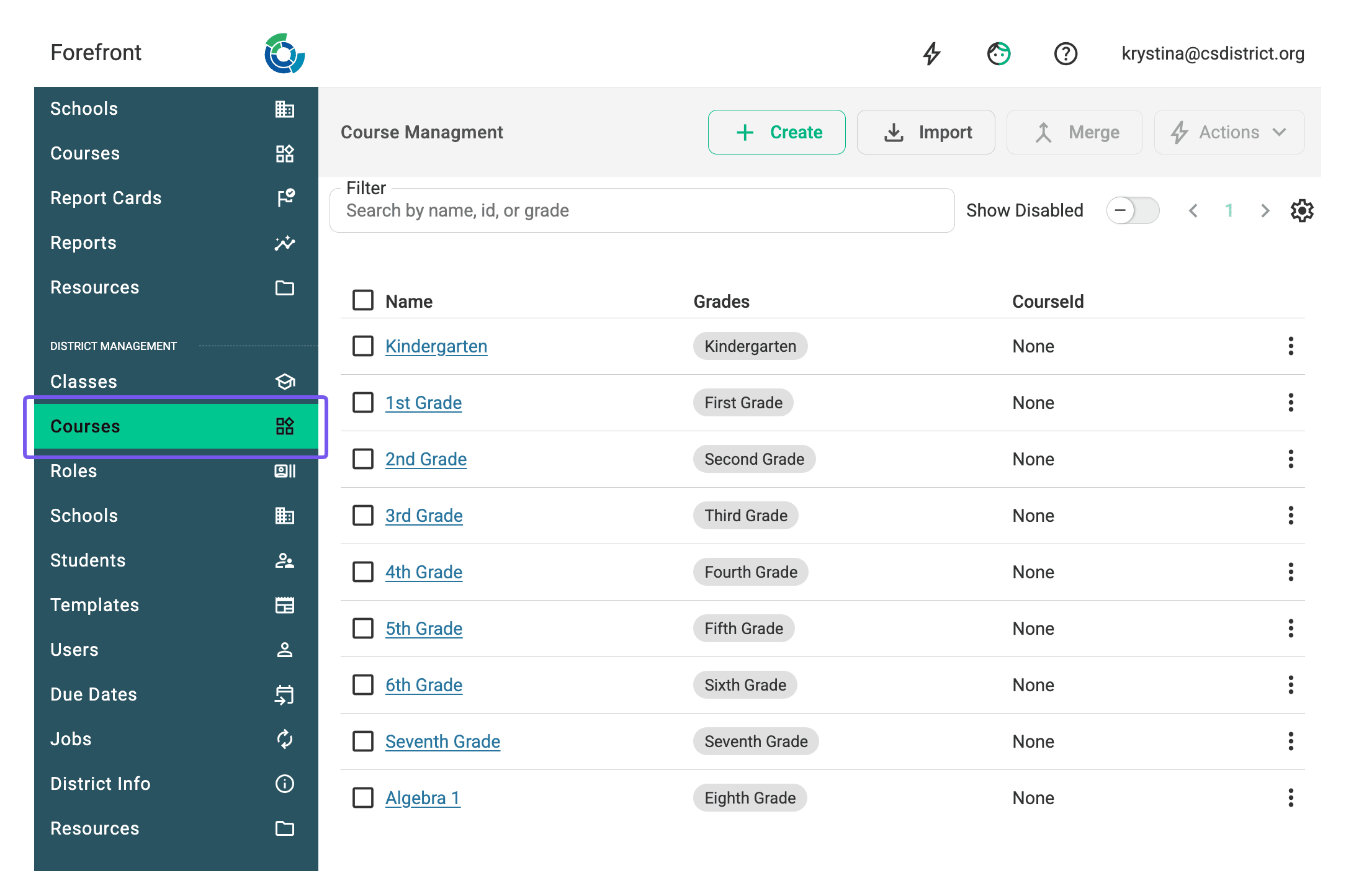
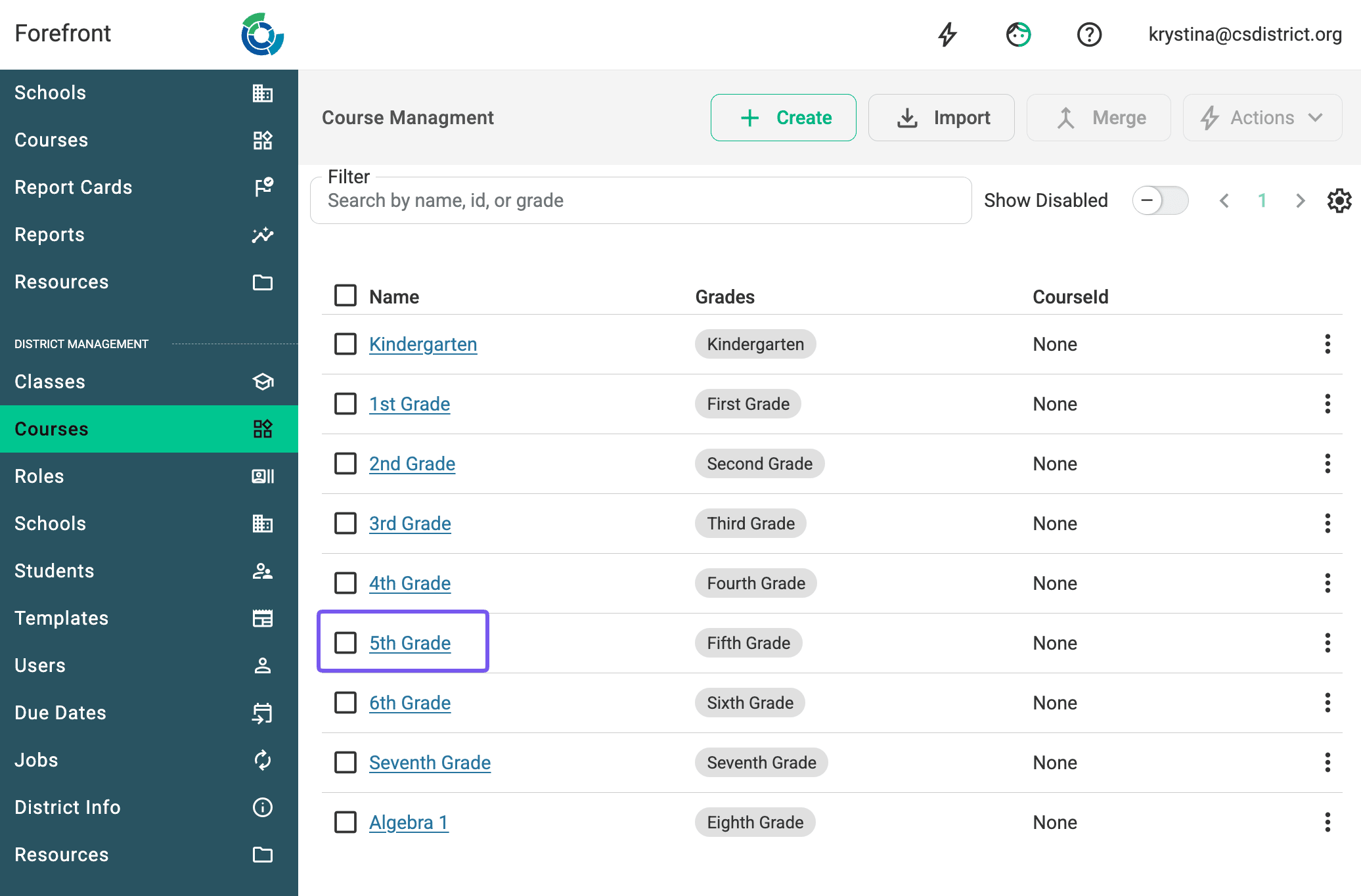
Step 2: Click the course and curricula that the assessment should be added to.
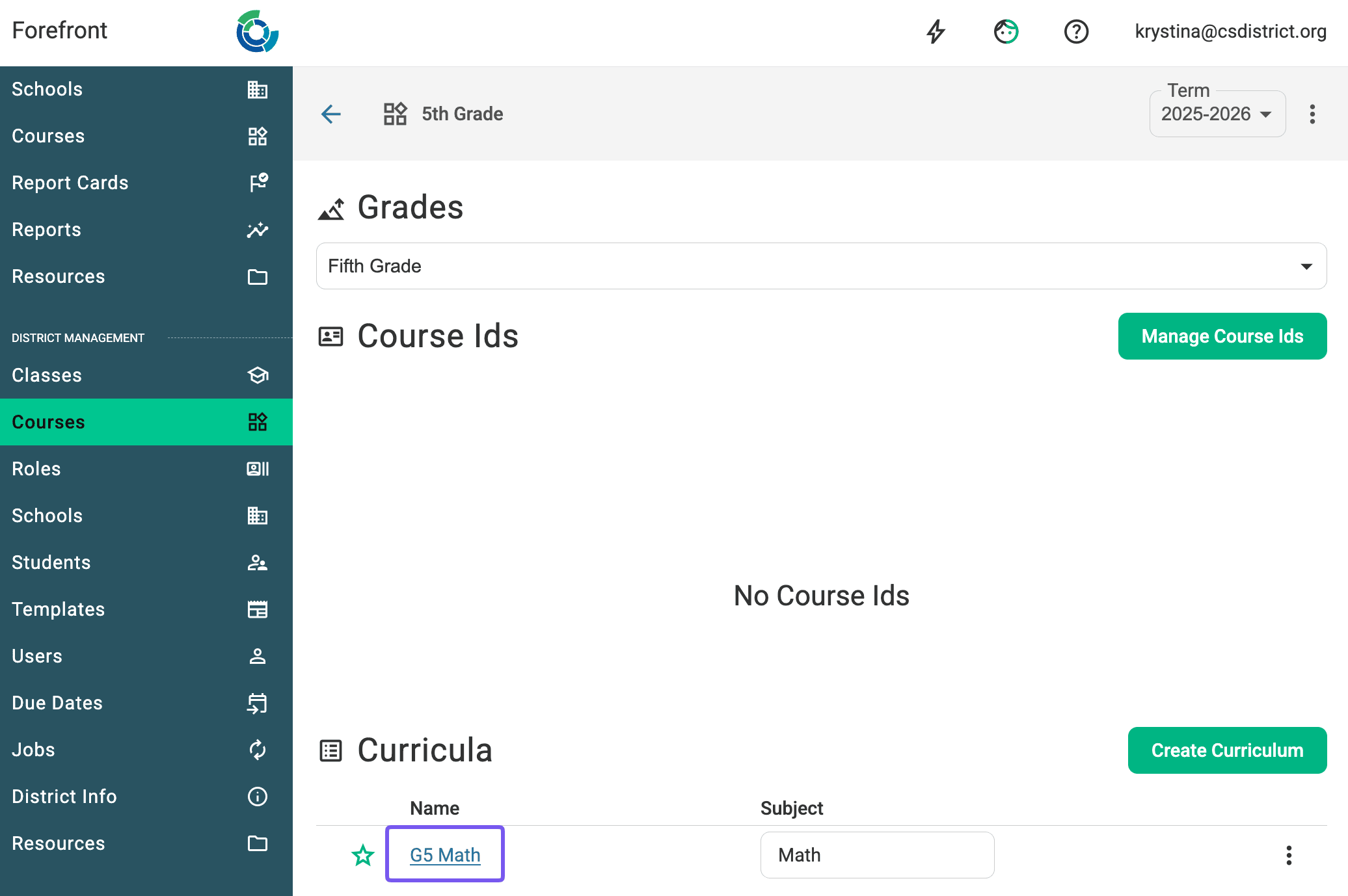
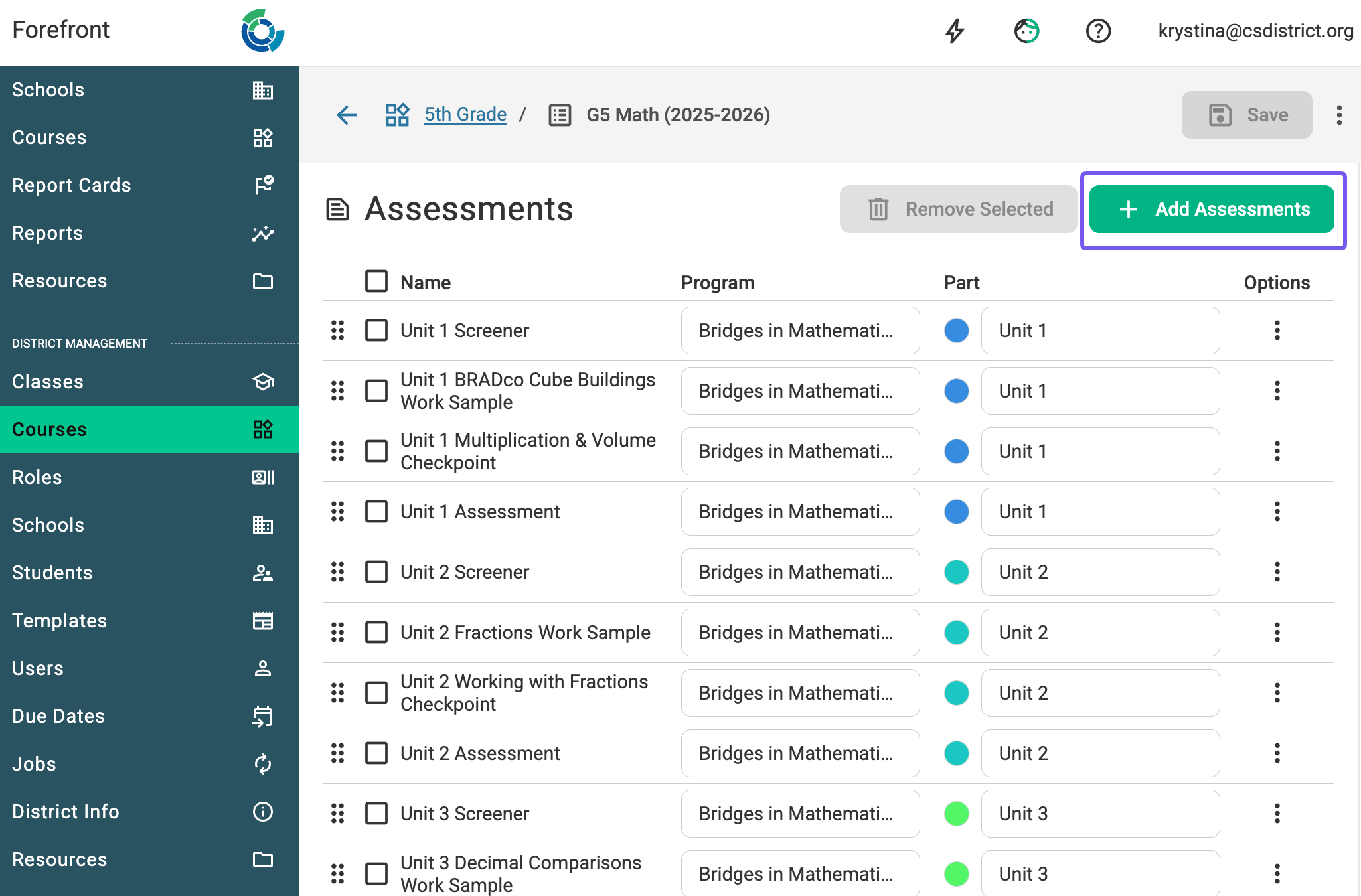
Step 3: Scroll down to “Assessments” and click the green plus-sign.
Step 4: Use the folder structure to access the assessment. Click “All Resources” in the breadcrumb trail to navigate to all folders.
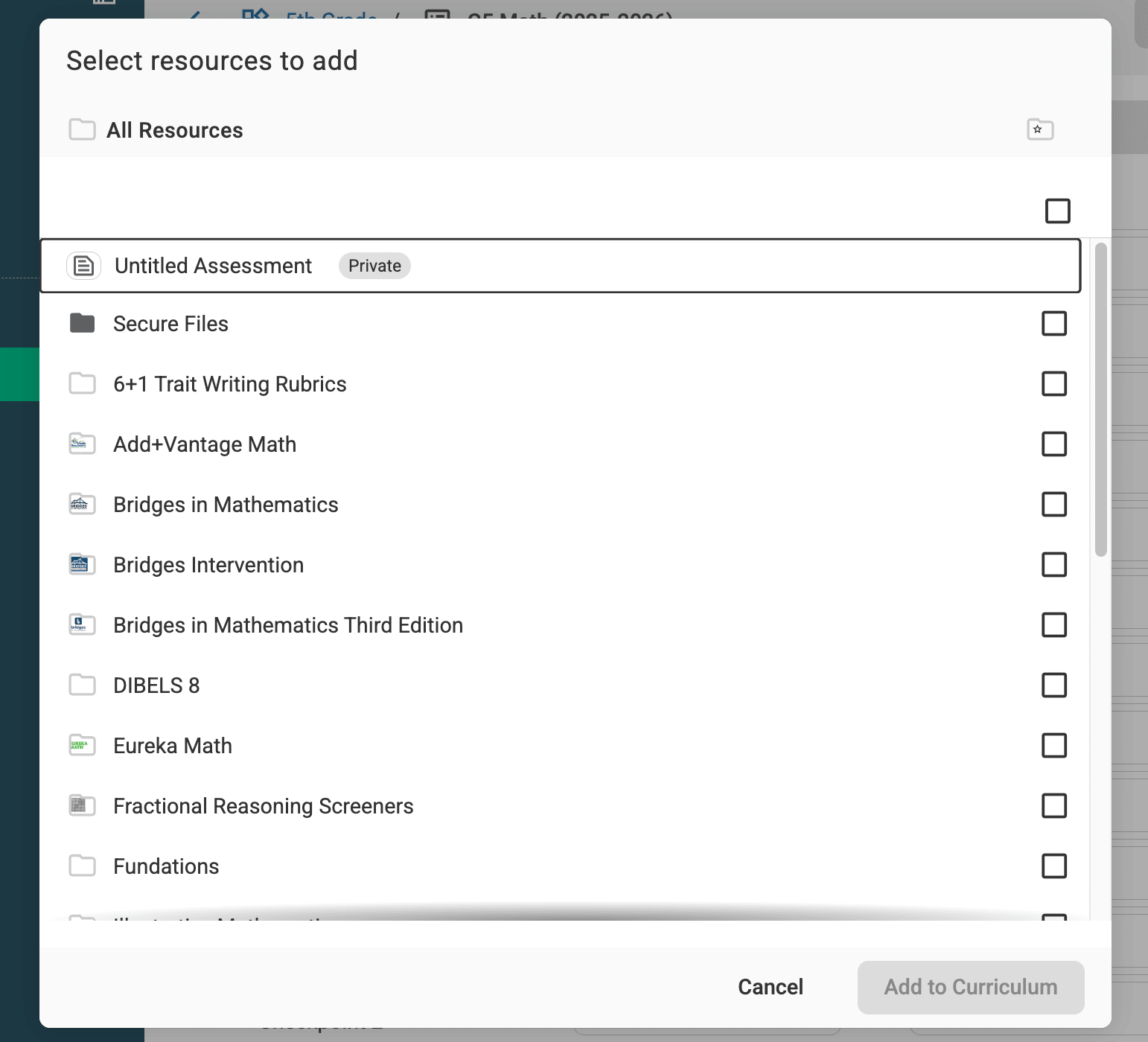
Step 5: Select the assessment(s) to add with the green checkbox. Click “Add to Curriculum.”
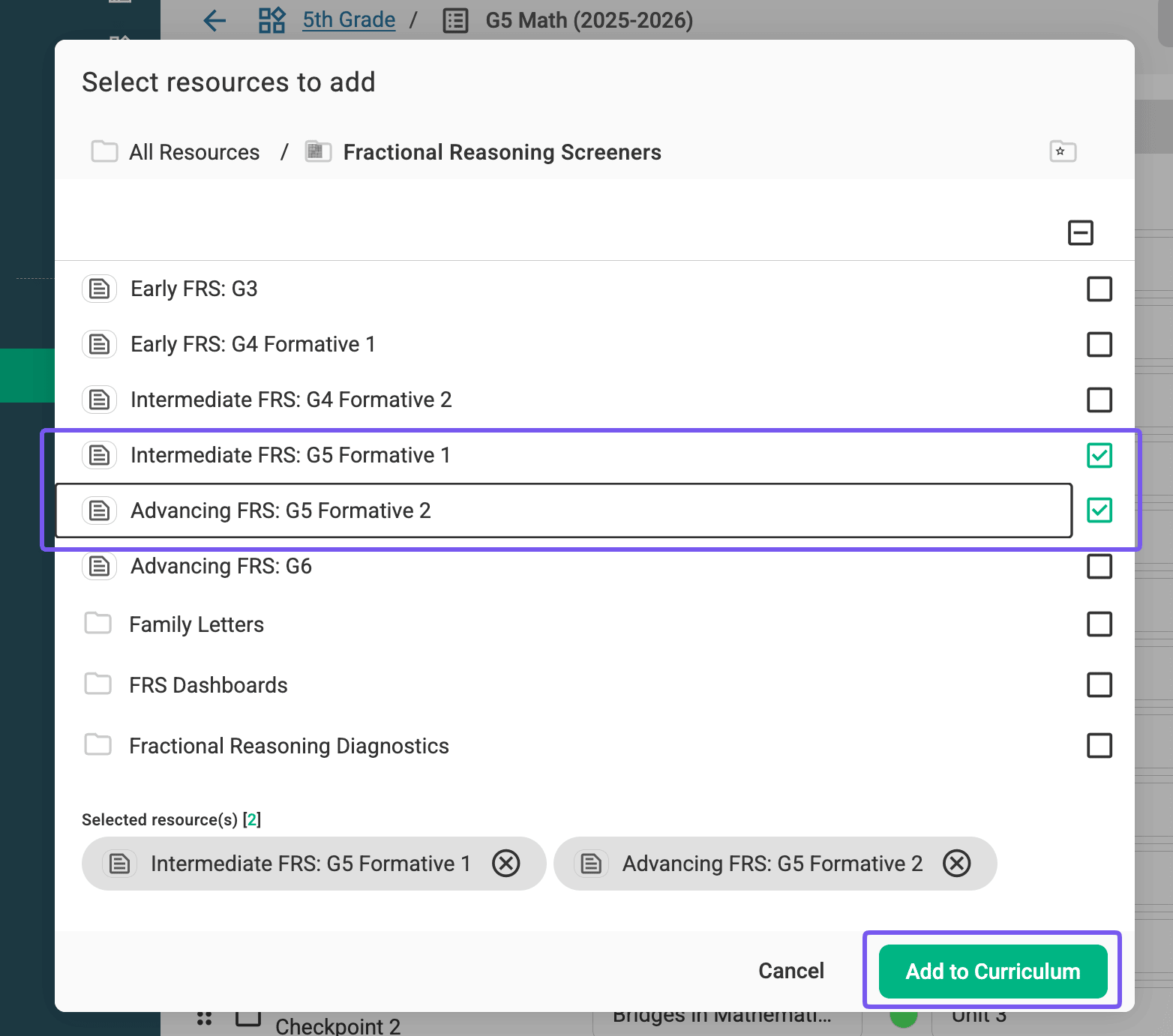
Note: The assessment must be public to be added to the course.
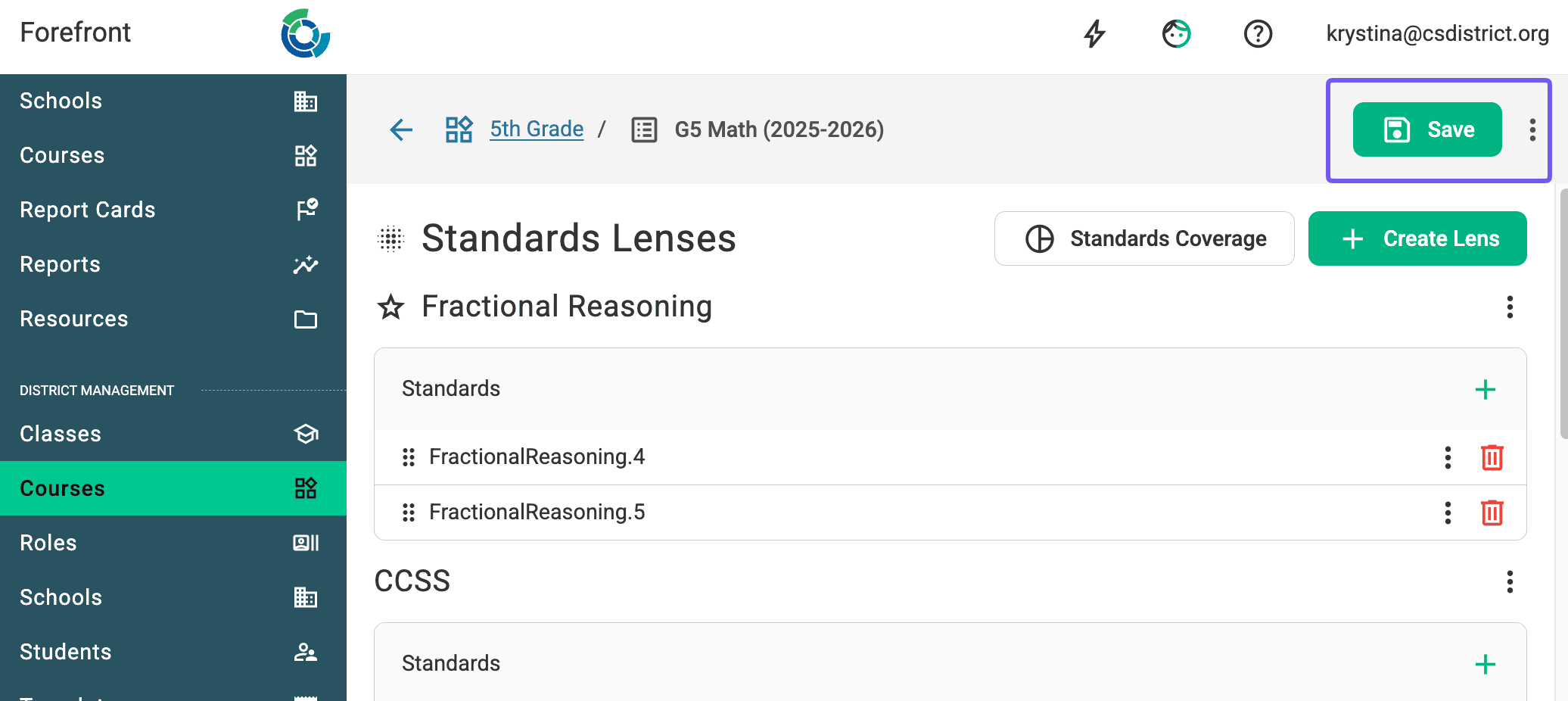
Step 6: Be sure to save your changes by selecting ‘Save’ in the top right corner.
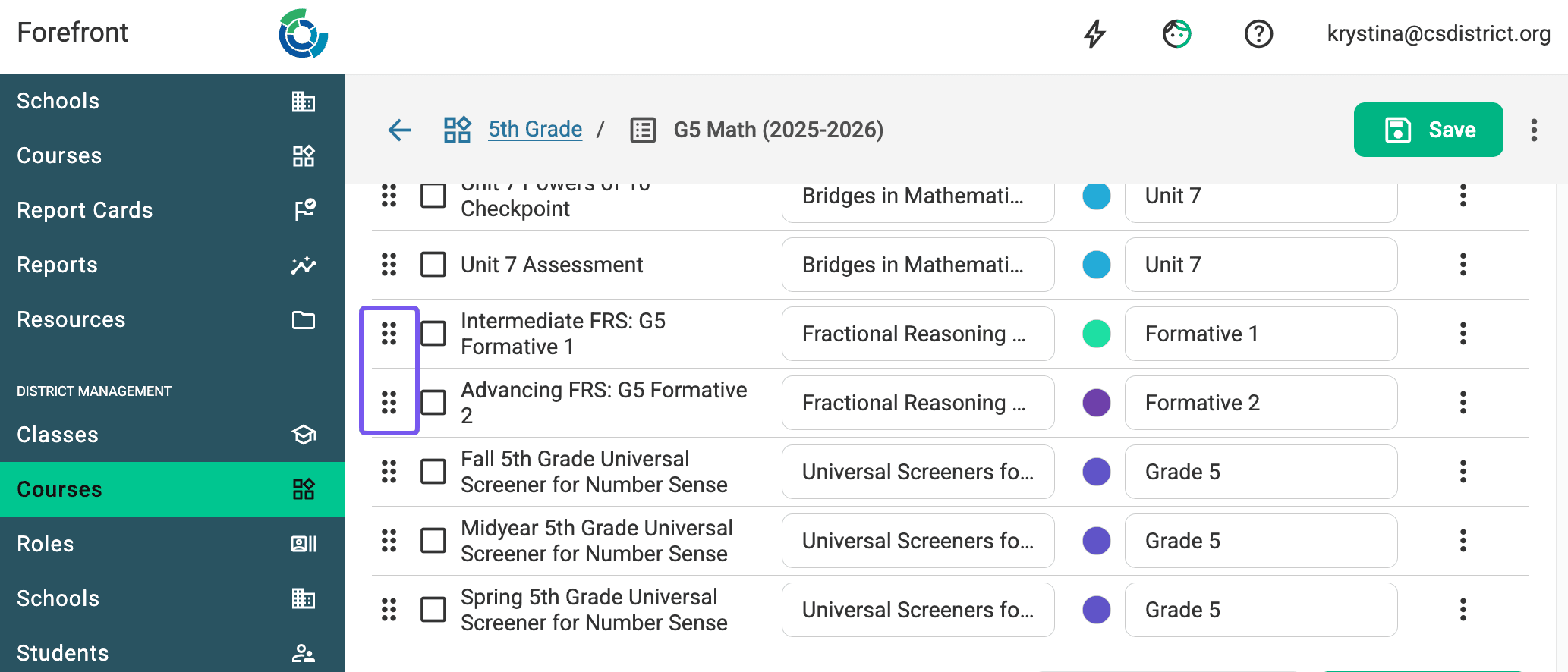
Tip: Use the 6 dots on the far right of assessments to rearrange them in the course.
Does the program or part need to be renamed? Learn more here.
Removing an Assessment
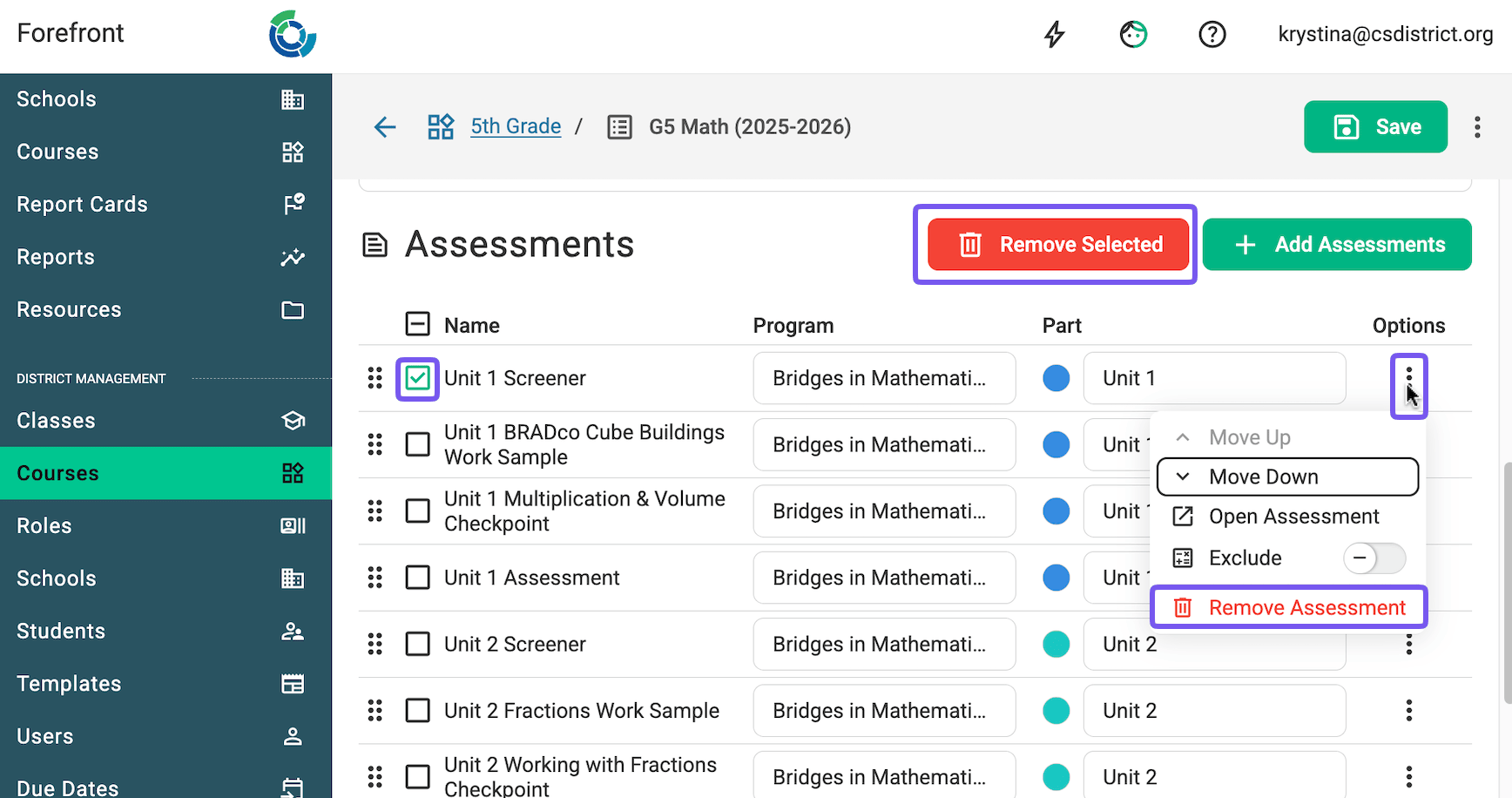
To remove an assessment or assessments from a course, use one of these methods:
Method 1: Select the checkbox next to the assessment you want to remove, then click the red trash icon.
Method 2: Click the three dot menu to the right of the assessment and select remove assessment.
Need more support?
Submit a support request or email our team at support@forefront.education.