 Forefront
Managing Courses
This article explains how to manage courses in Forefront.
If you are making significant changes — adding subjects, adding sub-curricula, or adding grade levels — email support@forefront.education to avoid issues.
Terminology in Forefront
Assessment: sets of questions or observational frameworks with defined scores, performance levels, and Standards alignments (ex., Fall G2 USNS)
Program: sets of assessments, can be grouped into “parts” (ex., Universal Screeners for Number Sense)
Curriculum: the assessments, standards systems, and documents
Subject: can be used to organize curricula
Lens: a way to highlight key standards or combine standards systems (Read more about lenses here.)
Course: one or more curricula and associated documents
Class: a group of students in a school with a teacher and a course
Examples of Course Set-Ups
An elementary school teacher has:
one class of students
in the course third grade
subjects are math, science, social studies and ELA, which are each a curriculum with their own programs of assessments.
A middle school teacher:
teaches the subject math
she has several classes in the course Sixth-Grade Math
has lenses to look at assessment results through the lenses of state standards, priority standards, and historic student data.
Course Management for Clients
Adding Handouts/Printable Documents to Courses
Changing Program or Part Names, or Documents Folders
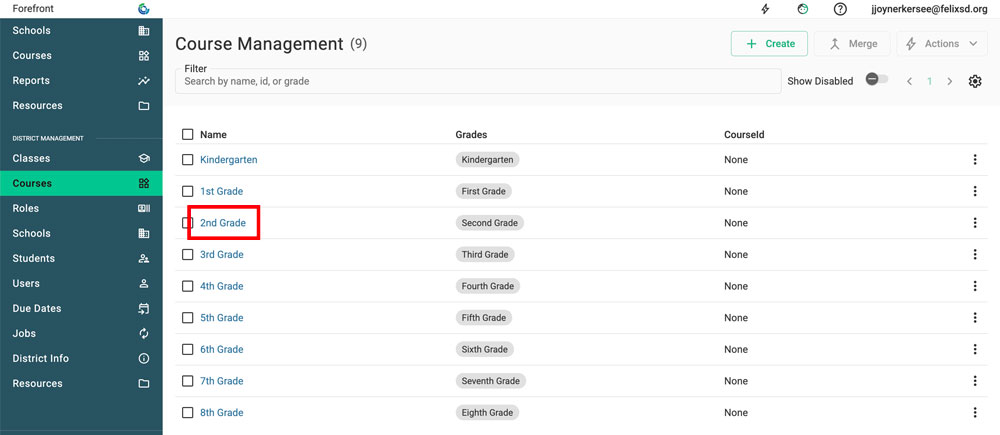
Step 1: Navigate to the Course Management in the left sidebar. Click the course that is being modified.
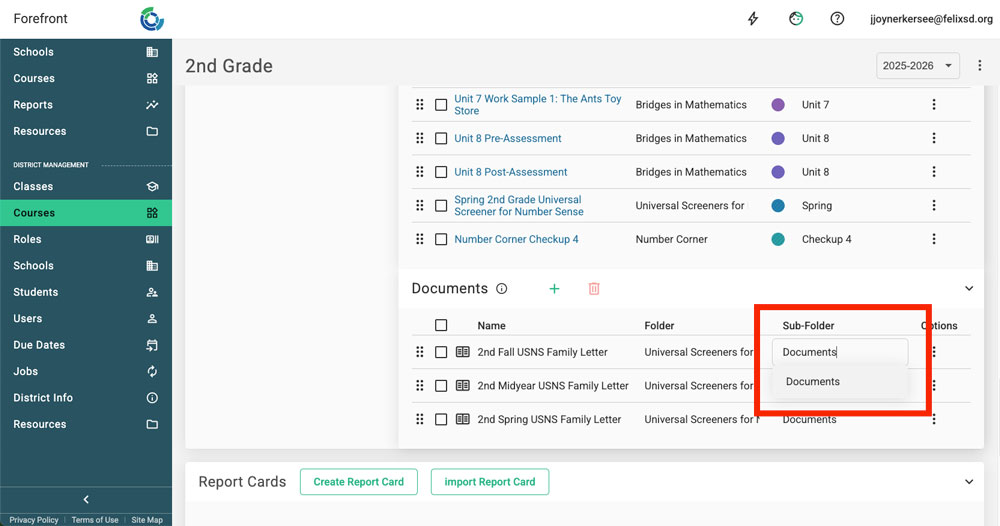
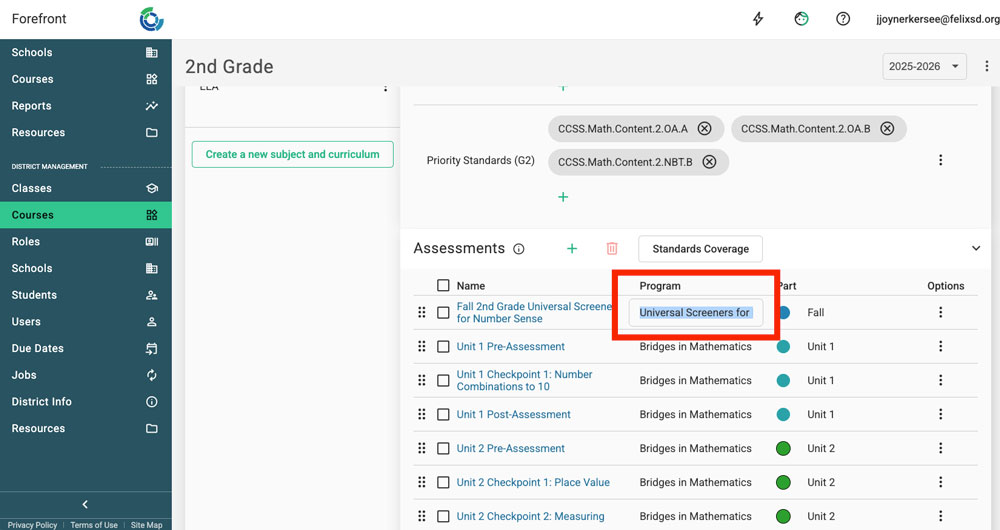
Step 2: Click the text in the “Part” or “Program” column (for assessments) or the “Folder” and “Sub-Folder” columns (documents) to type text, or use the dropdown to change the text.
Course Management to Connect with Forefront About
Adding grade levels
Adding subjects
Configuring intervention courses
Need more support?
Submit a support request or email our team at support@forefront.education.