 Forefront
How Report Card Marks Are Calculated
What Forefront uses to compute a report card mark: which evidence counts, the window it comes from, and how multiple scores and standards combine.
When a teacher opens a class’s report card, most cells already have a mark in them, labeled (Computed). Forefront worked that out from assessment data the teacher already entered. This article explains what went into it — which is worth knowing before you accept a grid full of marks, and is essential if a number ever looks wrong.
There are four steps, and each one is configurable by your district.
1. The descriptor names the standards
Every descriptor (the graded categories across the report card) has a list of standards attached to it. Those standards, and only those, are what the mark is computed from. A descriptor with no standards computes nothing and stays blank for a teacher to fill in by hand.
You can see the standards on any descriptor without leaving the report card: hover a column header on the class Report Cards page and the standards it’s built from are listed there.
2. The Data Start Date sets the window
Only scores dated inside a window count. Each descriptor carries its own Data Start Date setting that decides where that window opens:
| Setting | Evidence used |
|---|---|
| Beginning of Due Date (default) | only scores dated inside that grading period |
| Beginning of Term | scores from the first day of the school year onward |
| All Time | every score the student has ever had |
In all three cases the window closes at the end of the grading period, so a score entered after a grading period ends doesn’t retroactively change its mark.
This is the setting that decides whether a previous school year can affect this year’s report card. On the two defaults it cannot. On All Time it can.
Note: This matters most for standards that aren’t split by grade level. Library, technology, and social-emotional standards are often written as a single progression that every grade is assessed against — so a student accumulates scores against the very same standard for years. Those descriptors should stay on Beginning of Due Date or Beginning of Term; see Descriptor Editor to check or change the setting.
3. Scores inside the window combine, newest first
A student usually has more than one score on a standard inside the window. They don’t count equally — Forefront takes a recency-weighted average, so the most recent evidence dominates and older scores fade rather than dropping out abruptly. Weighting is measured against the newest score in the window, not against today’s date, so a mark doesn’t drift just because time passes.
The weight falls off with the gap between an assessment and the most recent evidence in view:
| Gap behind the newest evidence | Relative weight |
|---|---|
| Same day | 100% |
| 1 week | 51% |
| 2 weeks | 31% |
| 1 month | 14% |
| 3 months | 3% |
| 6 months | 1% |
You never have to take that on faith — the app shows you the weights. Every cell’s Body of Evidence panel carries a Weight column giving each score’s share of the mark, so you can see exactly how much any one assessment counted. See “Checking any individual mark” below.
Two consequences worth knowing:
- A recent reassessment effectively replaces an old one. A student who struggled in September and demonstrated the skill in November will show November’s result, or close to it.
- Even on All Time, a year-old score is nearly weightless — about a fifth of one percent of the newest score. It’s not zero, which is why the window setting is still the right control if you need prior years genuinely excluded, but it does mean an old score cannot quietly dominate a current mark.
When a descriptor lists several standards, each standard is resolved to its own score by the rule above, and those are then averaged together to produce the descriptor’s value. (A district can replace that average with a custom formula if a category needs to be weighted differently.)
4. The value becomes a mark
The result of step 3 is a number on the proficiency scale. Forefront bands that number into a proficiency level, then pre-fills the descriptor option your district mapped to that level. If your district hasn’t defined an option for the level the number falls into, the cell is left for a teacher to set by hand.
Nothing here is final. A computed mark is a suggestion until a teacher accepts it, and a teacher can override any cell before accepting. See Teacher Report Card Overview for the accept and override workflow.
Checking any individual mark
Click a cell on the class Report Cards page. The panel alongside the grid fills with that cell’s Body of Evidence, grouped by standard: every assessment that fed the mark, with the date it was given, the proficiency it produced, and the weight it carried.
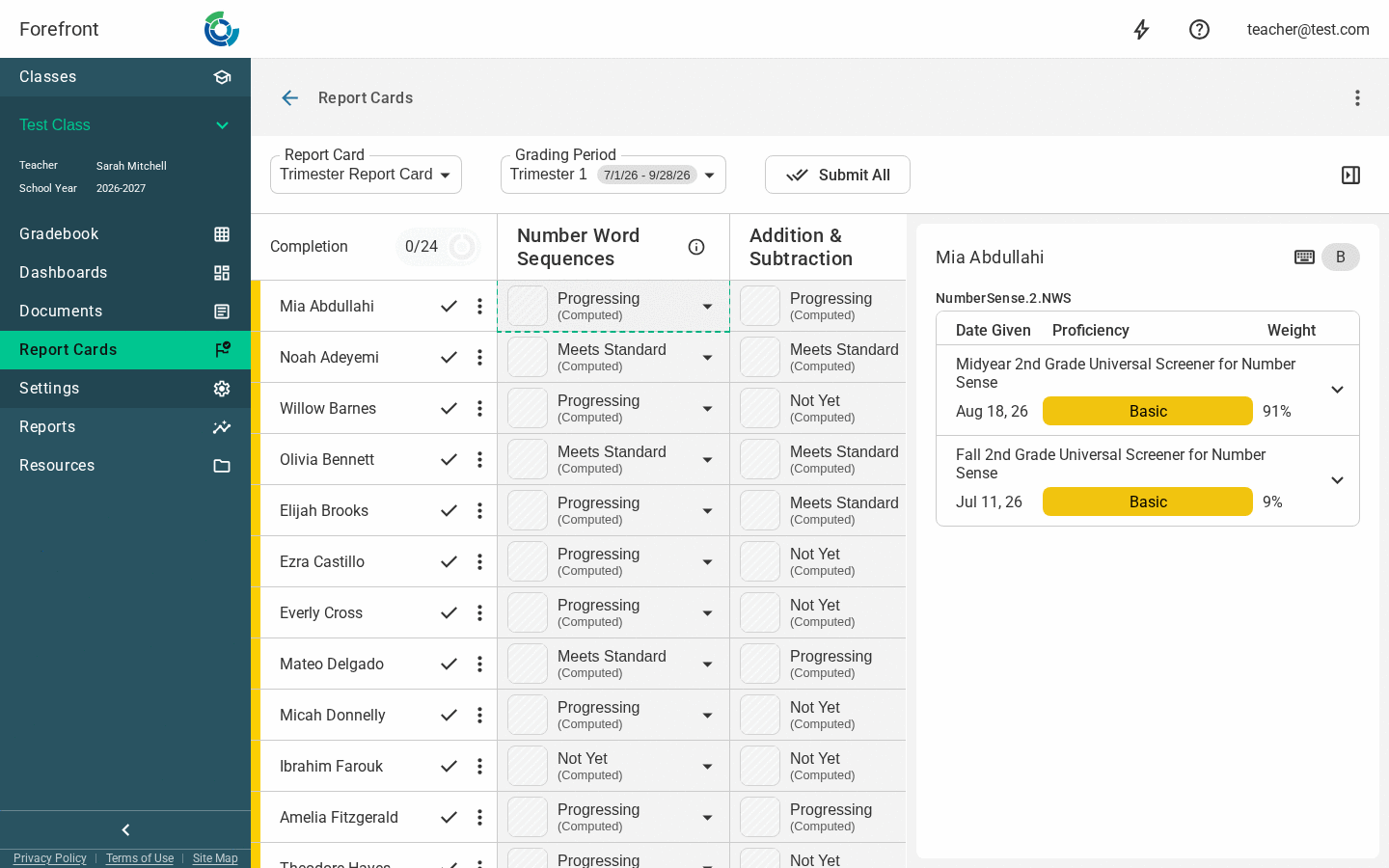
That panel is the fastest way to answer “why does this say what it says.” In the example above the mark rests almost entirely on the Midyear screener (91%) with the Fall screener contributing the remaining 9% — five weeks older, so most of its influence has already faded.
If an assessment you expected is missing from the list, it fell outside the window (step 2) or isn’t tagged to any of the descriptor’s standards (step 1). If the panel reports that no assessments contribute to the column, there’s no evidence in the window at all — check the Data Start Date before assuming the data is missing.
Why the Overview grid can disagree with the report card
Teachers often notice that a student’s proficiency on the gradebook Overview page doesn’t match the mark on their report card. That’s expected — the two answer different questions.
The Overview grid and the student standards wheel show a student’s standing across all the data they have, with no date window applied by default. That’s deliberate: the whole point of those pages is the long view, and early-year assessments frequently target the previous grade’s standards, so cutting the history off would hide evidence a teacher wants.
To scope those pages to a comparable window, add a filter on the Overview page:
- Term — this school year only. This is the one to reach for if the question is “what about last year’s scores?”
- Custom Date Range — any window you like. Set it to the grading period’s begin and end dates to line the Overview up with a report card mark exactly.
You may also see a Report Card Grading Period filter. It runs from the previous grading period’s due date up to the selected one, which is close to what a descriptor set to Beginning of Due Date computes but not guaranteed to match it — the report card’s window is configured per due date, independently of where the neighboring due dates fall. It’s also only offered on courses that have a report card from the older report card tool, so most districts won’t see it at all. When you need the two views to agree precisely, use Custom Date Range and the grading period’s actual dates.
On the student standards wheel, choosing a prior-year lens applies that year’s term filter automatically, so a historic wheel doesn’t get polluted by current-year data. The current-year lens is left unfiltered.
Note: In districts using rolled-up standards, a parent standard’s value is the average of its children. So a descriptor pointed at a broad standard reflects everything beneath it, which is another reason a report card mark and a single assessment’s score can differ.
Descriptor Editor · Report Card Editor · Due Dates · Class Report Cards