 Forefront
Preferred Student Names
Show students by the name they go by: where a preferred name comes from, the three ways names can be shown, and how to turn it on for your district.
A student can have a preferred name alongside their legal one. Ada Lovelace might go by Addie, for example. Forefront can show the legal name, the preferred name, or both, everywhere a student’s name appears.
Turning it on for your district
If your district rosters through Clever, preferred names are already on. Your district shows Preferred name, using the preferred name Clever sends. To show legal names or both instead, contact support@forefront.education.
For every other district, preferred names are set up with Forefront support. Contact support@forefront.education and we’ll work with you to:
- Get preferred names into Forefront. For most districts this means a small change to the roster data your student information system sends us, so we receive a preferred name for each student who has one. See Where preferred names come from below.
- Choose your district’s default. We’ll set how names are shown for everyone in your district. Each person can still change it for themselves.
Until your district’s default is changed, Forefront keeps showing legal names, even for students who have a preferred name on file.
The three options
| Option | Shows |
|---|---|
| Legal name | Ada Lovelace |
| Preferred name | Addie Lovelace |
| Both | Ada (Addie) Lovelace |
Legal name is the default, except in Clever districts, which start on Preferred name. A student with no preferred name on file always shows their legal name, so you don’t need a preferred name for every student before turning this on. If a preferred name matches the student’s first name, Forefront ignores it. You won’t see “Ada (Ada) Lovelace”.
Where the name appears
The chosen option is used everywhere a student’s name is shown, including:
- Class lists, student pages and search
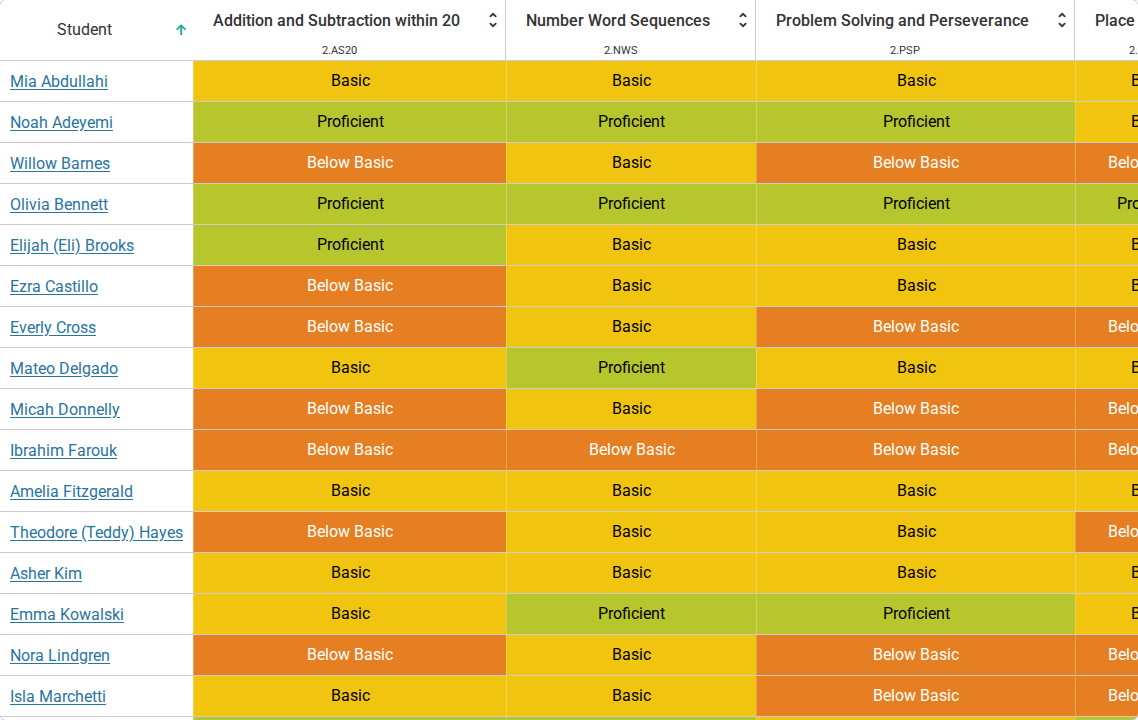
- The gradebook and assessment spreadsheets
- Report cards
- Printed documents and handouts, including the file names of per-student downloads
- Data exports
- Initials on student avatars
Lists sorted by name sort by the name that’s shown, so under Preferred name Addie sorts as “Lovelace, Addie”.
Choosing how names are shown to you
Anyone can override the district’s choice for themselves. Open Settings from your account menu. Under Appearance, find Student names and pick Legal name, Preferred name or Both. To go back to your district’s choice, pick Use district setting.
Your choice only changes how names are shown to you. It doesn’t change what anyone else sees.

Where preferred names come from
A student’s preferred name can arrive in three ways:
- Your roster file. If your district rosters through SFTP or a manual roster
upload, the file can include a preferred name column, such as
STUDENT_PREFERRED_NAME. Forefront support will confirm the column works with your file. See Roster File Contents. - Clever. Districts that roster through Clever get the preferred name Clever sends from your student information system. Clever’s name replaces the one in Forefront at every sync, so make changes in your student information system.
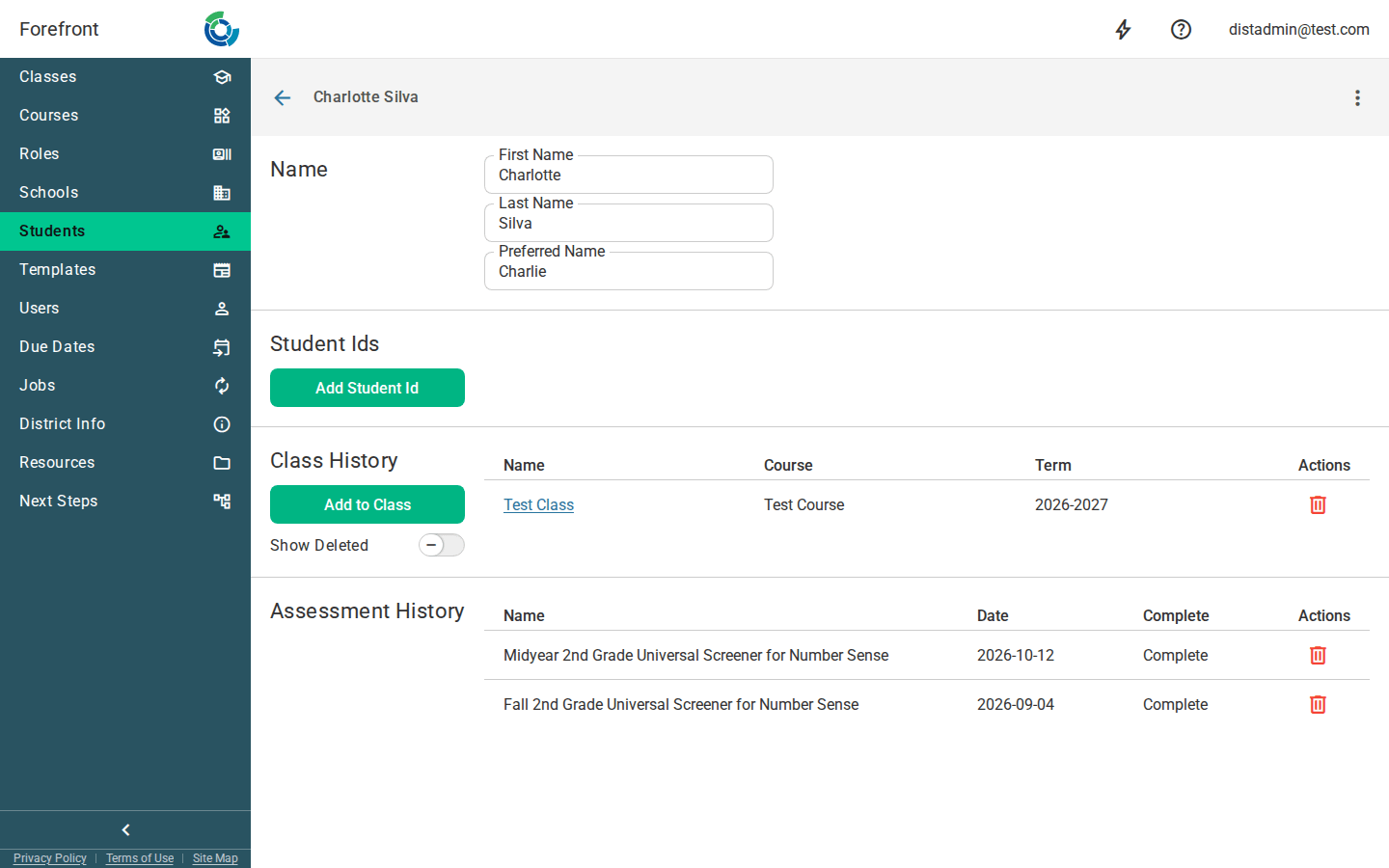
- By hand. A district administrator can type one in the Preferred Name field on the student’s record, in the Students page of District Management. Use this when your roster file doesn’t have one. In a Clever district, a name typed in here is replaced at the next sync. See Students Management.
Using preferred names in handouts
When you add a student’s name to a handout, the Full Name and First Name fields follow your district’s option, so a letter that says “Dear Addie” will greet each student the way your district shows names everywhere else.
The Preferred Name field always shows the student’s preferred name, even if your district shows legal names. Use it for things addressed to the student directly, like name tags. A student with no preferred name on file shows their first name instead.
Frequently asked questions
We removed a student’s preferred name in our student information system, but Forefront still shows it. This happens in districts that roster with a roster file. A blank preferred name in the file doesn’t erase one already in Forefront, so a name typed in by hand survives the next import. To remove one, clear the Preferred Name field on the student’s record. In a Clever district, the name goes away at the next sync.
Why does a student show only their legal name when our district shows both? They have no preferred name on file, or it’s the same as their first name.
Can a teacher see preferred names if our district shows legal names? Yes. Anyone can choose Preferred name or Both from their own Settings.