 Forefront
Teacher Report Card Overview
This article provides an overview of the teacher report card tool in Forefront. Learn how to accept or override grades, add notes, and print report cards at the class level.
Video Overview
Accessing your Report Card Gradebook
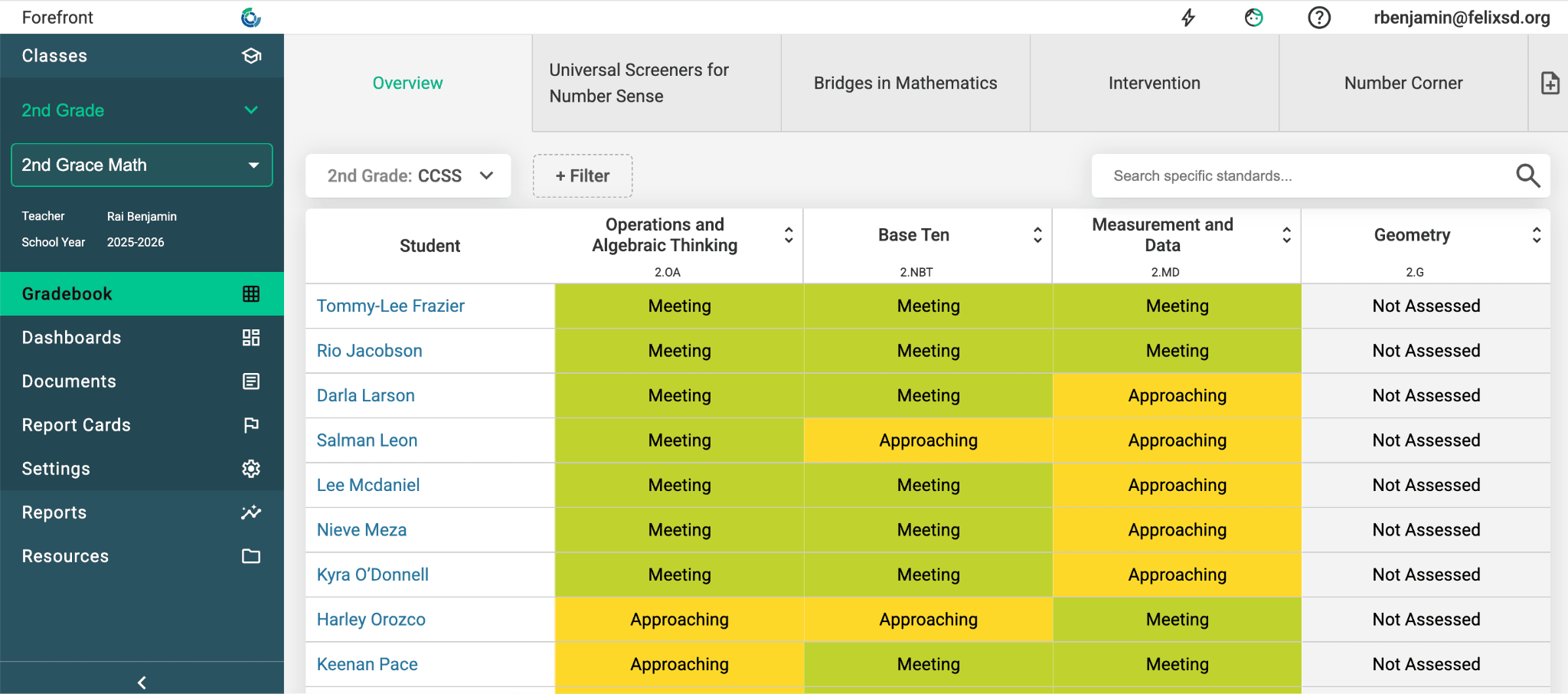
Step 1: Open Report Cards
Click Report Cards in the left-hand navigation pane to open your report card gradebook
Accepting and Overriding Grades
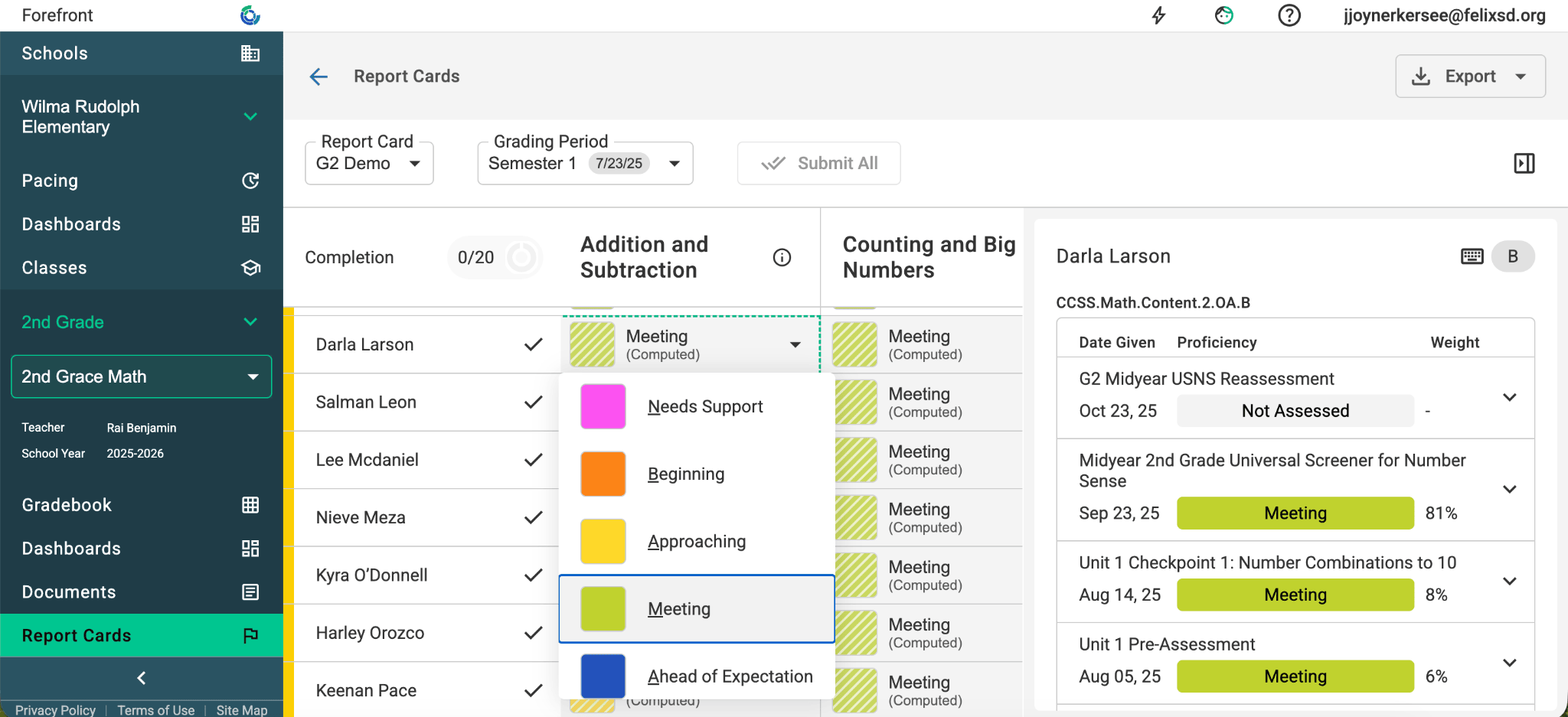
Step 1: Set each student’s proficiency
Select the dropdown and click the proficiency that reflects the student’s performance.
Tip: Use the computed proficiency and the body of evidence shown on the right to guide your decision-making.
Adding Notes
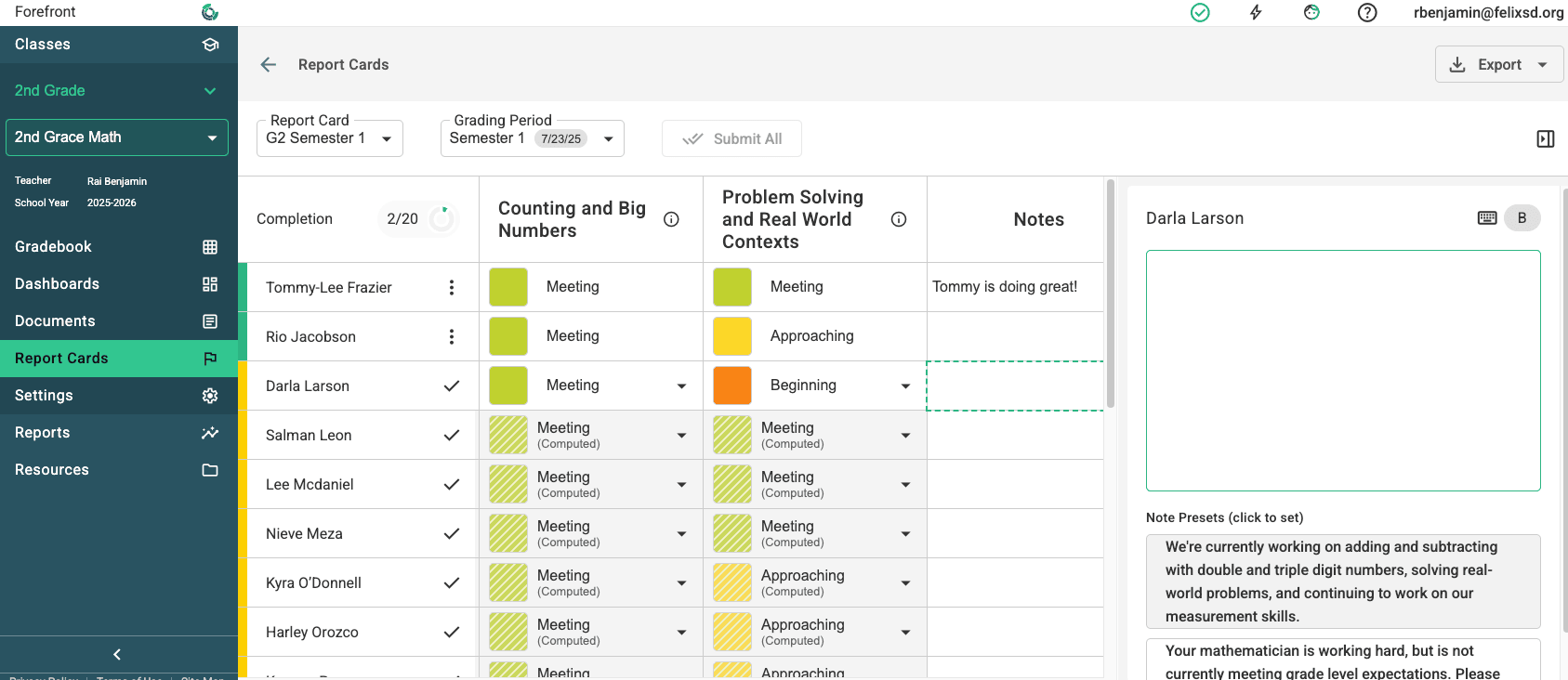
Step 1: Open the Notes cell
Click the Notes cell in the report card table
Step 2: Enter the note
Type in the text box on the right, or – if your district has them configured – click a Note Preset in the lower right.
Each preset you click is added to the end of the note, so you can combine several presets and keep anything you’ve already typed. Edit the result in the text box like any other note.
Printing Report Cards at the Class Level
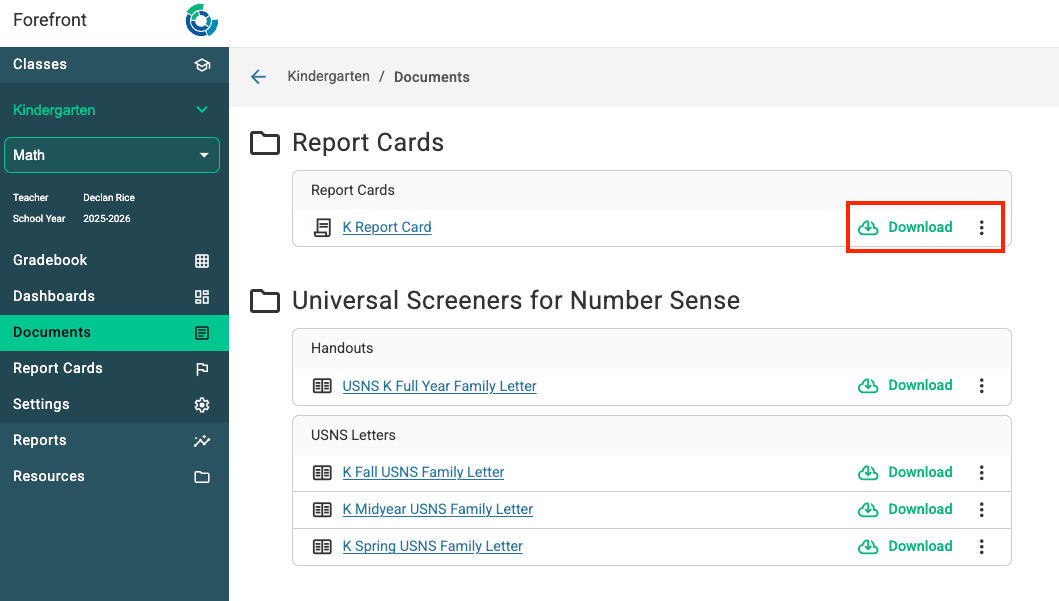
Step 1: Open Documents
Click Documents in the left-hand navigation pane.
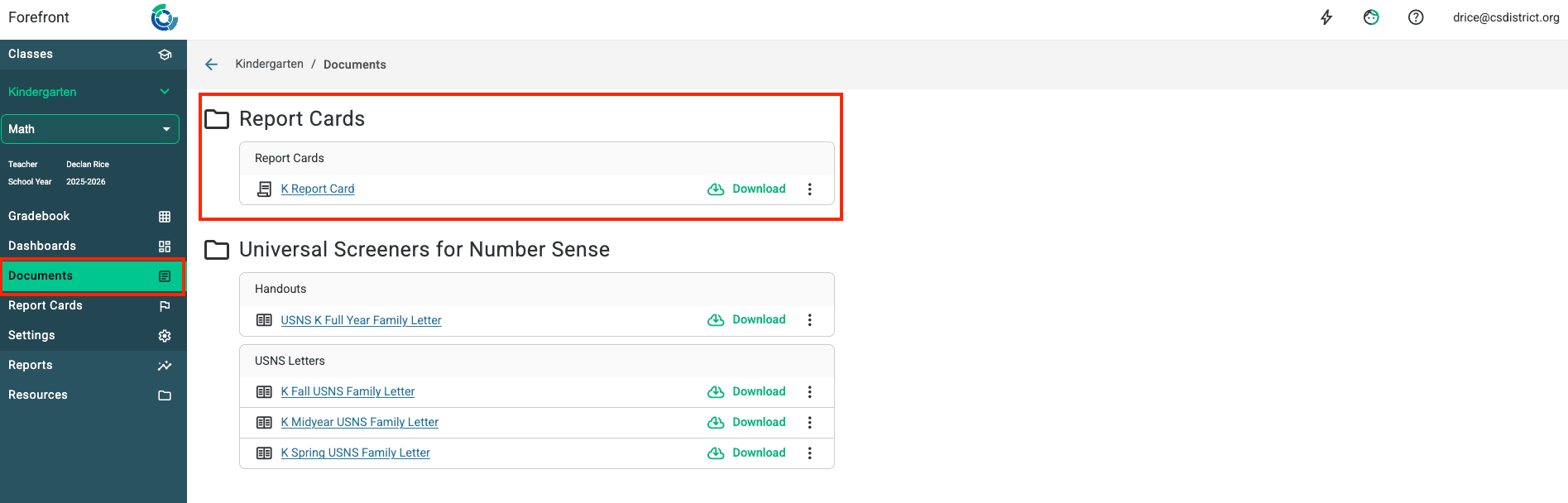
Step 2: Open the download options
Click the green cloud icon to open the download options.
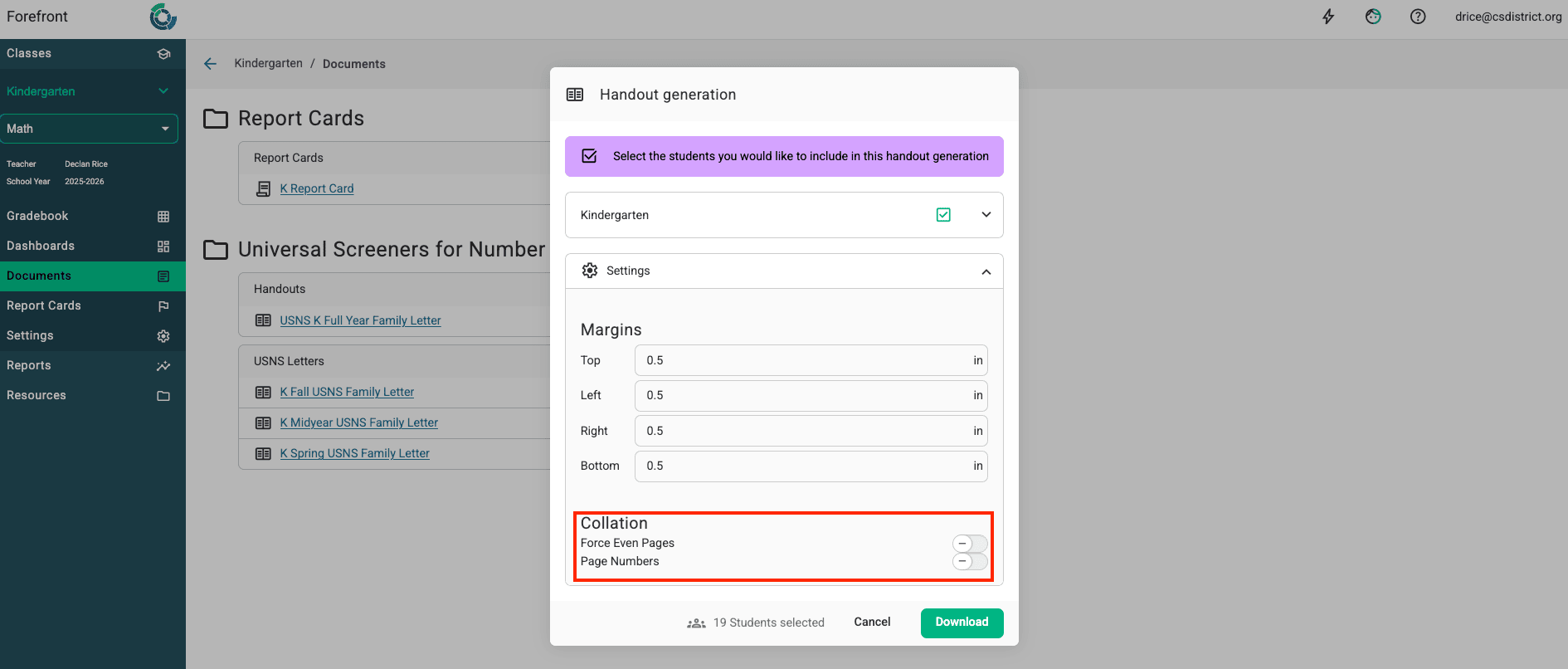
Step 3: Select students and download
Use the toggle to select all students or specific students, then click Download.
Force Even Pages: If a handout may run onto two pages, toggle this on so two-sided printing works correctly.
Need more support?
Submit a support request or email our team at support@forefront.education.