 Forefront
Assessment Spreadsheet
Entering and editing scores for an assessment in the spreadsheet grid.
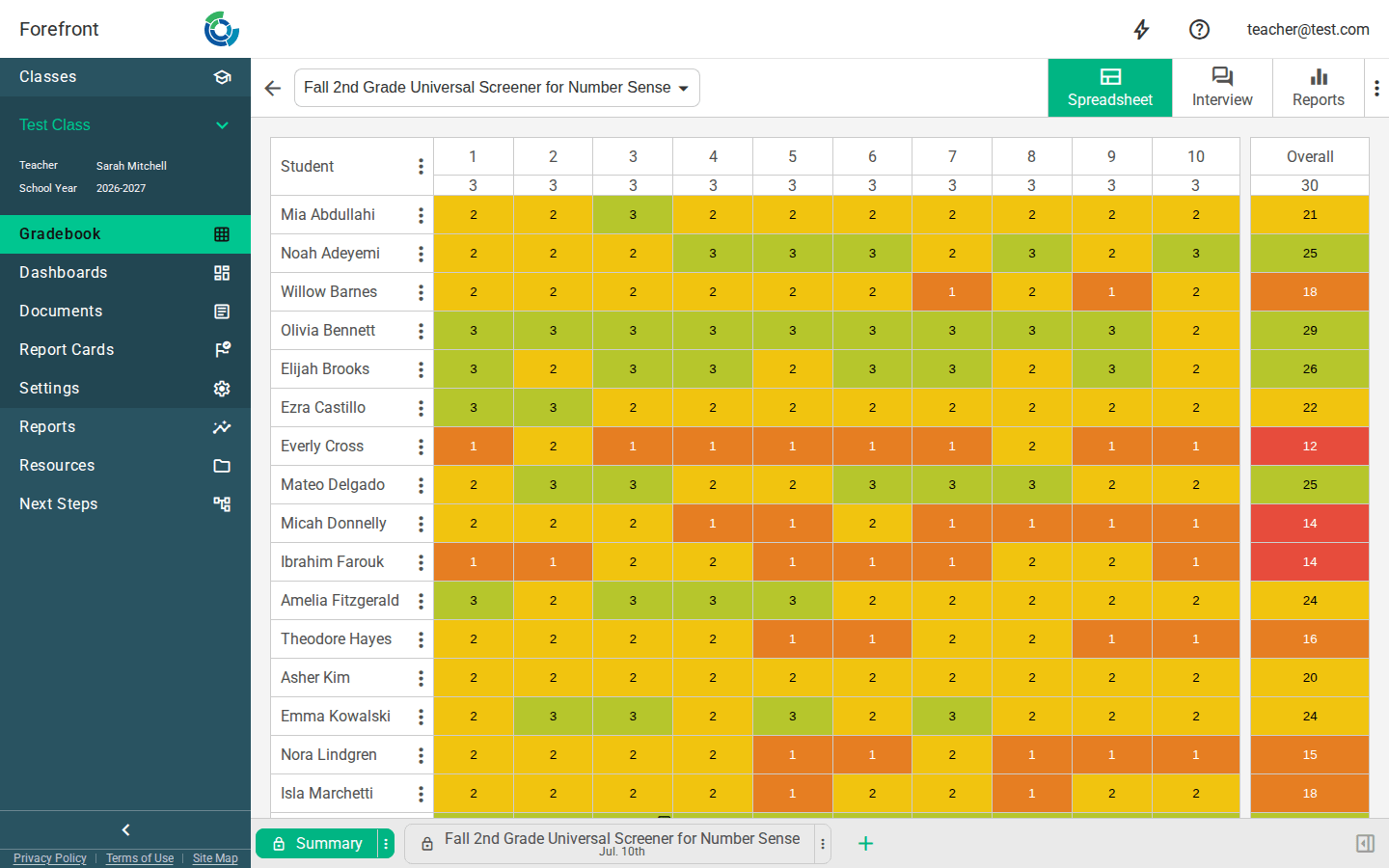
The Spreadsheet is where you enter and edit scores for an assessment. It’s a grid with your students down the side and the assessment’s questions across the top, so you can score a whole class quickly, one cell at a time.
Reading the grid
- Rows are students, columns are questions. Each question column is labeled by its number, and the row just under the header shows that question’s max score.
- Click a student’s name to open that student’s detail pages. A 💬 comment icon next to a name means the student has notes on this assessment.
- If a student has been assessed more than once and you’re on the Summary tab, an expand arrow appears next to their name — click it to open the student’s individual assignment rows underneath the summary row.
Switching assessments and views
- The assessment selector at the top left lets you jump to another assessment in the same set without leaving the page.
- The view links — Spreadsheet, Interview, Reports, and (when the assessment has them) Instructions — switch between ways of working with the same data. On narrow screens these move into the actions menu (⋮).
- The back arrow returns you to where you came from.
Entering scores
Click a cell and type to enter a score, then use Tab, Enter, or the arrow keys to move to the next cell — the grid keeps scores saving as you go. Cells that hold derived or imported values are read-only:
- Overall / calculated columns compute their value from the other questions, so they can’t be typed into.
- Read Only (imported) questions carry scores that came from a data import and can’t be hand-entered, but you can still read them.
Press N on a selected cell to add a note for that student and question. Scores can only be edited on assignments that belong to this class and that you have permission to modify; other rows are shown read-only.
Assignment tabs
The tabs along the bottom are the assessment’s assignments — usually one per date it was given, plus a Summary tab.
- Summary shows one consolidated row per student across all their assignments. Right-click the Summary tab to choose which assignment it reflects — Latest, Earliest, Highest, or Lowest — and to turn on Merge Across Assignments, which combines each student’s best answers across every date.
- Add a tab to record the assessment on a new date.
- Right-click an assignment tab (or open its menu) for its actions:
- Edit Tab — rename the tab and adjust its date.
- Proficiency exclusion — leave this assignment out of proficiency calculations (excluded rows are shown with a hatched texture).
- Move Student Data to — merge this assignment’s scores into another tab.
- Download as CSV — export the tab’s scores; you’ll be offered a point-total column when the assessment has no overall-score question.
- Delete — remove the assignment (you can bring it back later; see below).
When you click the date button next to the assessment name, you can change the selected assignment’s date.
The actions menu
The ⋮ menu (top right) collects assessment-level actions:
- Open Assessment Details — open the assessment itself in a new tab (to view or, with permission, edit it).
- Show Sum Column — add a running total column to the grid (shown only when the assessment has no overall-score question).
- Load All Assignments — include every assignment, not just the most recent ones.
- Restore Deleted Assignments — pick previously deleted assignments to bring back (appears only when there are deleted assignments to restore).
- On the Reports view, the menu also offers Open in Reports and Show / Hide Sidebar.
Sorting
- Click a question column header to sort students by their score on that question; click again to reverse, and once more to clear. An up/down arrow shows the active direction.
- Click the Sum header (when shown) to sort by point total.
- Right-click the Student header for name-sort options.
Stats row
When enabled for your district, a stats block appears below the grid, showing how many students (and what percent) fall into each proficiency level for every question.
Details panel
Selecting a cell or student can open a side details panel with more about that score or student. Use the panel toggle next to the tabs to show or hide it.
Printing
The spreadsheet includes a print-friendly grid with a header listing the assessment, date taken, grade, class, and teacher, so a printed copy is clearly labeled.
Permissions and empty states
- Editing controls (entering scores, adding and editing tabs, exclusion, delete) appear only on assignments you have permission to modify. On an assessment you don’t manage, you’ll see the scores read-only.
- If the page can’t load, you’ll see “Unable to load spreadsheet”, or “Not Authorized” if you don’t have access to this assessment.
More about this page
- Troubleshooting Locked Data Tabs — why a tab is locked, and how to merge someone else’s data into yours.
- Entering Assessment Data in Forefront
- Should I Put a Zero In or Leave the Spreadsheet Box Blank?
- How to Import Data to a Preconfigured Assessment
- How to Access the Reporting Suite via Spreadsheet
- How Do I Record Fluency USNS Results in Forefront?