 Forefront
Gradebook Overview
The gradebook home for a class curriculum: programs, parts, and at-a-glance progress.
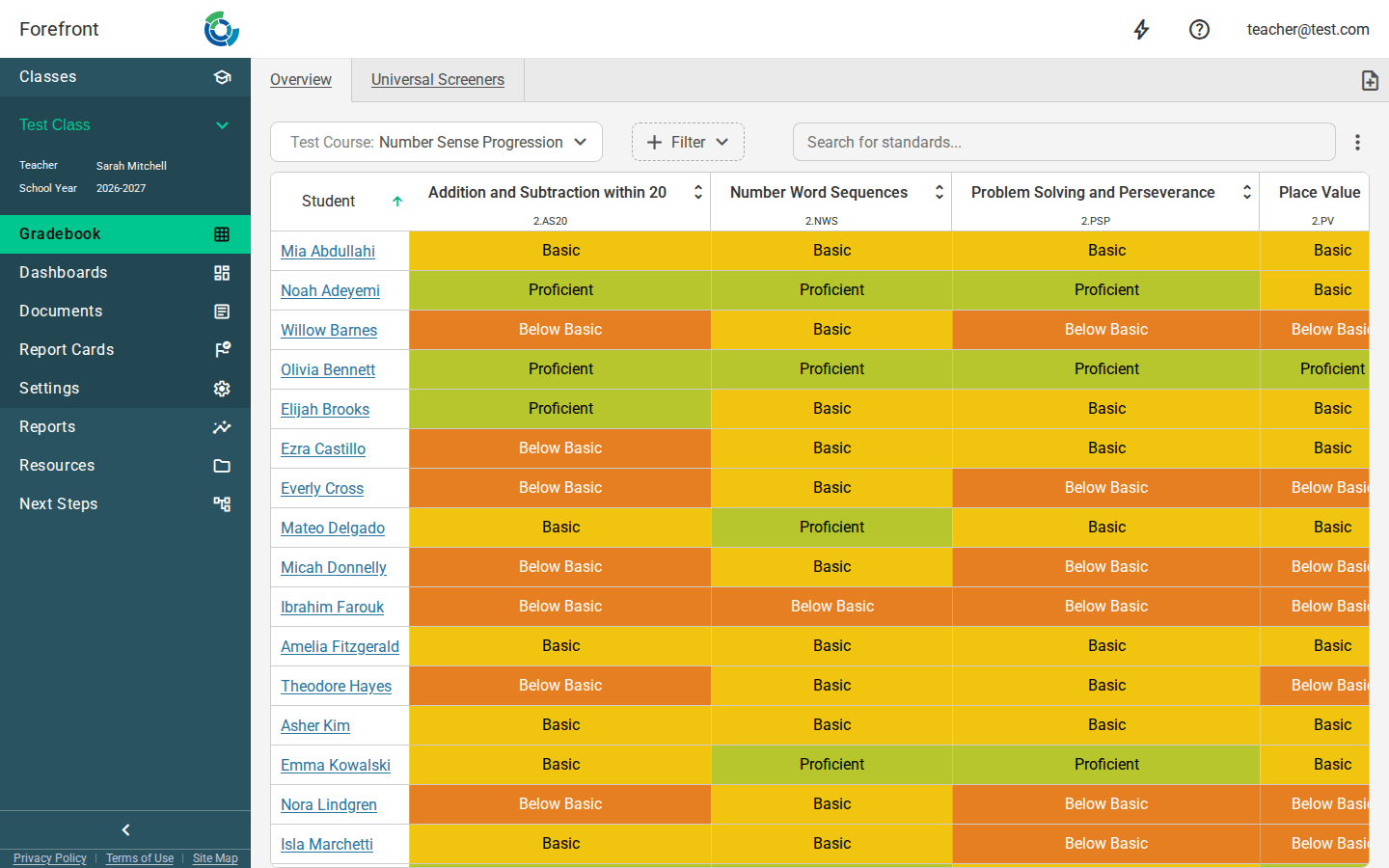
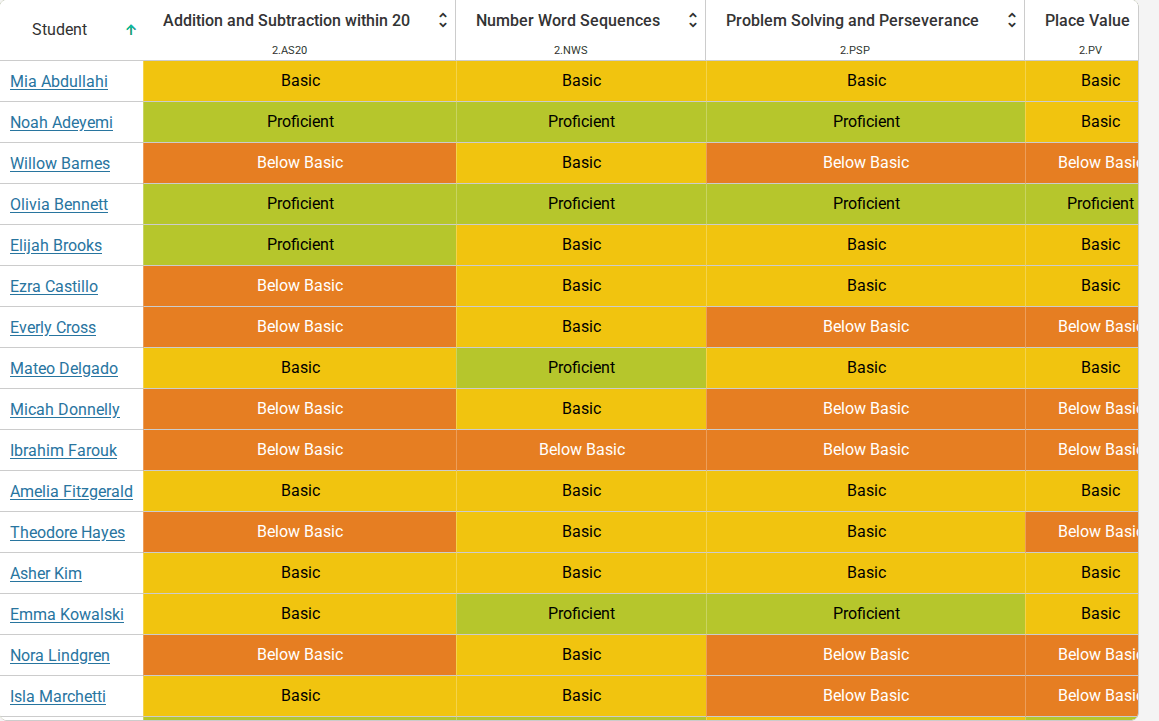
The Gradebook Overview is the home page for a class’s curriculum. It shows a grid of your students down the side and the curriculum’s standards across the top, with a colored proficiency mark in each cell so you can see, at a glance, how every student is doing on every standard.
Reading the grid
- Rows are students, columns are standards. Each cell shows a student’s current proficiency on that standard as a colored indicator.
- Click a student’s name to open that student’s detail pages (standards, assessment history, notes, and more).
- Click any proficiency cell to open the Body of Evidence — the individual scores and assessments that add up to that proficiency mark.
Choosing what the grid shows
Lens selector. The dropdown at the top left picks the standards lens — the set of standards being shown. A course can have more than one lens (for example, a state-standards view and a program-aligned view). Switching the lens changes which standards appear as columns.
Drilling into a standard. Standards are hierarchical. Click a column header (or use a cell’s right-click menu → Navigate Down) to drill into that standard’s children; use Navigate Up to go back out. This lets you move from broad domains down to specific skills without leaving the page.
Standard search. Use the Search for standards… box to jump straight to a standard by code or description and add it as a column.
Filters
Use the Filter menu to narrow the data the grid is built from. You can apply:
- Custom Date Range — only count evidence recorded between two dates.
- Term — restrict to a school term.
- Report Card Grading Period — restrict to a report card’s grading window (only available when the course has report cards).
- Program — show only evidence from selected programs in the curriculum.
Active filters appear as chips next to the Filter menu; click a chip to edit it or the ✕ to remove it. Only one date-based filter (date range, term, or grading period) can be active at a time, but a Program filter can be combined with any of them.
Sorting
- Right-click the Student column header to sort students by first or last name.
- Right-click a standard column (or use its header menu) to sort students by their proficiency on that standard, ascending or descending.
Managing students from the grid
Right-click the Student column header and choose Add a student to this class to enroll students, or right-click a student’s name and choose Remove from class to unenroll them. (If the class has no students yet, the page shows an Add students now button.)
Printing
The overview includes a printable proficiency grid — use your browser’s print command to produce a clean, printer-friendly copy that includes the teacher, course, and term in the header.
On small screens
On phones and at high zoom, the two-dimensional grid is replaced by a stacked layout: one card per student listing that student’s standards and proficiency marks. Everything else (opening the body of evidence, the student and cell menus) works the same way.
If the page looks empty
- “This course is not configured” — the course has no standards lenses yet. Ask your district manager to configure the course.
- “This lens has no standards” — the selected lens is empty; pick another lens or ask your district manager to configure it.
- “This class has no students” — add students using the button shown, or the Student column header menu.