 Forefront
Program & Part Overview
Drilling into a program/part to see its assessments and class results.
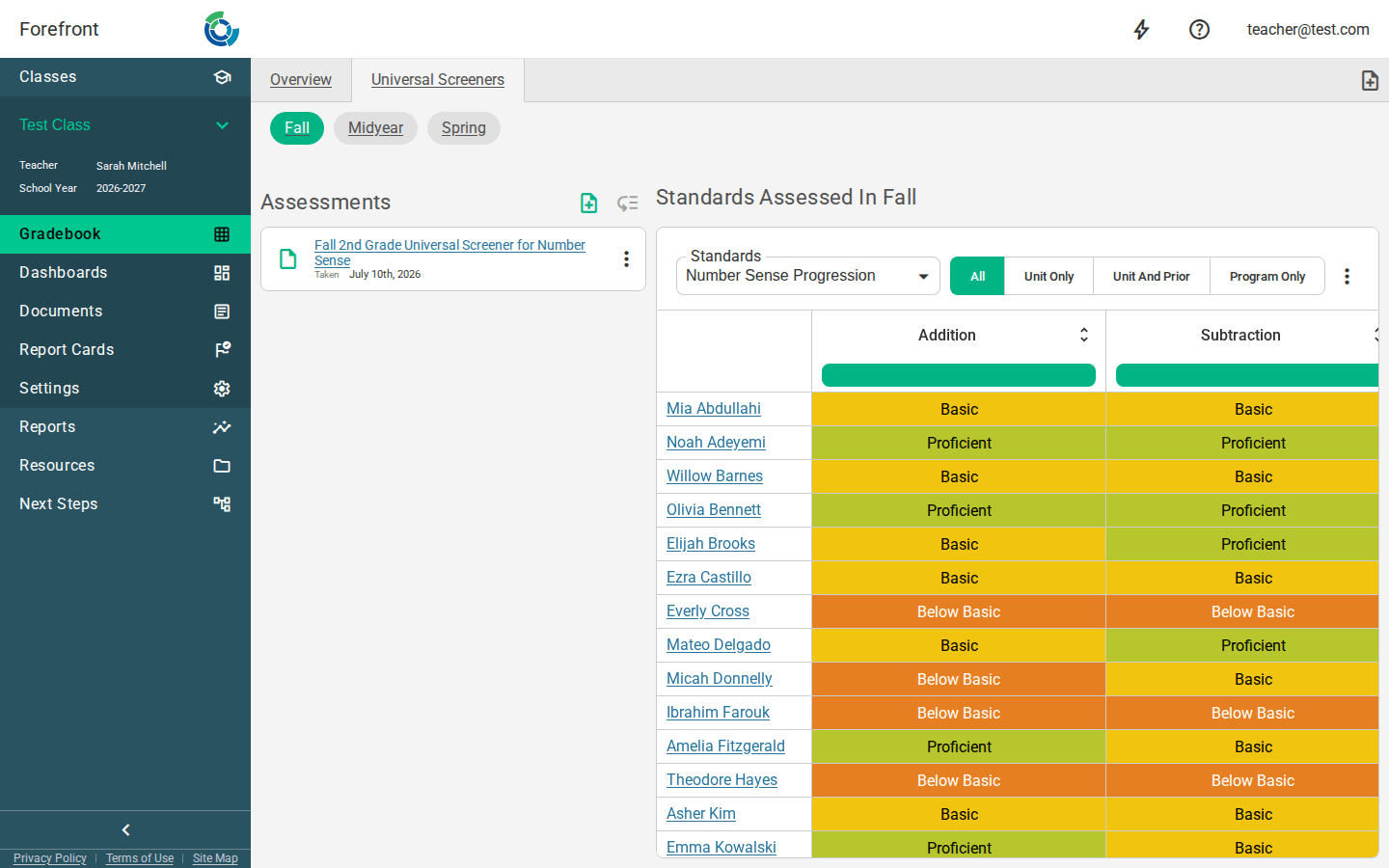
The Program & Part Overview drills into a single part (unit) of a program and shows two things side by side: the assessments in that part, and a proficiency grid of how your students are doing on the standards those assessments cover.
Assessments
The left side lists every assessment in this part — both the curriculum’s assessments and any custom ones you’ve added. Each entry shows the assessment’s name, its icon, and the date it was Taken (if it has been). Click an assessment to open its spreadsheet for scoring.
Use each assessment’s options menu (⋮) to:
- Open Interview — open the assessment in interview mode (when available).
- Open Spreadsheet — open the scoring spreadsheet.
- Edit / Open In Resources — open the underlying resource (you’ll see Edit if you can modify it, otherwise Open In Resources).
- Proficiency exclusion — toggle whether this assessment’s scores count toward proficiency for this class. (Only available for assignments that belong to this class.)
- Move to part… and Remove — for custom assessments you’ve added.
Adding and reordering assessments
- Add custom assessments (the note_add button in the Assessments header) lets you attach your own assessment to this part.
- Reorder custom assessments (the low-priority button) turns on reorder mode. Drag the handles to set a new order, then click Done Reordering. Only custom assessments can be reordered — curriculum resources are ordered by the district. If there are no custom assessments, the reorder button is disabled.
Reading the standards grid
The right side, Standards Assessed In
- Rows are students, columns are standards covered by this part’s assessments. Each cell shows a colored proficiency mark.
- Click a student’s name to open that student’s detail pages. Right-click a name for a menu with Open In New Tab and Remove From Class.
- Click any proficiency cell to open the Body of Evidence — the scores and assessments behind that mark.
- Each column header shows the standard’s label plus an assessment opportunities strip indicating which assessments in the part touch that standard and whether they have data yet.
Choosing what the grid shows
Standards lens. The Standards dropdown picks which set of standards appears as columns. Alongside the curriculum’s lenses there’s an Assessed Standards option that shows only standards that have actual data.
Included assessments. The button group controls which assessments feed the proficiency calculations:
- All — every assessment that covers these standards (the most up-to-date view).
- Unit Only — just this part’s assessments.
- Unit And Prior — this part and everything before it in the program.
- Program Only — every assessment in this program.
Sorting
Click the sort button in any standard’s column header to sort students by their proficiency on that standard. Clicking cycles through ascending, descending, and off; students with no score sort last.
Exporting and printing
- Use the export menu (the icon next to the button group) and choose Export table as CSV to download the grid as a spreadsheet named with the class, program, part, and term.
- The page also includes a printable proficiency grid — use your browser’s print command for a clean, labeled copy.
When the grid is empty
- If none of the part’s assessments cover the selected standards, you’ll see a No Standards Assessed placeholder (“None of the assessments in this part assessed the selected standards”). Try a different lens.
- Early in the year, before any scores exist, the grid still lists your students and the assessment opportunities so you can start scoring.