 Forefront
Printing and Scanning Paper Forms
Print an assessment's paper forms for your class from the gradebook, then scan the filled-in stack back in and follow it while it's read.
When an assessment has a paper form, you can give it on paper and still skip typing the scores in: print a copy for each student from your gradebook, score it by hand as you normally would, then scan the whole stack back in. Forefront reads each page, you check what it read, and the scores go into the spreadsheet. This article covers printing and uploading; Reviewing Scanned Scores covers checking and applying what was read.
Paper forms are a district feature. If you don’t see these options, your district doesn’t have Paper Forms turned on, or the assessment has no paper form yet — see Creating a Paper Form.
Printing a class set
Open the assessment’s spreadsheet and open the ⋮ actions menu. An assessment with a paper form offers Print Paper Forms and Upload Scanned Forms.
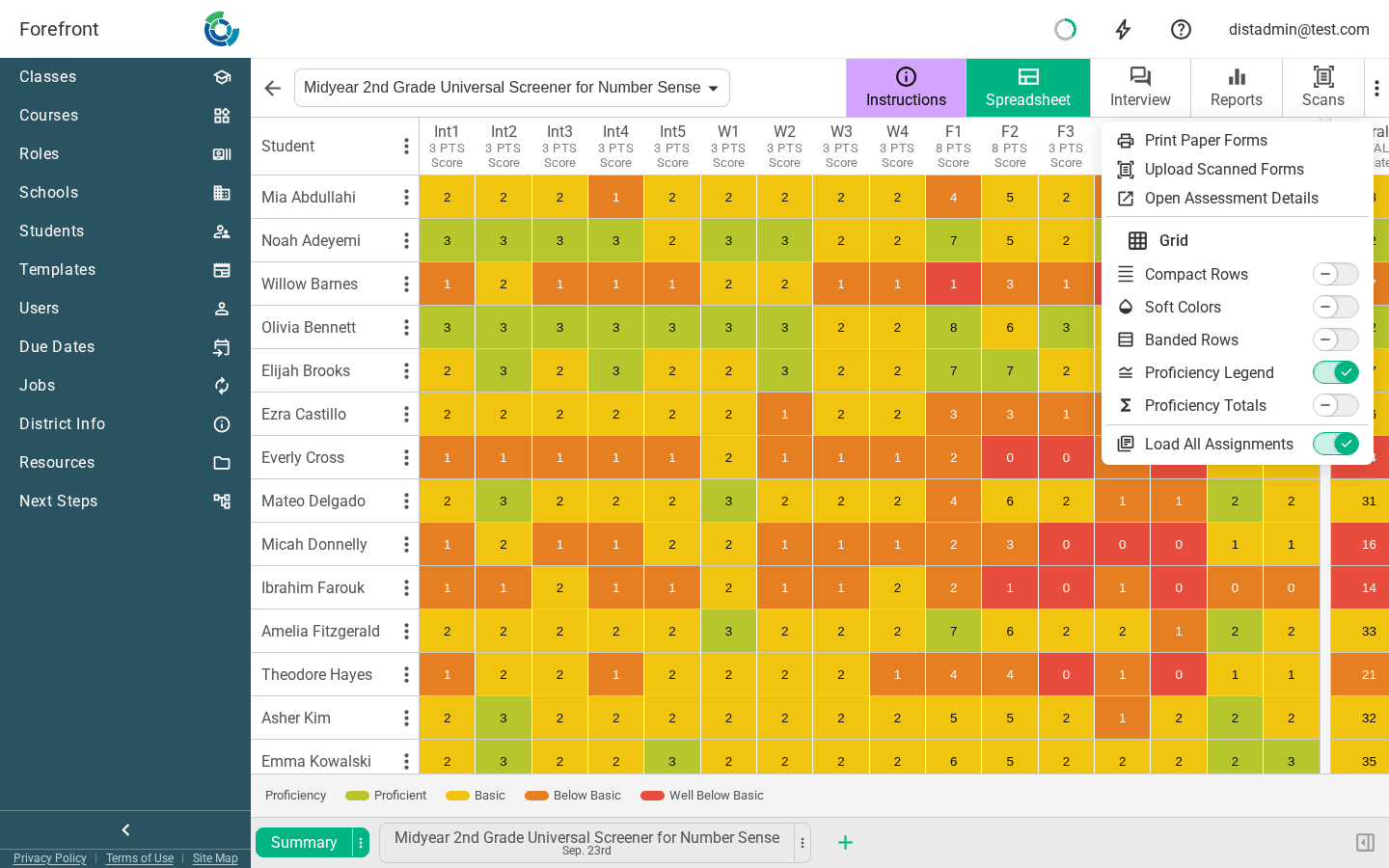
Print Paper Forms makes one PDF with a copy for each student in your class.
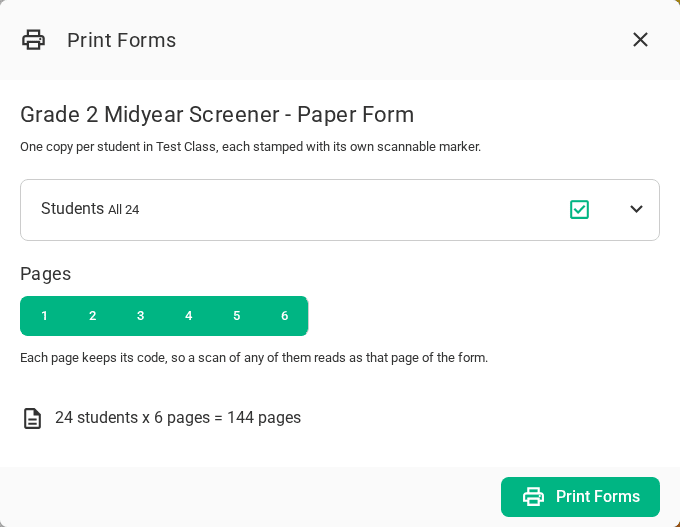
- Form — if the assessment has more than one paper form, choose which.
- Students — everyone in the class, to start. Open the list to untick the students who shouldn’t get one (absent, already done, moved); the checkbox clears or picks them all.
- Pages — every page, to start. Turn a page off to leave it out — the interview note catcher without the written pages, say. Each page still scans as its own page of the form.
The count at the bottom says how many pages you’ll get. Printing runs as a job; the PDF is ready to download from your Jobs when it’s done. Print every page on its own sheet — don’t print two pages to a sheet or shrink to fit, or the codes may not scan.
Each page carries the student’s name and a code in the spot the form was set up with. Score on the page as you normally would: write each score in its box, tick the rubric boxes, and jot notes where the form has room for them.
Scanning the stack in
Scan the whole stack into one PDF, in any order and either way up — each page’s code says whose it is and which page of the form. A copier’s or document feeder’s “scan to PDF” is ideal; grayscale or color, around 200–300 dpi. Pages of anything else in the stack are listed as not read, and don’t hold up the rest.
Then choose Upload Scanned Forms from the actions menu.
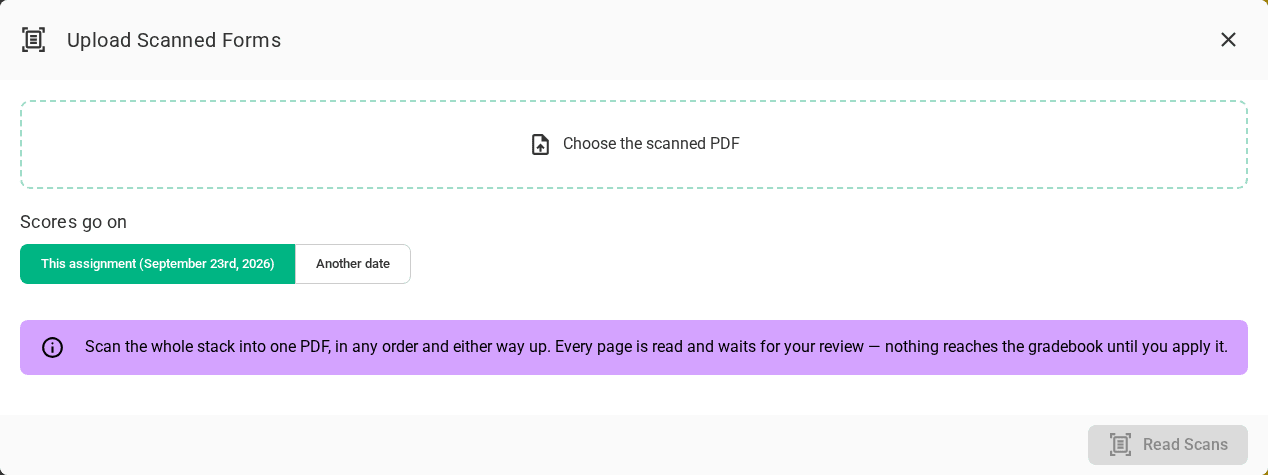
Choose the PDF, and where the scores go:
- This assignment — the assignment open in your spreadsheet, whatever its date. Everyone’s scores go on it.
- Another date — each student’s scores go on their class’s assignment that day, which is made if there isn’t one.
Read Scans uploads the file and starts reading it. Nothing goes into the gradebook yet — every page waits for you to review it.
The Scans page
While there’s an upload to work through, the gradebook shows a Scans tab beside Spreadsheet and Reports. It lists your class’s uploads for this assessment, newest first, and where each stands.
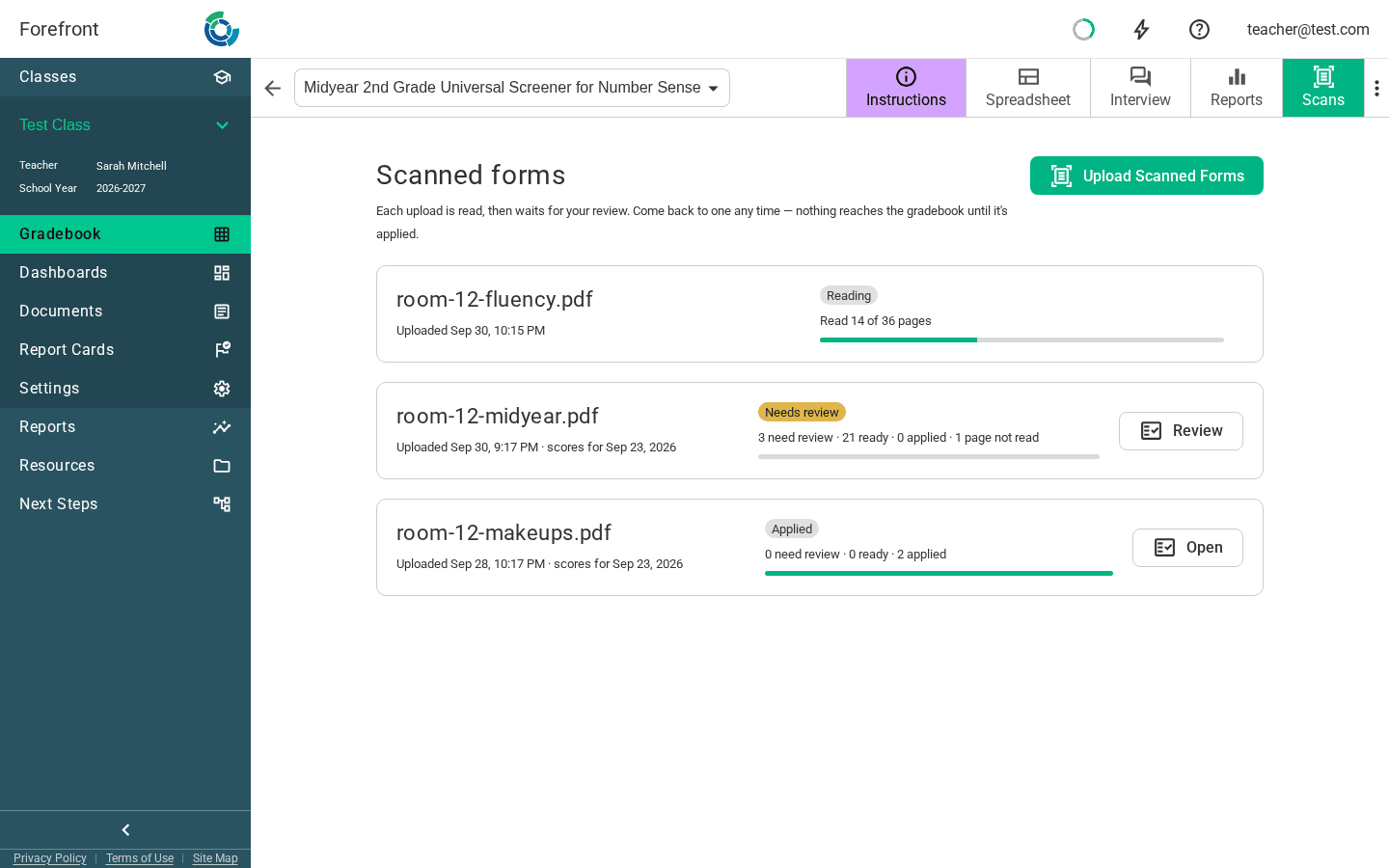
- Reading — pages are still being read, with how far along it is. A large stack takes a while; you can open what’s been read so far.
- Needs review — read, with scores that need a person to look at them.
- Ready to apply — everything read is settled, waiting to go into the gradebook.
- Applied — in the gradebook.
- Failed or Stopped — reading couldn’t finish, and says why. What was read can still be reviewed; upload the scan again to read the rest.
You don’t have to work through an upload in one sitting. Come back to it from here any time. Once every upload is finished the Scans tab goes away, until the next upload.
Uploads that aren’t for one class
A stack gathered across classes — a whole grade level’s, collected by a coach — is uploaded from the paper form’s own Scans page instead; each student’s scores go on their own class’s assignment. See Creating a Paper Form.