 Forefront
Reviewing Scanned Scores
Check what was read off your scanned paper forms, settle the scores that need a person, and apply them to the gradebook — or take an import back out.
After a scanned stack of paper forms is read (see Printing and Scanning Paper Forms), nothing is in the gradebook yet. The review page shows what was read off each page, asks you about anything it isn’t sure of, and applies the scores when you say so. Open it from the Review button on the gradebook’s Scans page.
What needs you
The review opens on Needs review: only the scores a person should look at, grouped by student.
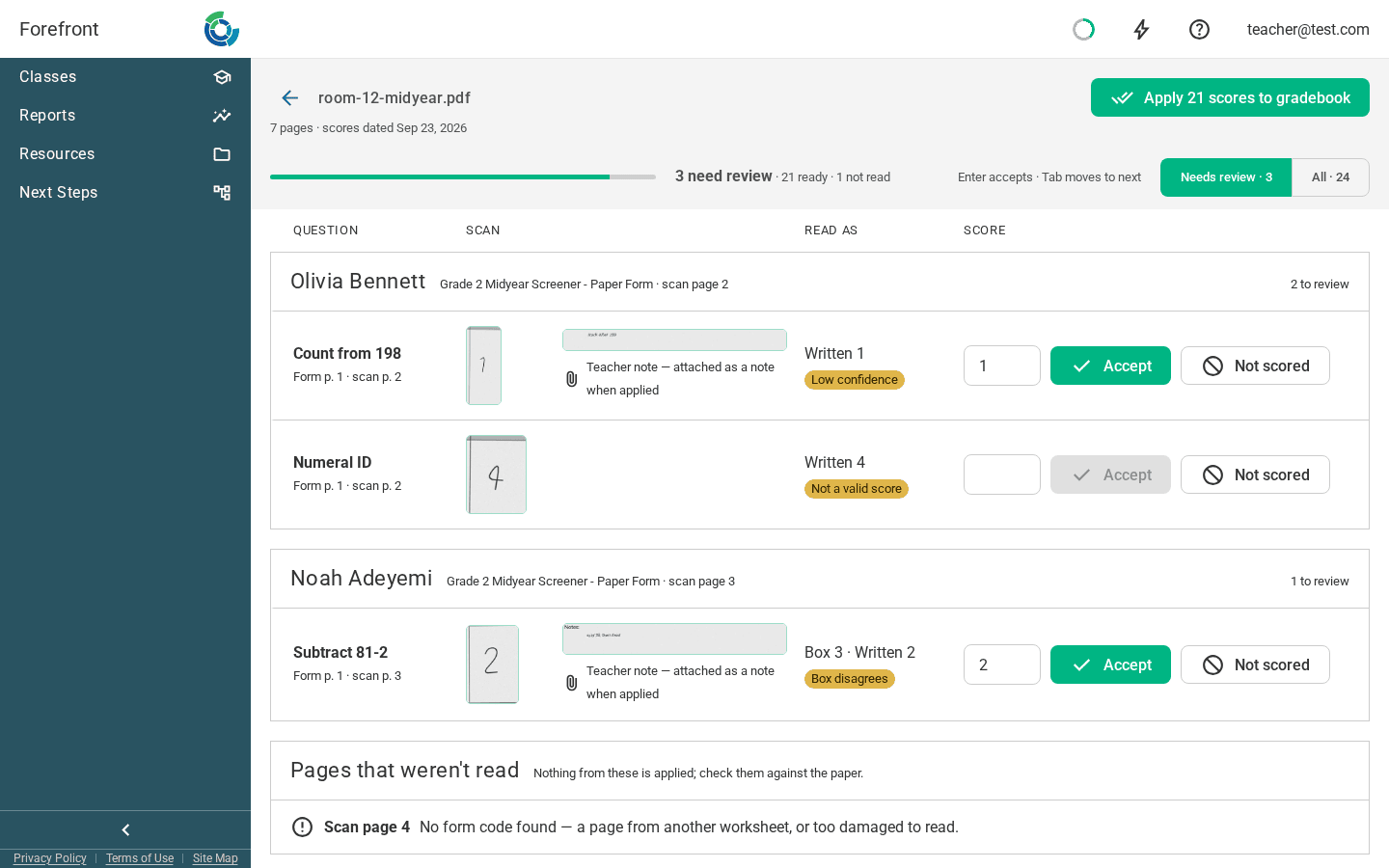
Each row shows:
- The question, and which page of the form (and of your scan) it came from.
- The scan — the score cell exactly as it was scanned, so you can read it yourself. Where the form has room for student work or teacher’s notes, those are shown too; they’re attached to the score as notes when it’s applied.
- Read as — what was read: the marked box, the written score, or both — and a label saying why it needs you.
- Score — what will be applied. Type the right score if it’s wrong.
The label says why a score needs you:
- Low confidence — the handwriting couldn’t be read with certainty. The best reading is filled in; check it against the scan.
- Not a valid score — what’s written isn’t a score the question takes (a 4 on a question scored 1–3). It’s shown but never filled in.
- Not a number — something other than a score is written in the cell.
- Box disagrees — the marked rubric box and the written score don’t match.
- No box marked / No score written — the question has both, and only one was filled in.
- Unclear box — a rubric box is too faintly marked to call, or more than one is.
A question with nothing marked or written at all isn’t flagged — it’s left unscored, as it would be if you’d skipped it in the spreadsheet.
Settling a score
- Accept takes the score in the Score box — what was read, or what you typed. Enter accepts and moves to the next score; Tab moves without accepting.
- Not scored leaves the question unscored for that student.
- Accept N entered scores accepts every score you’ve typed at once.
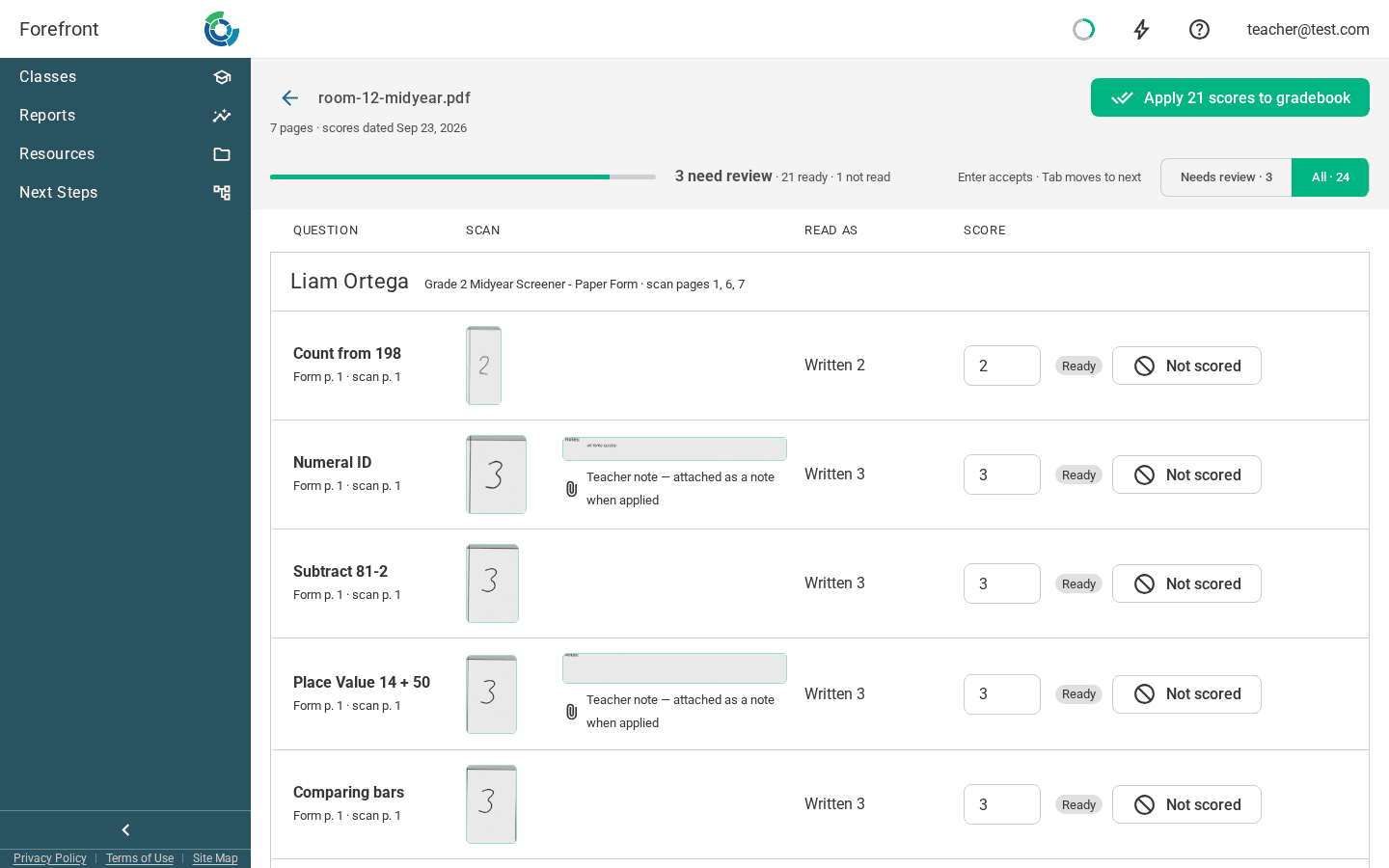
Choosing All shows every score that was read, including the confident ones that need nothing from you — handy for spot-checking a few against the paper.
Pages that weren’t read are listed at the end — a page with no code on it (from another worksheet, say) or one too damaged to read. Nothing from them is applied; check them against the paper and enter those scores in the spreadsheet.
Applying to the gradebook
Apply to gradebook writes every settled score into the spreadsheet: onto the assignment you chose when uploading, or each student’s class’s assignment on the upload’s date. The scanned work and teacher’s notes go on each score as notes. Scores you haven’t settled yet stay here, and you can apply again once they are — applying never writes a score twice.
If a student’s scores couldn’t be written — they aren’t in a class with this assessment on that date, say — the review says so, and the rest of the class’s scores still go in.
Taking an import back out
If an import went onto the wrong date, or the wrong stack was scanned, Undo Import takes it back out of the gradebook. It appears once an import has been applied.

Undo deletes the assignments the import made, with the scores and notes on them. Each can be brought back from Restore Deleted Assignments in the spreadsheet’s actions menu. Scores the import wrote into assignments that were already there stay. The scans are left as they were, ready to be applied again.
Who sees what
You see the uploads from your own class’s gradebook, and your own uploads. The people who manage a paper form see every upload made from it. In any upload, everyone sees only their own students.