 Forefront
Adding a Standards Table to a Handout
Insert a table that shows each student's proficiency on a set of standards, either across a school year's due dates or across several school years.
A standards table shows a student’s proficiency on the standards you choose, one row per standard. Each cell shows that student’s proficiency level for that standard, so a single handout works for every student it’s printed for.
You choose what the columns show:
Within a year: one column per report card due date in the term, to show progress through the year.
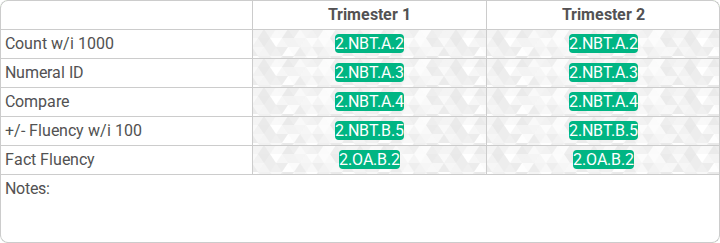
A Within a year table with the notes row on, just after it’s inserted. Across years: one column per school year, to show how the same term compares from year to year.
Before you begin
- You need to be able to edit the handout. If it’s a handout that Forefront or your district provided, clone it first. See How to Clone and Modify an Existing Handout.
- A standards table can go anywhere a regular table can go in the handout.
Inserting a standards table
- In the handout editor, place your cursor on an empty line where you want the table.
- Type /standards and choose Standards table from the menu. It’s under Build. See Slash Commands for how the menu works.
- Fill in the Standards table window (described below).
- Select Insert Table.
Insert Table stays unavailable until you’ve added at least one standard. For a Within a year table, you also need at least one due date selected.
Choosing the columns
Columns is the first choice in the window.
Within a year
Each column is one of your district’s report card due dates, listed in date order. All of them are selected to start with. Open Due dates and clear any you don’t want in the table.
Range sets which scores each column counts:
- Cumulative: every score from the start of the term through that due date. This matches what a report card usually shows.
- Due date window: only the scores that fall inside that due date’s own dates.
If your district has no report card due dates set up, the window says so, and the table gets a single column covering the whole term.
Across years
Each column is the same term in a different school year, with the oldest year on the left and the current year on the right. Under Years, choose 2 years, 3 years, or 4 years. The default is 3.
The years count back from whichever term the handout is run for, not from a fixed date. A handout you set up this year will still show “this year and the two years before” when it’s used next year.
Each column heading prints the name of that year’s term. If a student has no records for a year, or that year comes before your district’s earliest term in Forefront, that column is left blank.
Choosing the standards
Select the + next to Standards to pick the standards to report on. Each standard becomes one row. To remove a standard, select the × on its row.
Layout options
- Row label: what goes in the first column of each row.
- Empty: left blank for you to fill in.
- Short description: the standard’s short description. This is the default.
- Long description: the standard’s full description. A standard without one uses its short description.
- Proficiency backgrounds: colors each cell by the student’s proficiency level. This is on by default.
- Notes row: adds a row at the bottom of the table with space for written notes. This is off by default.
After you insert the table
The standards table becomes an ordinary table in your handout, so you can format it, resize its columns, and add or remove rows like any other table.
In the editor, each proficiency cell shows the standard’s code (for example, RL.1.1) as a placeholder. In an Across years table, the headings show placeholders such as Term (2 years back). When the handout is previewed, printed, or emailed, these are replaced with each student’s own proficiency levels and the real term names.