 Forefront
Adding or Accessing Files Securely in Forefront Resources
This article explains how users with district write access (read about roles here) can upload or download files securely through Forefront resources.
(More: Understanding User Roles)
Users with higher-level permissions can now access their Secure Files through Forefront, without an SFTP client.
Accessing the Secure Folder
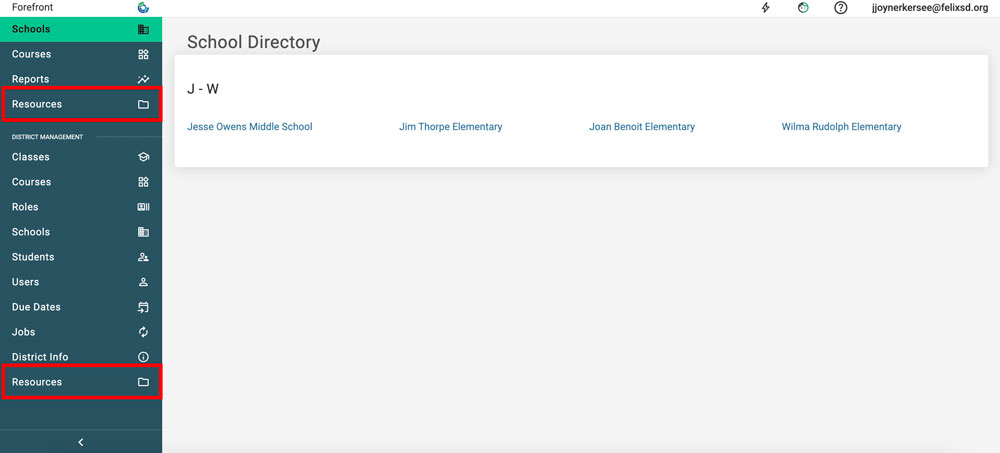
Step 1: Click “Resources” in the left side bar.
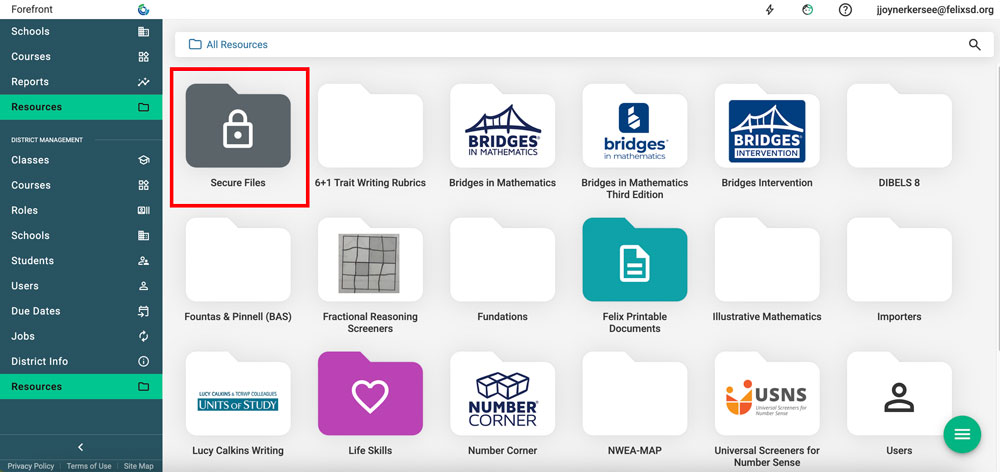
Step 2: Find and click the secure folder to open it.
Uploading a File to the Secure Folder
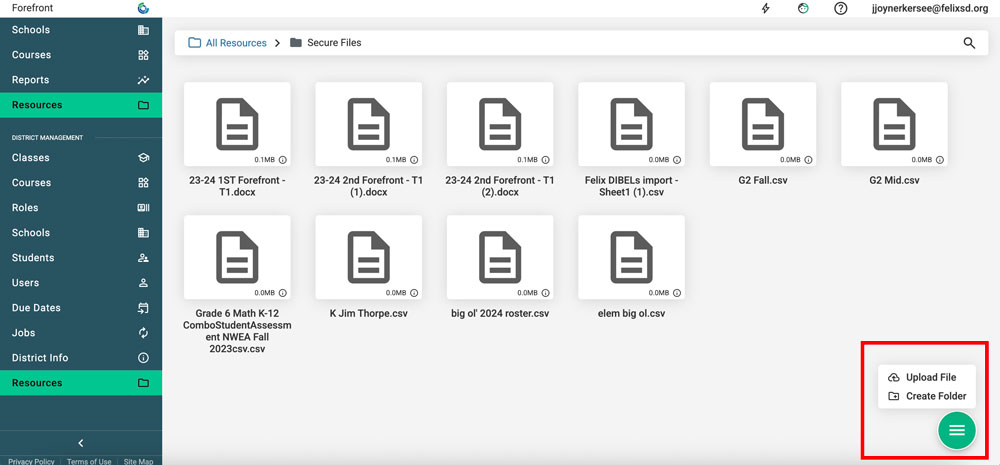
Step 1: Click the green hamburger menu to create a folder to upload into or upload the file.
Step 2: Use the file picker to select the correct file, then click “Open” (or whatever text the operating system uses).
Downloading a File from the Secure Folder
Click the file in the folder. Depending on the browser and file type, this will either download the file or open the file in a new tab.
Need more support?
Submit a support request or email our team at support@forefront.education.