 Forefront
Creating a Paper Form
Turn an assessment's printable PDF into a paper form: mark where each score is written, then print a copy per student that can be scanned back into the gradebook.
A paper form is an assessment’s printable PDF — a note catcher, a written component, a fluency sheet — marked up so that Forefront knows where each question’s score is written on it. Every copy printed from it carries the student’s name and a code on each page, so when the filled-in stack is scanned back in, each page is matched to its student and each score to its question.
This article covers setting a form up. Once it’s set up, teachers print it and bring the scans back from their gradebook — see Printing and Scanning Paper Forms and Reviewing Scanned Scores.
Paper forms are a district feature. If you don’t see them, ask your Forefront contact to turn on Paper Forms for your district.
Creating the form
Paper forms live in Resources, alongside the assessment they score, and are set up by Forefront and by your organization’s catalog authors — teachers print and scan them, but don’t create them. In the folder where the form should go, choose Create Paper Form, pick the assessment, and upload its PDF — the same file you’d print by hand. The form opens in the editor.
Only the questions a teacher scores by hand are listed: manually entered and interview questions. An overall score, a calculated question, or one that’s imported from another system isn’t written on paper, so it isn’t on the form.
The editor
The page you’re marking is on the right; the list of what’s on the form is on the left. Work one question at a time: open a question in the list, and everything you mark while it’s open belongs to it.
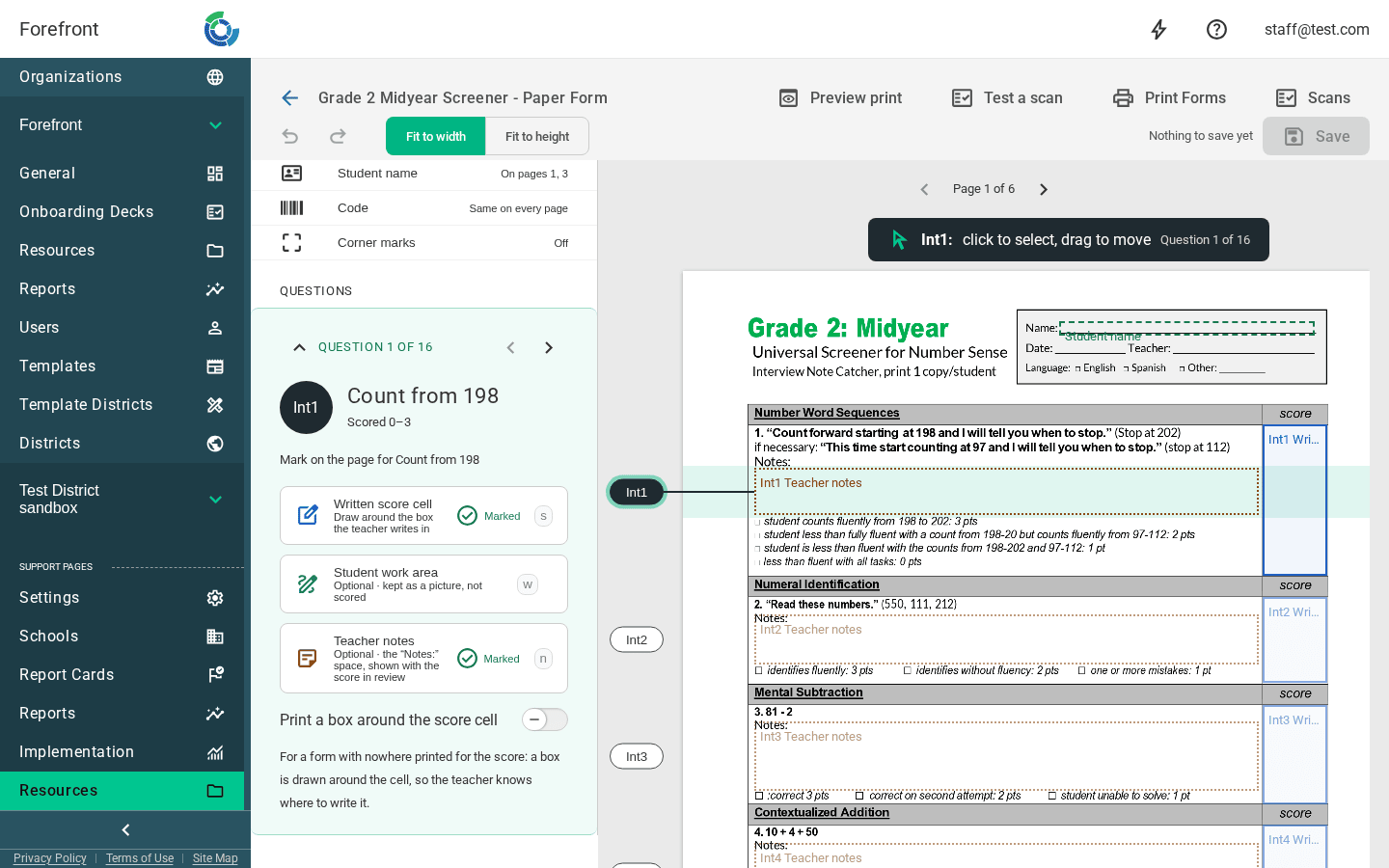
For each question you can mark:
- Written score cell — the box the teacher writes the score in. This is what gets read. Draw around the cell; the editor tightens what you draw to the printed box’s lines.
- Student work area — optional. Kept as a picture of the student’s work and attached to their score as a note; nothing is read from it.
- Teacher notes — optional. The form’s “Notes:” space for the question, kept as a picture and shown beside the score while it’s reviewed, then attached as a note.
The badges down the left edge of the page show which rows belong to which question, and a check mark in the list shows which questions are marked.
Printed on each copy
The top of the list holds what’s printed on every copy rather than read from it:
- Student name — where the student’s name is printed. Drag it onto the name line. A form whose student pages each have a name line can have a box on each.
- Code — where the scannable code goes. It needs a clear spot: nothing printed under or right beside it. The same spot is used on every page unless a page has one of its own.
- Corner marks — optional marks in the page corners, for forms that are photocopied or scanned crooked.
A score with nowhere to write it
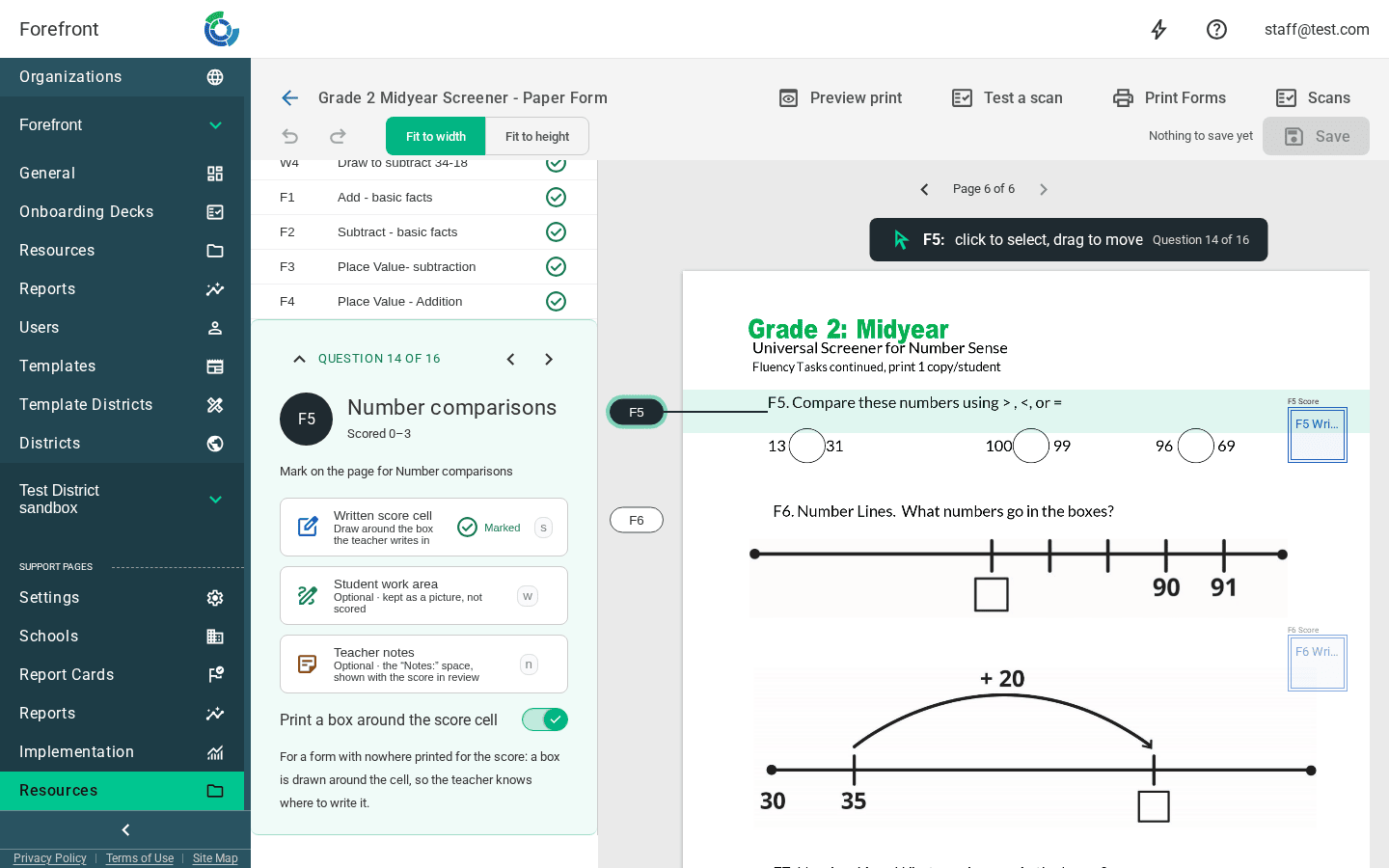
Some pages have no box for the score — a page of fluency problems, or a drawing prompt. Mark the score cell in open space and turn on Print a box around the score cell in the question’s card. The box is printed on every copy, labelled with the question, so the teacher knows where the score goes and writes it where it will be read.
Draft with Claude
A newly created form can be drafted for you: Draft with Claude reads each page and marks the score cells, notes spaces and a spot for the code. Check each question afterwards — the draft is a first pass, and one undo takes the whole thing back.
Seeing the page
Fit to width fills the space beside the list; Fit to height shows the whole page at once. Undo and redo are in the toolbar too, along with whether your changes are saved.
Checking the form before it goes out
- Preview print makes a copy for a made-up student, exactly as it will print: the name, the code, and any boxes you’ve asked to be drawn.
- Test a scan reads a scan of a filled-in copy and shows what it would score, without storing anything or touching a gradebook. Use it to check a form before a class set goes out.
Printing from the form
Print Forms in the editor prints a copy for each student in the group you pick — a class, a course at a school, or chosen students. You can print only some of the form’s pages, and, once a group is picked, leave some students out.
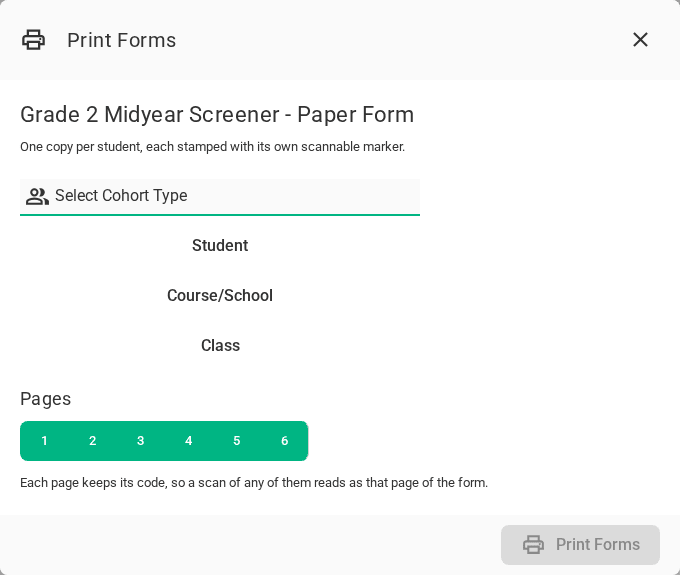
Each copy’s pages keep their own page numbers, so printing only pages 5 and 6 still gives pages that scan as pages 5 and 6 of the form. Teachers usually print from their gradebook instead, where the class is already chosen — see Printing and Scanning Paper Forms.
The form’s scans
A stack scanned from somewhere other than a class’s gradebook — a whole grade level’s, collected by a coach — is uploaded from the form’s own Scans page, reached from the editor’s toolbar.
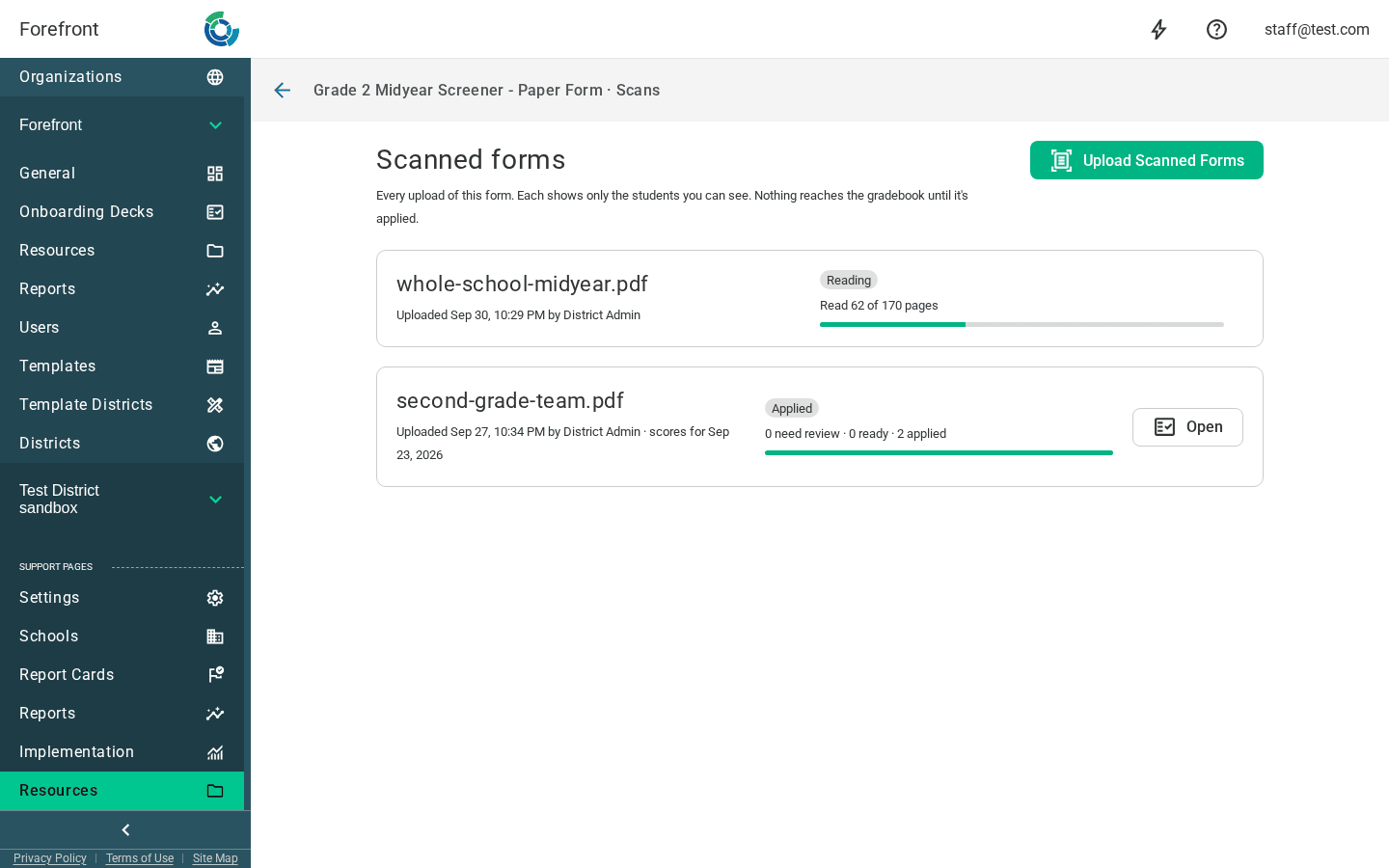
People who can edit the form see every upload made from it, with who uploaded each; anyone else sees their own. Inside an upload, everyone sees only their own students. Each student’s scores go on their class’s assignment on the date the upload names — made if their class doesn’t have one that day.
Editing a form that’s already been printed
Paper that’s already been printed keeps the layout it was printed with, and it still scans correctly after the form is edited. Moving a score cell, a notes space or a work area applies to every copy ever printed. Moving the name, the code or a drawn box changes only what’s printed from then on.