 Forefront
Student Assessment History
A student's assessment history over time.
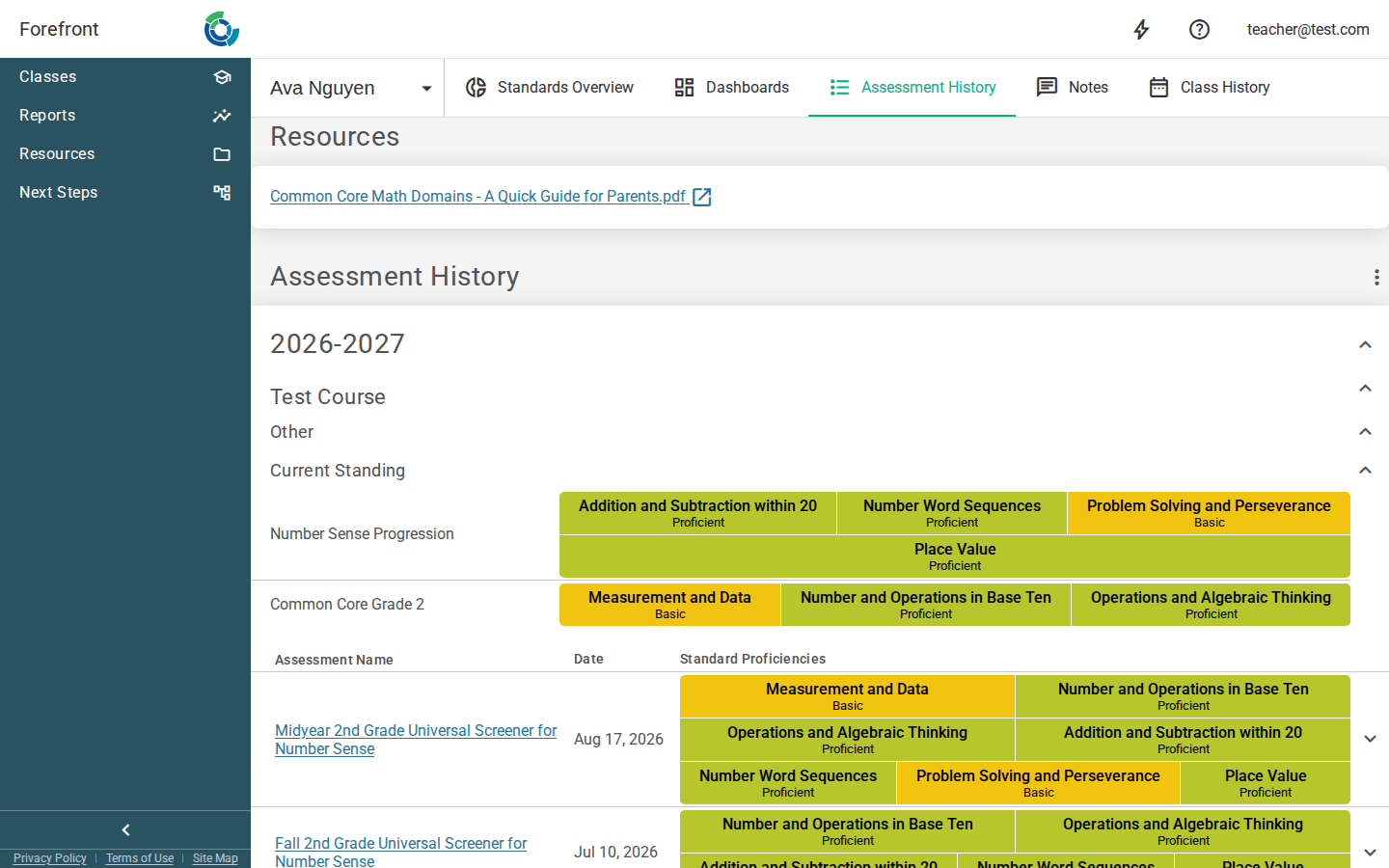
The Assessment History page shows a student’s assessments over time, grouped by school year and organized by course and curriculum. It’s the place to see every assessment a student has taken, the standards each one measured, and how the student’s proficiency has developed.
Reading the history
The page loads the two most recent school years to start, with the newest term at the top. Within each term, assessments are grouped by course, then by curriculum (a curriculum with no clear course lands under Other). Each group has a collapse/expand arrow so you can focus on the terms and courses you care about.
Within a curriculum you’ll see:
- Current Standing — the student’s current proficiency for each standards lens in that curriculum, shown as colored standard cells.
- A list of the individual assessments, each with its Assessment Name, Date, and the standard proficiencies it produced. Hover a standard cell to see the standard’s code, name, and full description.
Assessments that don’t align to any standards show “No standards alignment.”
Opening an assessment
Click an assessment name to open that assessment. Click a row’s expand arrow to drill into it in place — this shows a per-question table with each question’s Index, Name, Score, and Proficiency. Use the Open details button on a question row to open the full question details.
Excluding a score and deleting an assignment
When you have permission to modify the student’s data, expanding an assessment row shows an actions menu on the question table:
- Exclude from Proficiency — turn this on so this student’s results on that assignment don’t count toward their standard proficiency. Excluded rows are marked and labeled “Excluded from Proficiency.” (If the assignment is already excluded at the class level, the toggle keeps the score excluded even if the class-level exclusion is later removed.)
- Delete Student Assignment — removes the student’s assignment after a confirmation. This action is red because it’s permanent.
These controls only appear if you have write access to the student.
Loading more history
Only two school years load at first. Use Load Previous School Year at the bottom of the page to pull in the next earlier year, one year at a time. The button is disabled once there are no earlier years left to load.
Settings and printing
Use the settings menu (⋮) next to the “Assessment History” heading to change what’s shown:
- Show Overall Score — adds an Overall column to each assessment, showing the student’s total score out of the maximum.
- Show Print Selection — reveals checkboxes next to each assessment (and a select-all checkbox per group) so you can pick exactly which assessments to include, then use your browser’s print command to produce a clean, printer- friendly copy. The printout is headed with the student’s name and ID.
Resources
If your district uses a standards system that has a companion guide (for example, a Common Core math parent guide), a Resources block appears at the top of the page with links that open in a new tab.
If the page looks empty
- “No enrollments were found for this school year” — the student wasn’t enrolled in any course that term. Try Load Previous School Year or check a different term.
- “Error loading student history” — a term failed to load; the message explains what went wrong.