 Forefront
Student Dashboards
Dashboards for an individual student.
The Dashboards page shows saved dashboards focused on a single student, so you can see that student’s data laid out across whatever reports have been built for their class, course, or school — all in one place.
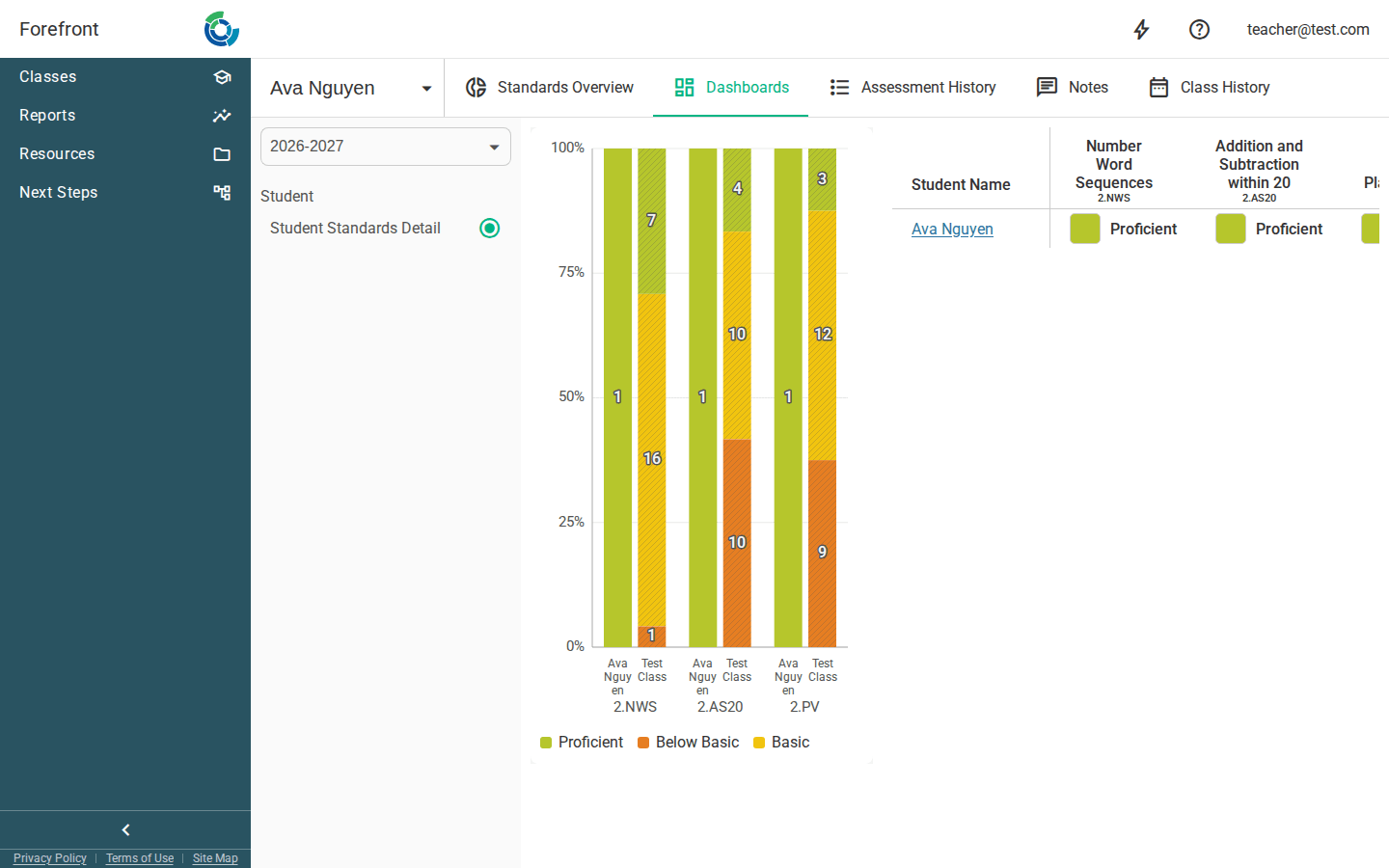
Choosing a dashboard
Every dashboard available for this student is listed for you to pick from. On wider screens the dashboards appear as a list you can click through; on narrower screens they collapse into a dropdown. Either way, selecting one loads it into the main area of the page.
Dashboards are grouped by where they come from — Student, Class, Course, School, or District — so it’s easy to tell whether you’re looking at a student-specific view or a broader report that’s been focused down to this student.
Changing the term
Use the term selector at the top to pick which school term the dashboards report on. Switching terms reloads every dashboard with data from the term you choose. The page opens on the current term by default.
Reading a dashboard
The selected dashboard fills the rest of the page. Each dashboard is built from report cells that have been scoped to this student, so the numbers and charts you see are already narrowed to them for the term you’ve selected — no extra filtering needed.
When there are no dashboards
If no dashboards have been set up for this student, the page shows a “No dashboards are available.” placeholder. The note underneath points you to Create New Report in the top left to start exploring the student’s data on your own.