 Forefront
Student Guardian Management
Managing a student's linked guardians.
The Guardian Management page shows who is linked to a student as a guardian and lets you hand out the links a guardian needs to create their own account. It brings the guardians, their account-creation links, and the student’s secure PIN together in one place.
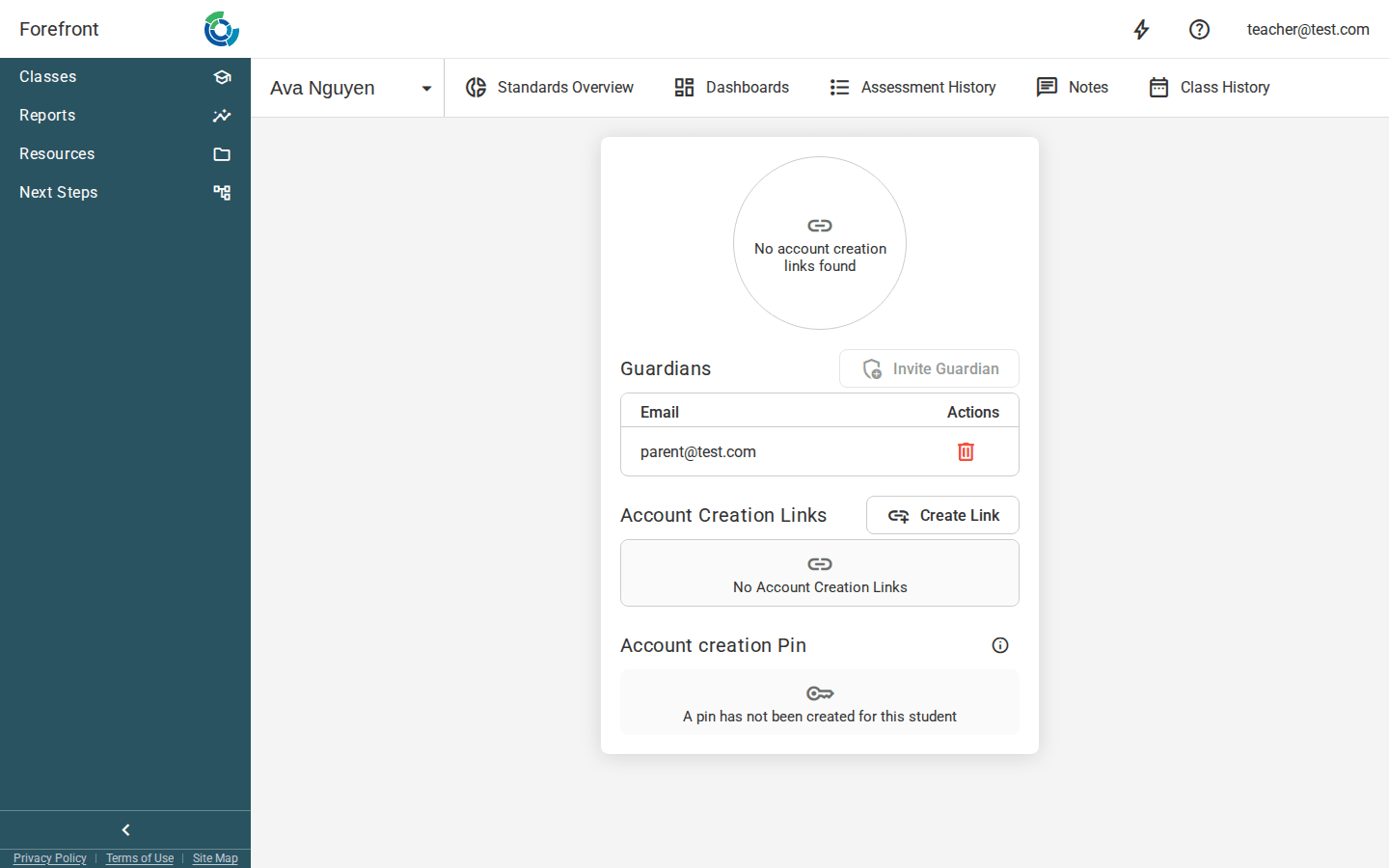
Guardians
The Guardians table lists everyone currently linked to the student, one row per guardian, showing each guardian’s Email. Use the red delete icon in a guardian’s Actions column to remove that person as a guardian for this student.
If no one is linked yet, the table shows a “No Linked Guardians” placeholder.
The Invite Guardian button appears here for inviting a guardian directly, but it isn’t available yet — to get a guardian set up today, create an account creation link (below).
Account Creation Links
An account creation link is what a guardian uses to sign themselves up and get connected to the student. The Account Creation Links table lists each link with its Token and the date it was Created On.
- Create Link — generates a new account creation link for this student. New links appear in the table right away.
- In a link’s Actions column, the copy icon copies the full link to your clipboard (you’ll see a “Link copied to clipboard.” confirmation) so you can send it to a guardian.
- The red delete icon removes a link. Deleted links can no longer be used by guardians to create an account, so delete a link if it was shared by mistake or is no longer needed.
Before any links exist, the table shows a “No Account Creation Links” placeholder.
Account creation QR code
At the top of the page, the most recent account creation link is also rendered as a QR code. A guardian can scan it with a phone camera instead of typing the link, which is handy when you’re meeting in person. If there are no links yet, this area shows a “No account creation links found” placeholder — create a link and the QR code appears.
Account creation PIN
For security, the account creation link is paired with a PIN. After a guardian opens the link, they’re asked for this PIN before the account is created, so keep the PIN separate from the link when you share them.
The page displays the student’s PIN next to a key icon. If the student doesn’t have one, you’ll see “A pin has not been created for this student” instead.