 Forefront
Student Standards Overview
A student's standards proficiency overview.
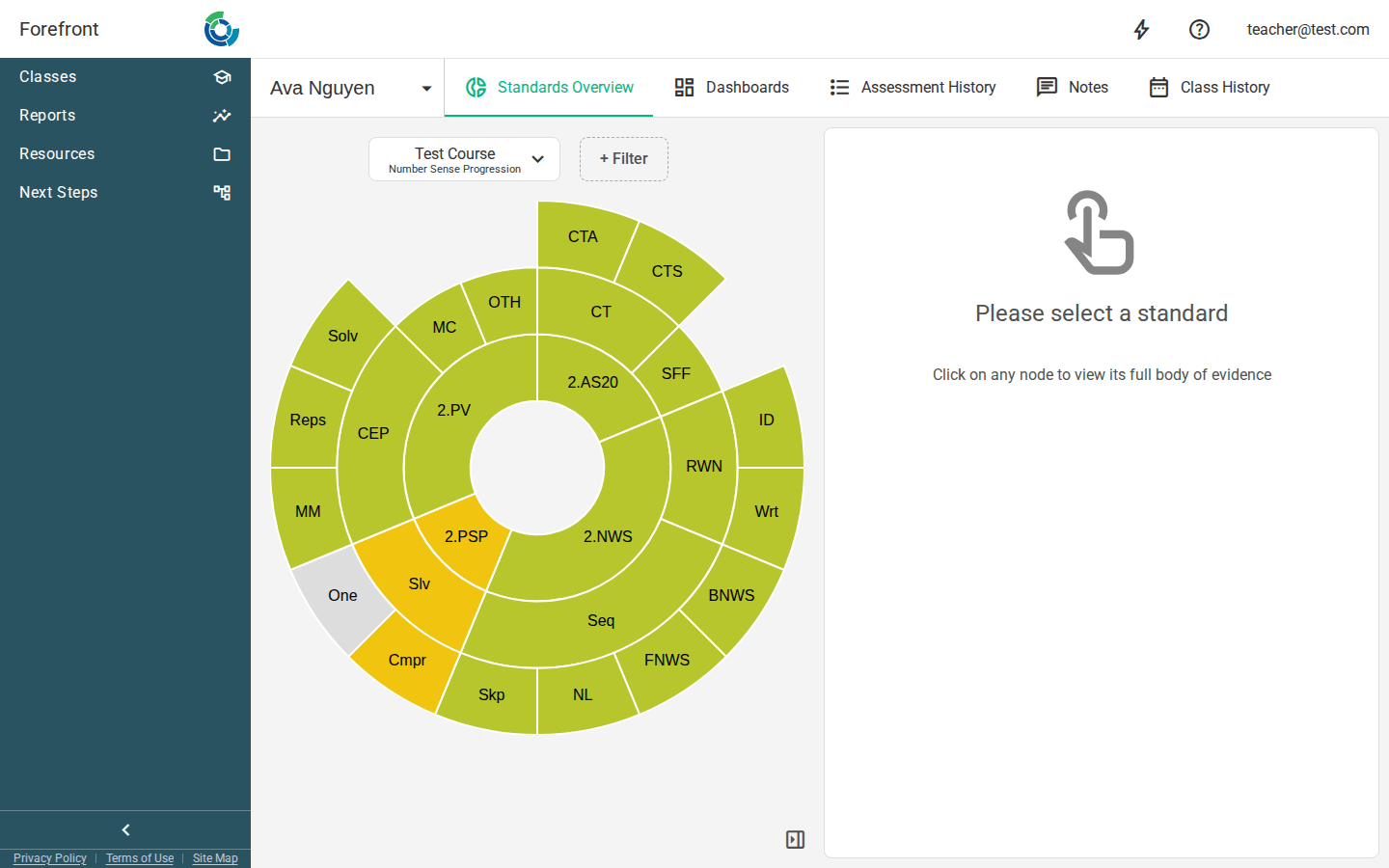
The Standards Overview gives you a single-student view of how one student is doing across a course’s standards. The standards are drawn as a sunburst — a set of nested rings — with each segment colored by the student’s proficiency, so you can see broad domains and the specific skills beneath them at a glance.
Reading the sunburst
The center of the sunburst holds the top-level standards, with their child standards fanning out in the rings around them. Each segment is colored by the student’s current proficiency on that standard, so stronger and weaker areas stand out immediately.
Click any segment to open its full body of evidence in the side panel. Clicking the same segment again closes it.
Choosing what the sunburst shows
Lens selector. The menu at the top left picks the course and standards lens being shown — the set of standards drawn in the sunburst. It’s organized by term, then subject, then course, so you can view the student against any course they’re enrolled in. Switching to a lens from a past term automatically adds a Term filter so you only see the historical data through that term.
The body-of-evidence panel
When you click a standard, the side panel on the right fills in with:
- The standard’s code and description.
- The student’s overall proficiency on that standard.
- A list of the assessments and scores that make up that proficiency — the evidence behind the color.
Before you’ve selected anything, the panel shows a “Please select a standard” prompt with the hint “Click on any node to view its full body of evidence.”
Use the panel toggle button to Open Panel / Close Panel when you want more room for the sunburst, or to bring the evidence back into view.
Filters
Use the + Filter button to narrow the data behind the sunburst and the evidence panel. You can add:
- Term — include only data up through the end of a selected term. The chip reads “Up to <month, year>”.
- Date Range — include only evidence recorded between two dates.
- Program — include only assessments from selected programs in the curriculum.
Active filters appear as chips next to the + Filter button. Click a chip to edit it, or the ✕ to remove it. Only one date-based filter (Term or Date Range) can be active at a time, but a Program filter can be combined with either.
Printing
The page includes a print header with the student’s name and ID, the course and lens, and any active Term or Date Range filter, so a printed sunburst is clearly labeled. Use your browser’s print command to produce a copy.
If the sunburst looks empty
- “Unable to load standards” — the standards data couldn’t be loaded for the selected lens. Try another lens, adjust your filters, or reload the page.
- If a selected lens has no standards, pick a different lens from the lens selector — or ask your district manager to configure the course’s standards.